

Before you start
How a quiz works
In a quiz, participants in your presentation compete against each other to get the most points by submitting the most correct answers to your quiz questions. You progress through the quiz, pausing at each slide for players to answer the question on that slide. All players see a question at the same time on their personal devices and submit their answer from there before the time runs out. Here you can see the screens of the quiz host (on the left-hand computer) and the quiz player (on the right-hand phone).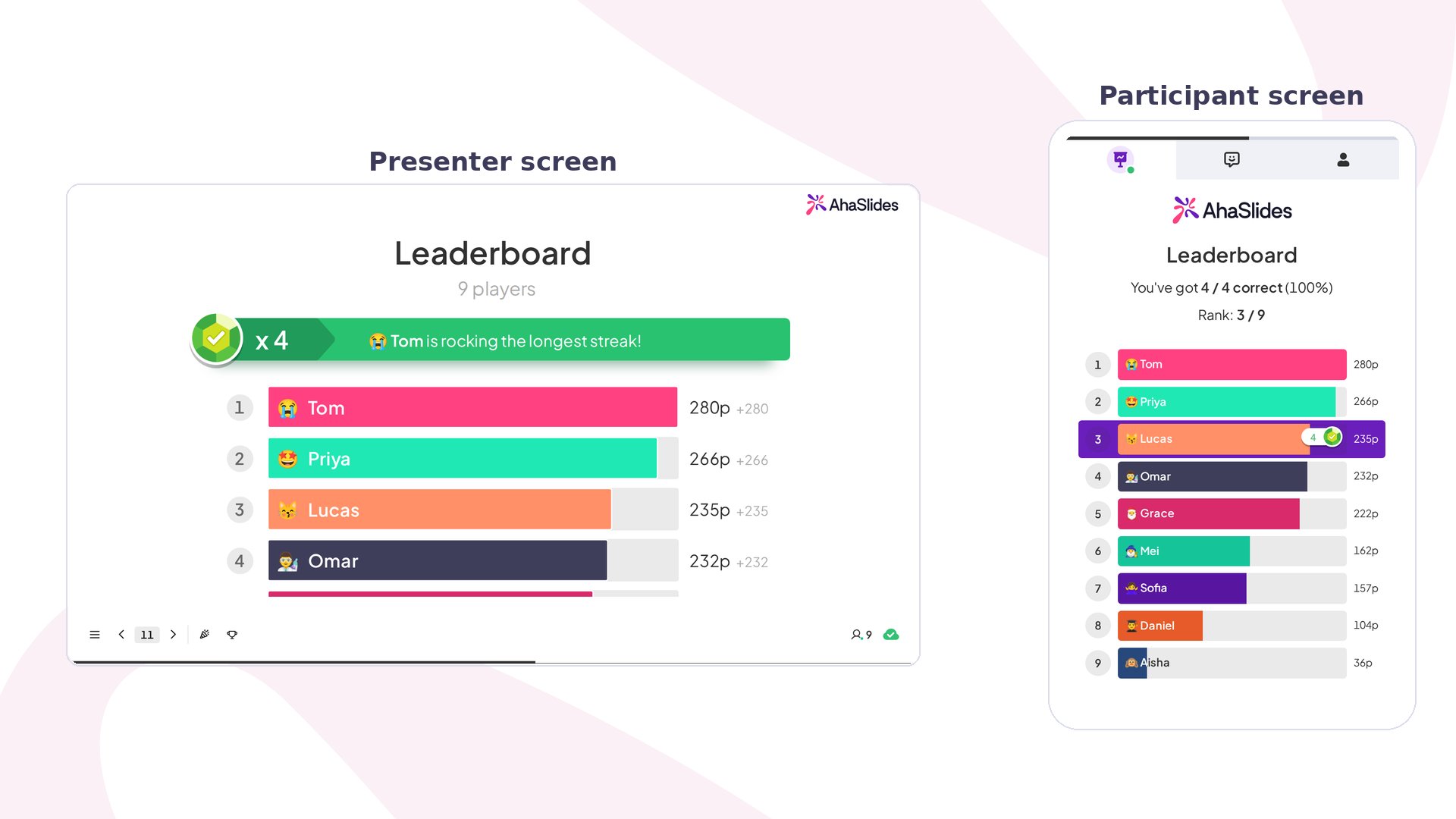
Open a presentation to build in
A quiz is made of quiz slides inside a presentation, so first create or open the presentation you’ll add them to. From Home or your My Presentations dashboard, you can start in any of these ways:- From blank — select Create new and choose Presentation or, on the Presentations tab, select New presentation, then add quiz slides as described below.
- With AI — on Home, type your topic into the Create a new presentation with AI box at the top of the page and send it. AhaSlides creates a new presentation and drafts the slides for you. In a presentation that’s already open, click AI at the top right of the editor instead. See Using the AI Panel on AhaSlides.
- From a spreadsheet or a file — to add many questions at once, see importing quiz questions from a spreadsheet or generating quiz questions from an imported PPT or PDF.
- From a template — start from a ready-made design, including quizzes. See the AhaSlides Template Library.
Choose a quiz slide
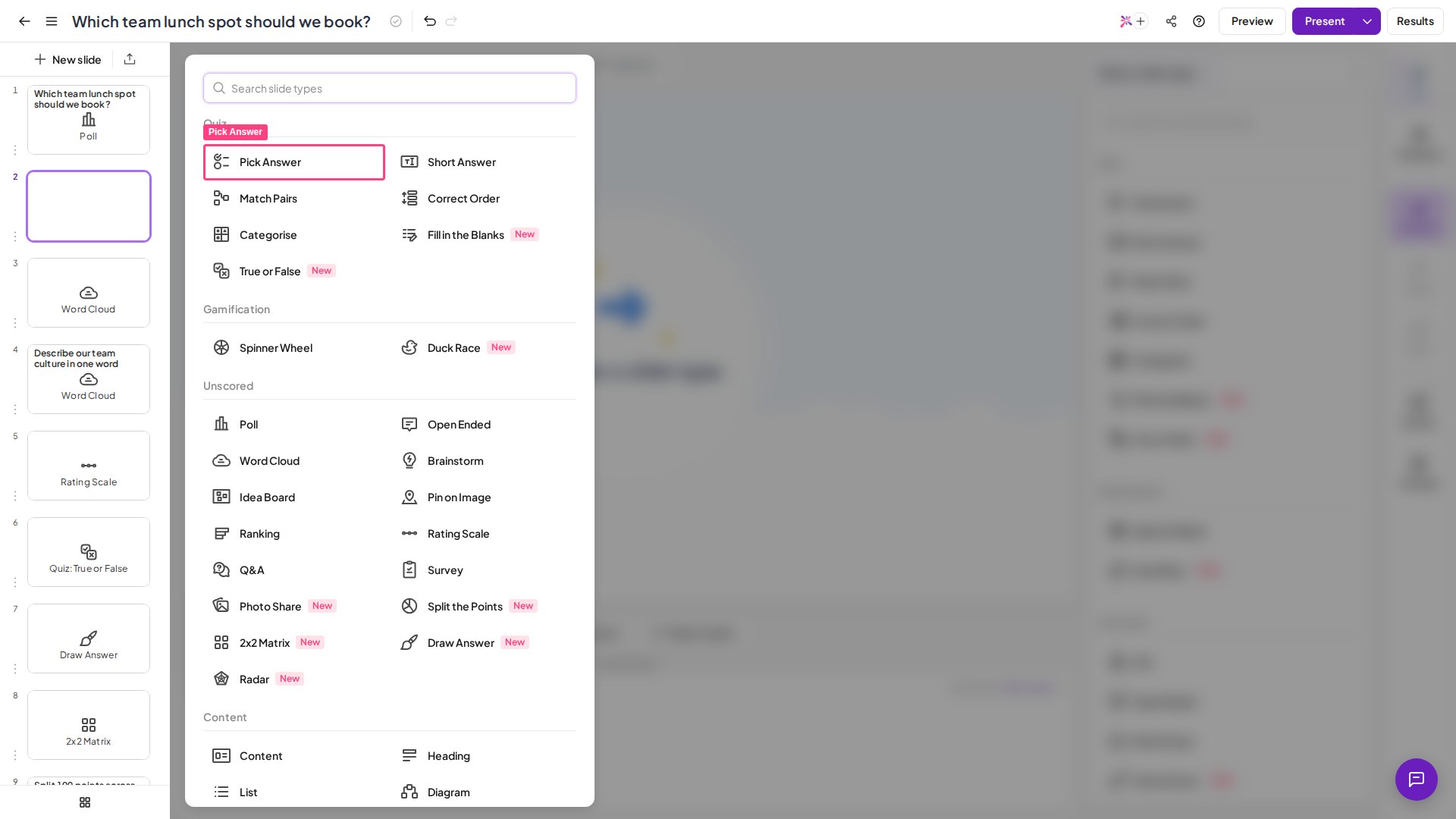
Once a presentation is open in the editor, click New slide at the top of the left-hand slide panel and select any of the 7 ‘quiz’ slides as the format for that question (Spinner Wheel is not a scored quiz slide):- Pick Answer — A multiple-choice question with text or image answers.
- Short Answer — An open question with no answers to choose from. Players must type their answers.
- Match Pairs — A question with a set of prompts and a set of answers. Players must match the prompt to the right answer.
- Correct Order — A question with statements in random order. Players must put the statements in the correct order.
- Categorise — A question with categorised items. The player must classify the provided items into the corresponding groups.
- True or False — A single statement. Players pick True or False.
- Fill in the Blanks — A sentence with key words blanked out. Players type the missing words or pick them from a dropdown.
Add a leaderboard
This 15-second video explains leaderboard slides.The leaderboard slide does not update in real time. It fetches the latest results only when you refresh it or return/move to it from another slide, as it’s designed for live presentations.
Edit a quiz slide
Now you can edit your slide. Here’s what a ‘Pick Answer’ slide looks like when it’s ready to edit: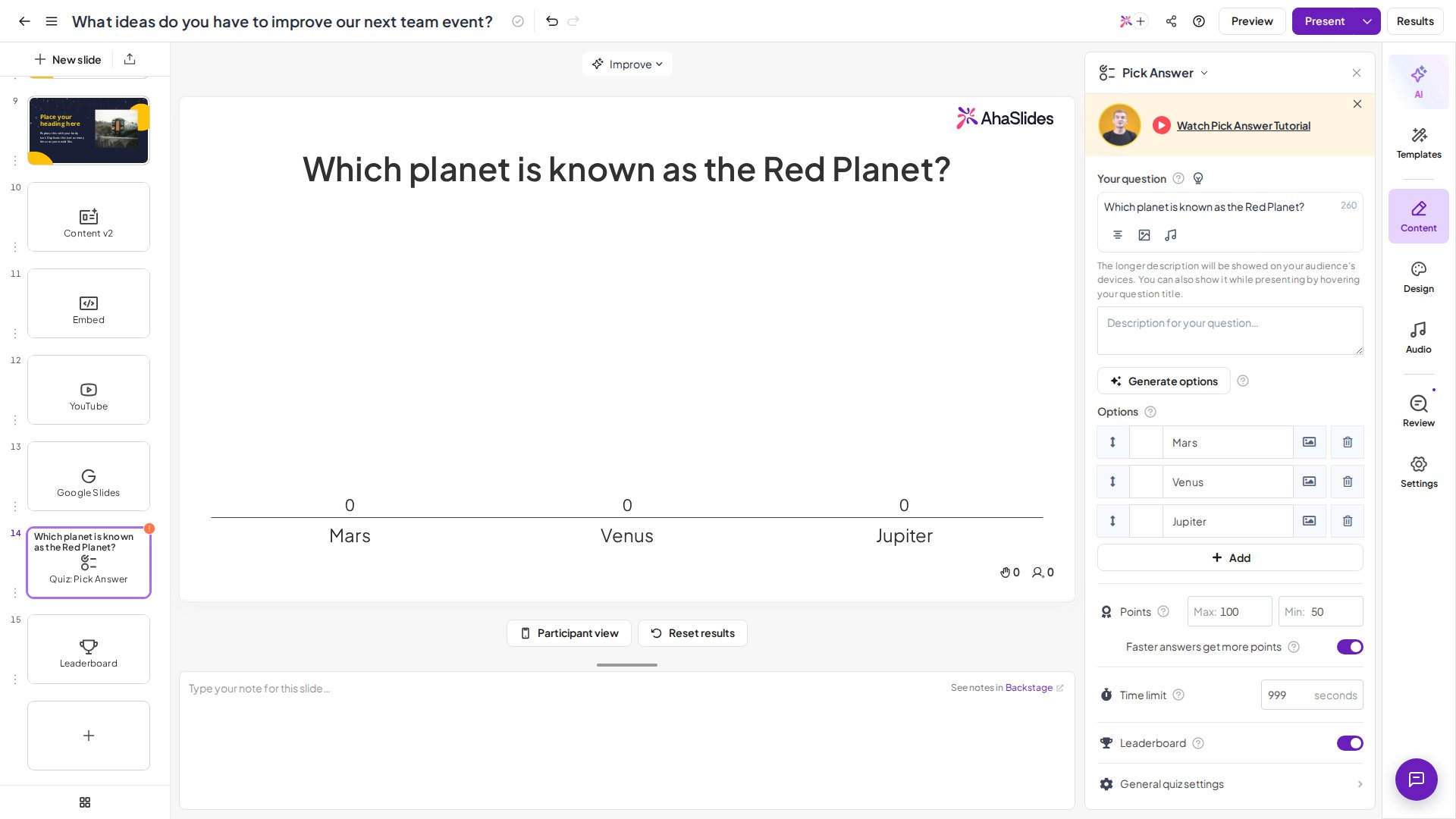
1
Write your question
In the right-hand column, write your question in the box labelled ‘Your question’.
2
Write your answer options or generate them
Write up to 8 answer options for your players to choose from. Mark at least one option as correct by checking the box next to it — or generate answers with AI to quickly create answer options for your questions. See Generating Questions and Answers Using AI.
3
Change the settings
Scroll down in the right-hand column to find the settings for your quiz question. Every per-slide setting — points, time limit, partial scoring, hints and audio — is covered in Quiz settings on AhaSlides.
Let players join the quiz
When you’ve created your quiz slides, you can either invite your players to join your presentation, or join it yourself on your phone to test it out (recommended). To start, press the purple Present button in the top-right corner of the editor. This takes you into the quiz lobby, where players join your quiz before you start hosting it. In the lobby, your players can join your quiz using either the URL code or QR code in the left-hand column. When the host presents a quiz slide:- The host sees the lobby on their screen — all the players who have joined the quiz and are waiting to play.
- The player is asked to enter their name and choose an avatar for the quiz. Once chosen, they appear in the quiz lobby.
Present the quiz
When all your players have joined the quiz and are showing in the quiz lobby, press the blue button below that says Start the Quiz! Your first question shows on your screen and each player’s phone screen. Players have the time limit you specified in the settings to answer. Proceed through your quiz like this until the final winner is announced at the end!Frequently asked questions
Why isn’t my quiz asking players for their names?
AhaSlides only asks players for a name when you reach a quiz slide. A Poll slide looks similar to a Pick Answer slide, but a Poll slide isn’t a quiz slide and doesn’t ask players for a name. See Asking participants for their names.How can I clear player answers on my quiz?
If you’ve just tested your quiz with a real device, want to reuse a quiz, or made a mistake and want to start over, you can clear any submitted answers without affecting the content of your quiz. You can clear all responses or just the responses from one question — see Resetting the Results.Can I duplicate a quiz?
Yes. On your My Presentations dashboard, click the ⋮ menu at the end of the quiz’s row and choose Duplicate to copy the whole presentation. To copy single questions instead, see Duplicate multiple slides.How can I test my quiz?
The best way is Preview Mode, which lets you try your quiz from both the presenter screen and the player screen. You can also join it on your own phone or get friends to join and play along — if you do, remember to clear your own answers afterward.Can I run a practice question that doesn’t count towards the scores?
A quiz question can’t be set to zero points, because the maximum points must be at least 1. To keep practice scores off the leaderboard, run your practice round first, then reset the results before the real quiz starts. Resetting the results for the entire presentation clears all votes and responses and starts a new session.Can I edit a quiz after a practice run or a live session?
Yes. Slides stay editable after they’ve collected responses, and the responses already collected stay until you reset them. To start your real audience on a clean slate, reset the results after your last edit.Can’t see the right-hand panel?
The panel where you edit your question, answer options and settings opens from the strip of tabs down the right-hand edge of the editor, which includes AI, Content, Design, Audio and Settings. If you closed the panel with the X at its top, click Content on that strip to bring it back. The panel also starts closed when your browser window is 960 pixels wide or narrower, so widen the window or click Content. The Content panel doesn’t open while more than one slide is selected in the slide list — click a single slide first.Can players join anonymously?
Players are asked to enter a name before the quiz starts, but it doesn’t have to be their real name. Anyone who wants to stay anonymous can simply type a nickname instead — they’ll still be able to play and appear on the leaderboard under that nickname. More answers — auto-end quiz timers, character limits, hiding the correct answer and leaderboard, and quiz slide layout — are in Quiz troubleshooting and FAQs.Related pages
For every quiz setting and answers to common quiz questions, see:Quiz settings on AhaSlides
Every setting for a quiz — per-slide points, time limits, partial scoring, hints and audio, plus the general quiz settings and audience-paced quizzes.
Quiz troubleshooting and FAQs
Fixes and answers for the questions we get most often about running a quiz — timers, character limits, hiding results and slide layout.