

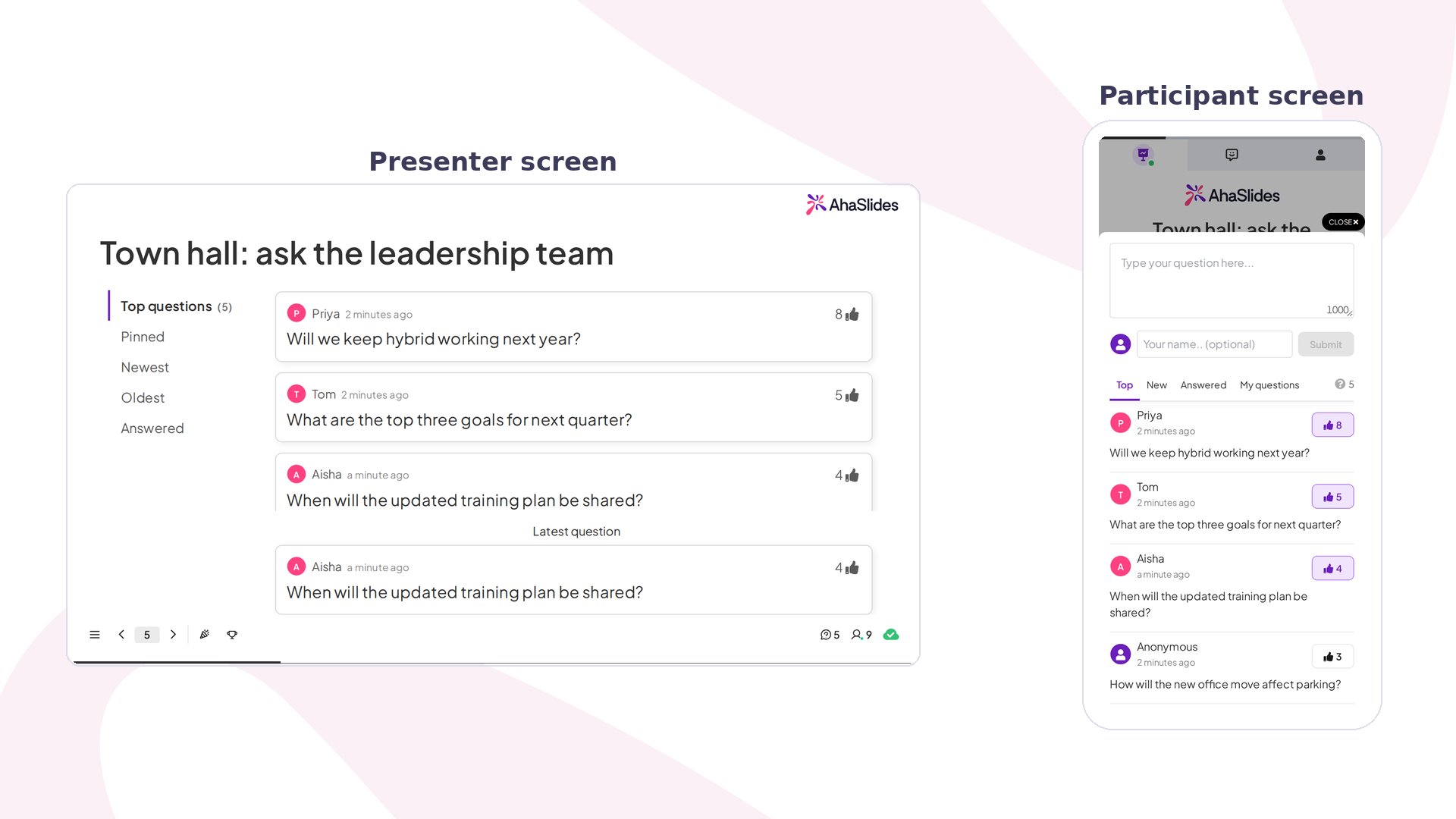
Q&A at a glance
Create a Q&A slide
There are two Q&A modes.- Dedicated Q&A Slide
- Q&A on All Slides
Add a Q&A slide to your presentation deck from the slide type picker. Participants can only send you questions while you’re presenting that slide. Type a heading in the Heading field to invite your audience to ask — something clear and welcoming works best, for example “Got a question? Ask away!”To add one, click New slide and select Q&A.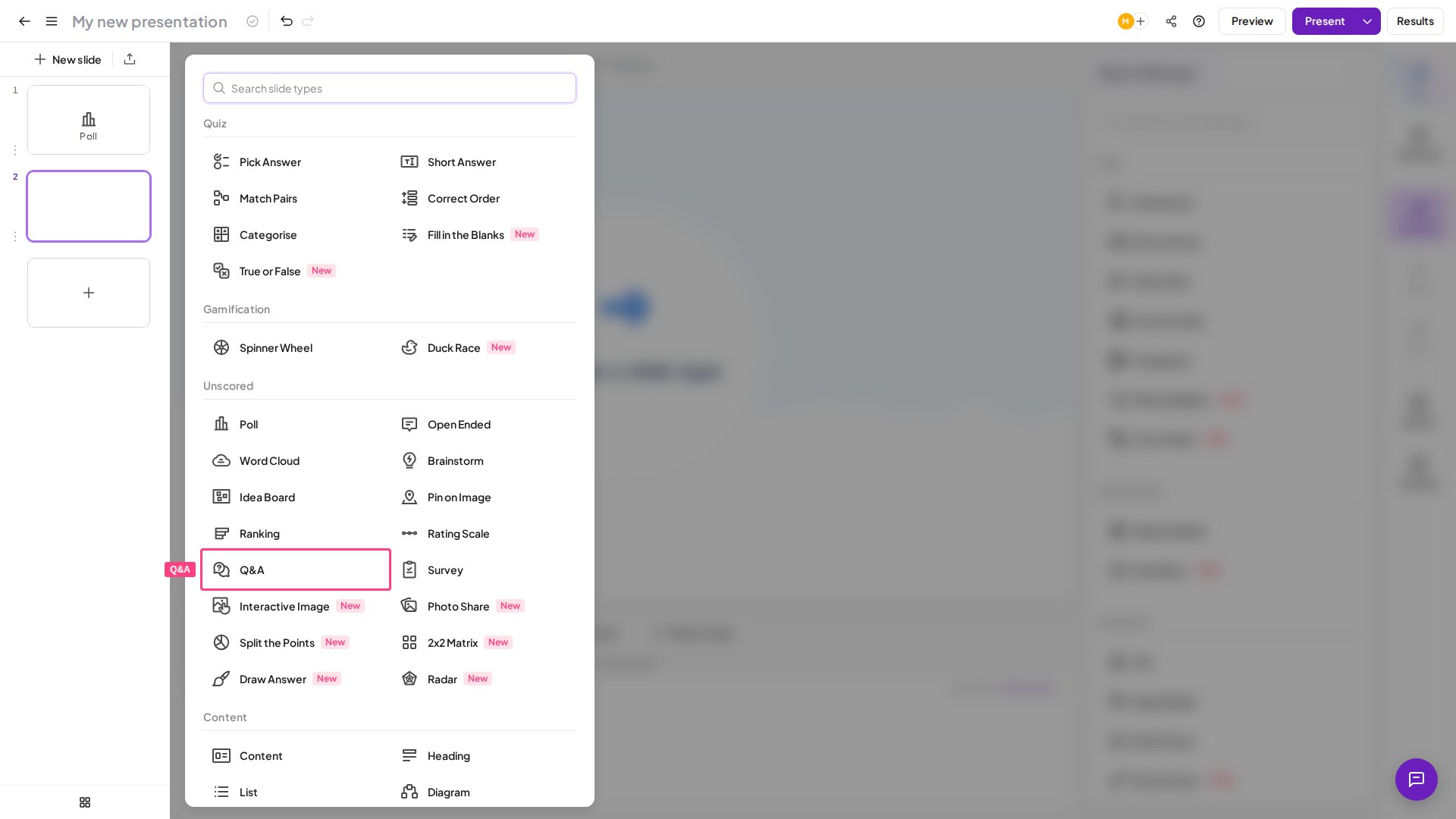
If your presentation includes more than one Q&A slide, all submitted questions appear on every Q&A slide — Q&A works as a single, shared session across the entire presentation, not as separate question boards per slide. A question submitted on one Q&A slide is also visible on any other Q&A slide in the same presentation.
Present a Q&A slide
While presenting, submitted questions collect on the presenter’s board, where you can sort them by Top questions, Newest or Answered and pin or mark them as you work through the room. On their phones, the audience taps Ask a question to send one in — anonymously if you’ve allowed it.Manage Q&A questions
The Q&A queue on your presenter screen lets you sort and manage incoming questions using five filters:- Top — sorts by most upvoted questions first, so the most popular questions rise to the top. This is the default filter.
- Pinned — shows only questions you have pinned, keeping your priority items visible.
- Newest — sorts by most recently submitted.
- Oldest — sorts by earliest submitted, useful for working through questions in the order they arrived.
- Answered — shows questions you have already marked as answered.
- Click the question in the queue.
- Click Answer to mark it as answered. The question moves to the Answered tab and out of the active queue.
Q&A settings
Find these settings in the Content panel of your Q&A slide, or in Settings → Q&A with your audience. The same settings apply whether you’re holding Q&A on all slides or only on a dedicated Q&A slide.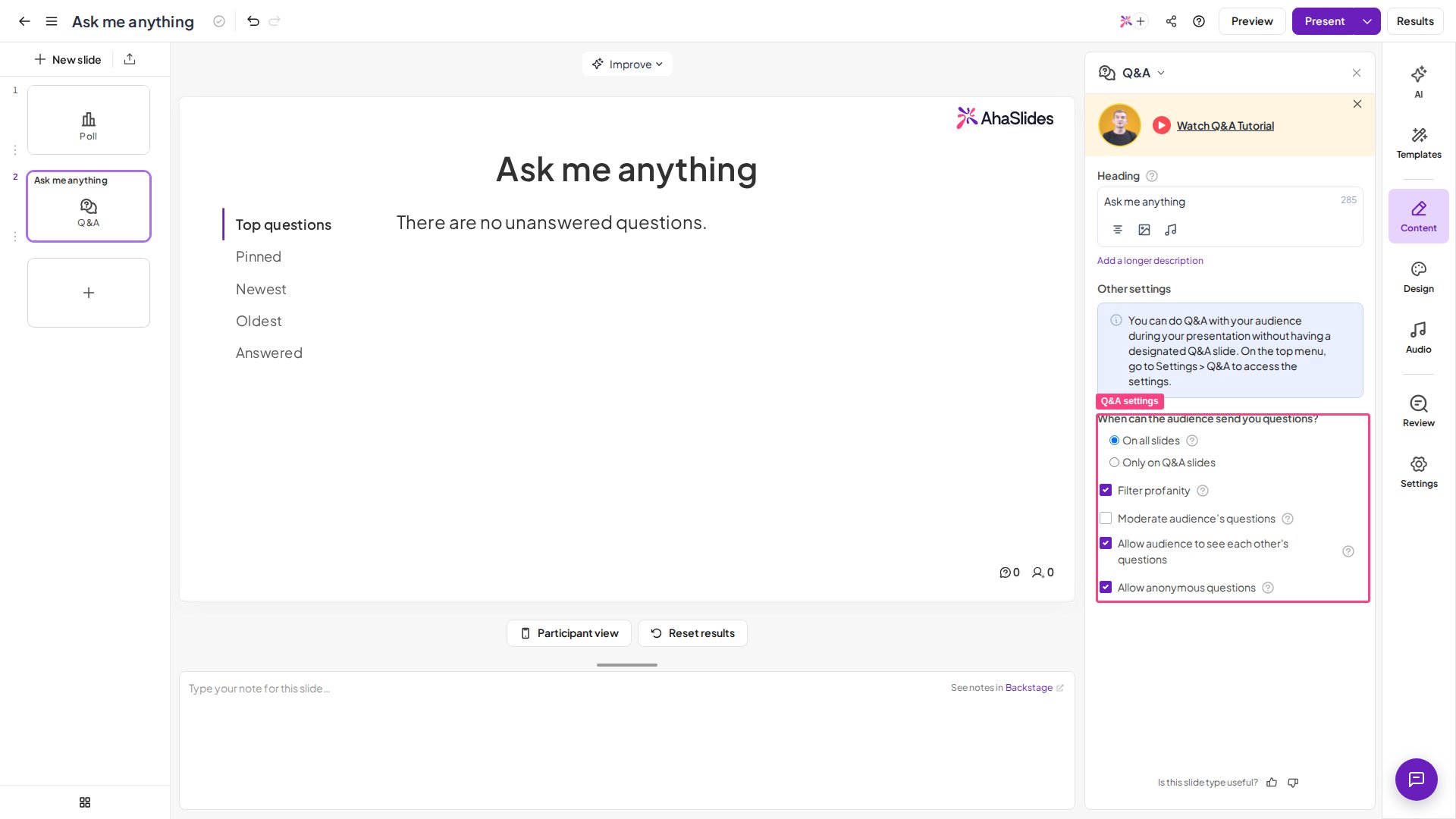
Want a separate person to moderate from another device? Start presenting, open Backstage, and use its Remote Control link — share the QR code or link with your moderator and they can approve or dismiss questions from their own device without access to your AhaSlides account. Your changes and theirs stay in sync in real time. See Using Backstage and Remote Control for the full steps.
Each audience question can be up to 1,000 characters long.
Moderate other slides besides Q&A
Yes. Besides the Q&A approval queue, other slides have their own moderation tools:- Photo Share — there is no approval step, but while you present you can hover over a photo and click Remove to take it off the wall. See Using the Photo Share slide.
- Word Cloud and Open Ended — remove individual responses while you present. See manually censoring responses.
- Typed responses — the profanity filter blocks swear words on slides where participants type, such as Word Cloud, Open Ended, Q&A and Short Answer quiz slides, and in participant names.
- Quiz names — hide an inappropriate participant name. See censoring names on a quiz.