

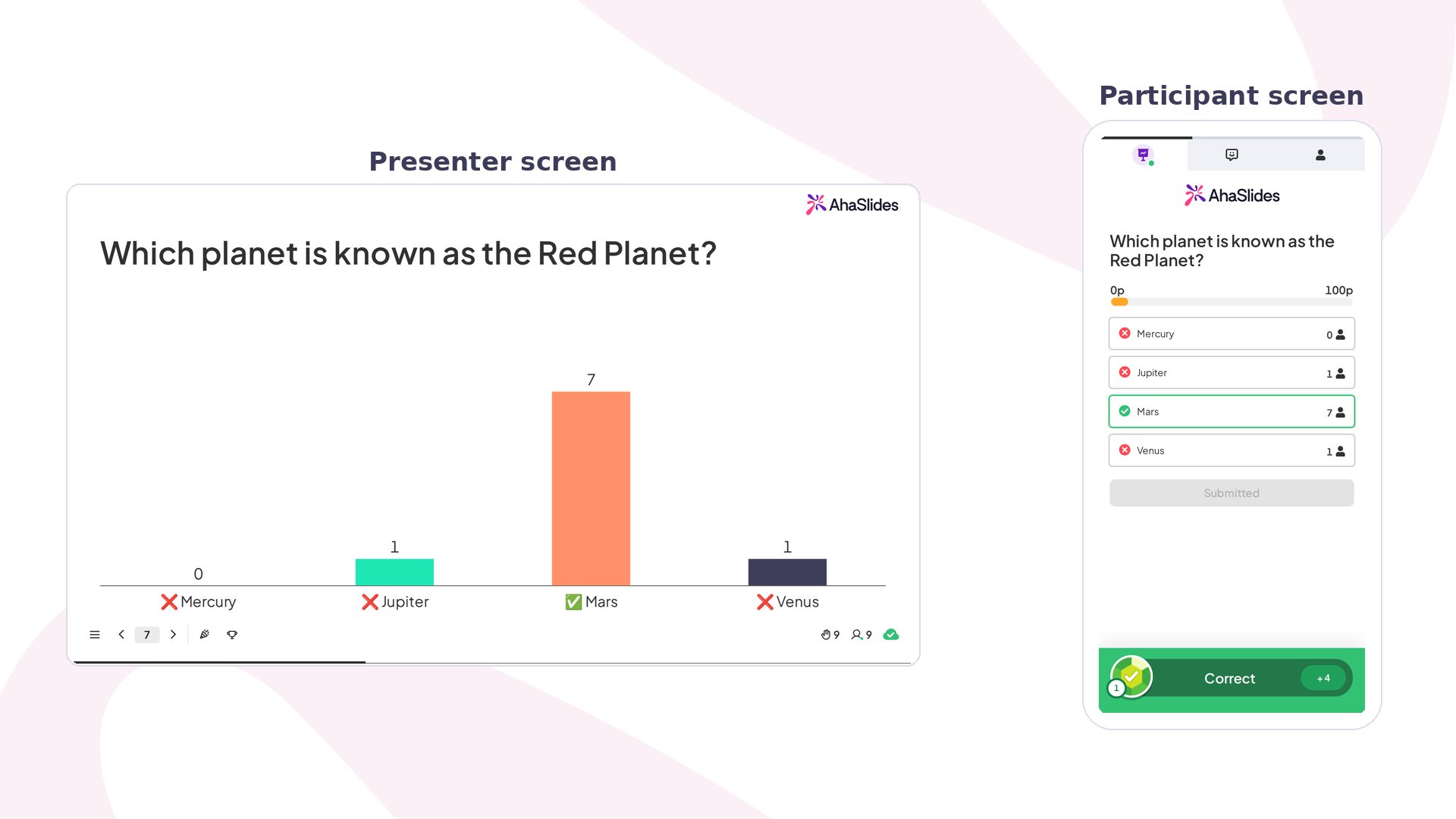
Pick Answer at a glance
Pick Answer is a quiz question type — for leaderboard, team play, and the full quiz walkthrough, see How to make and run a quiz.
Create a Pick Answer slide
1
Add the slide
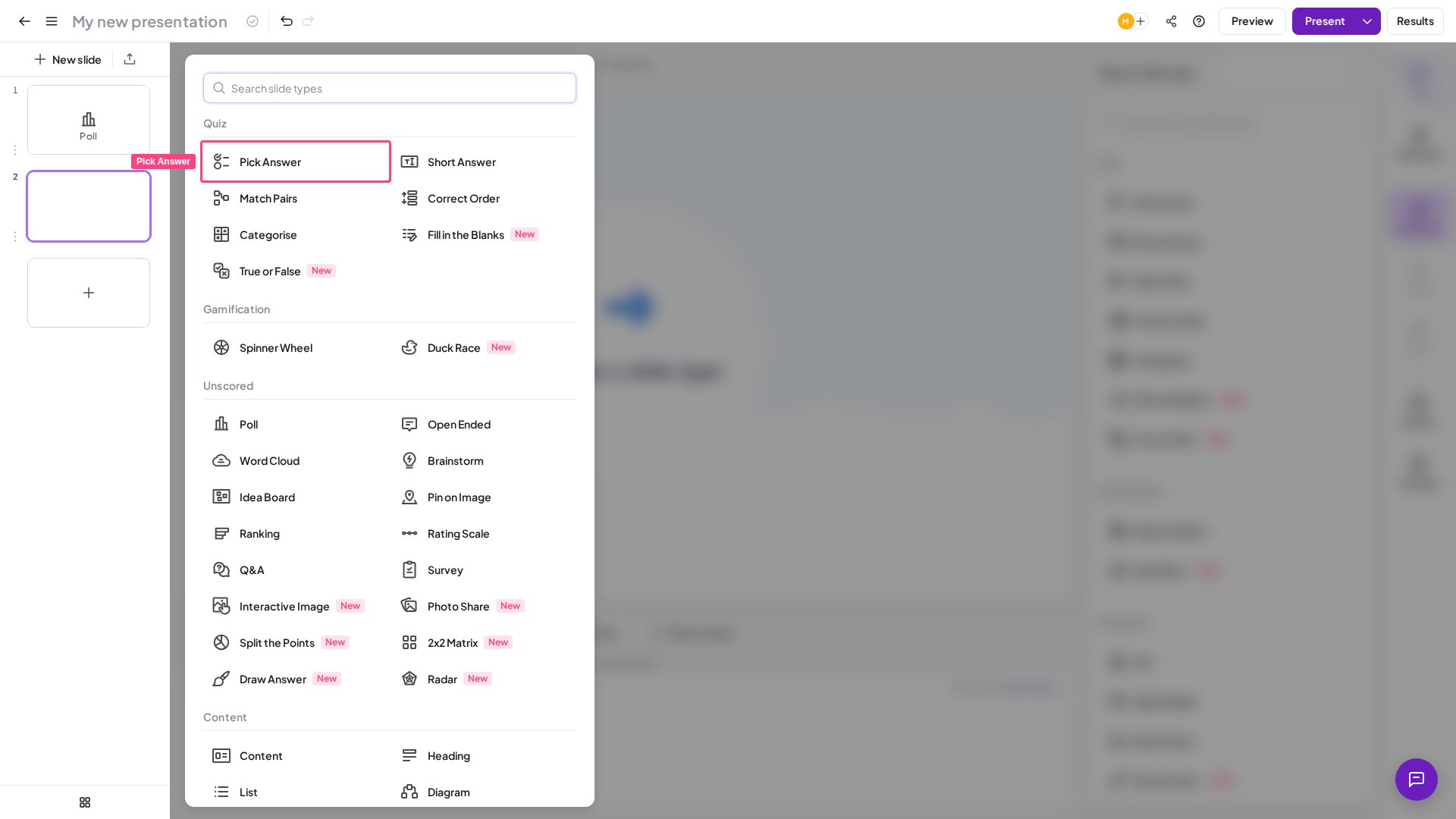
In the editor, create a new slide and select Pick Answer from the Quiz section of the slide type picker.
2
Write your question
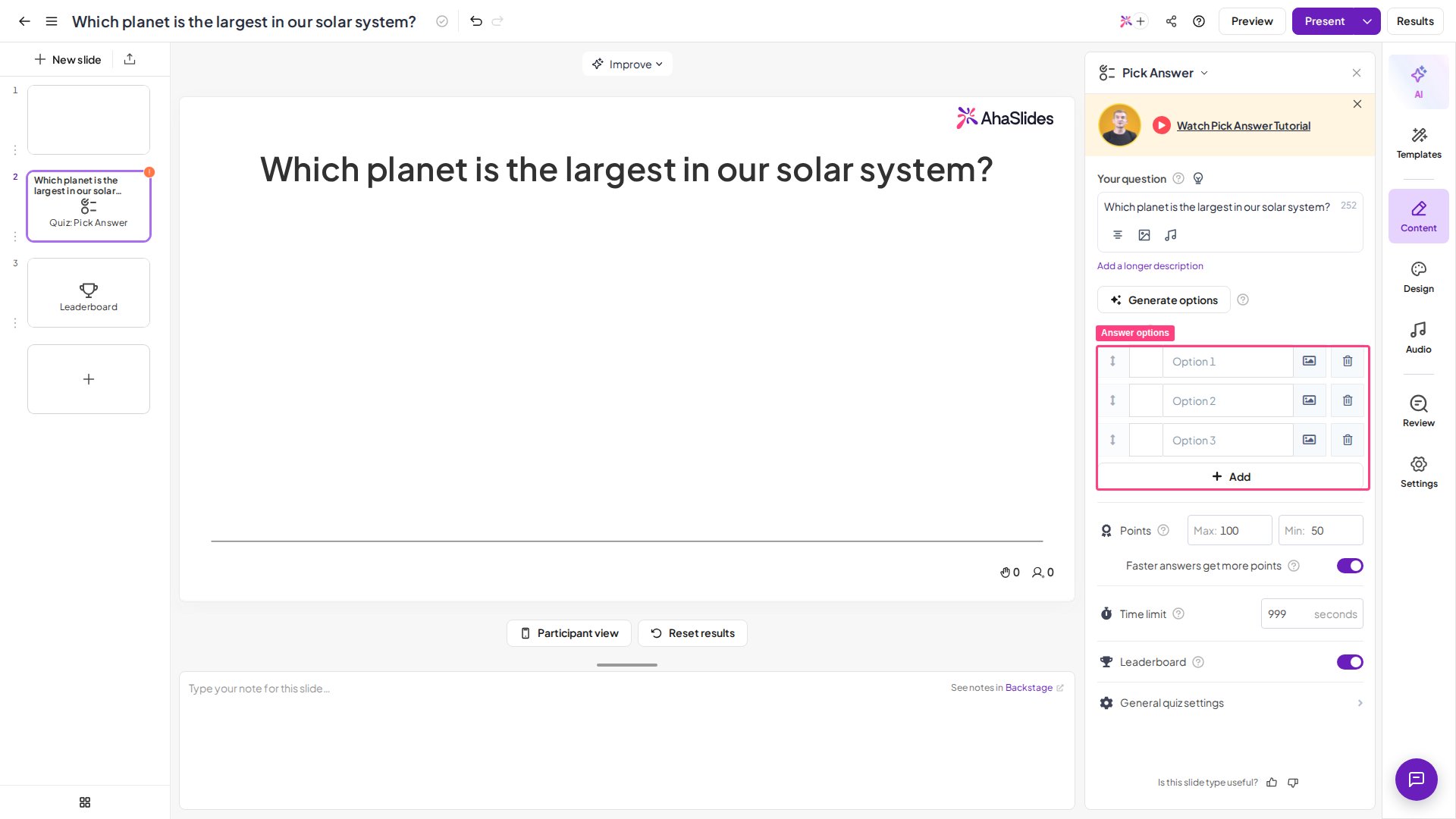
Type your question in the Your question field in the right-hand column. You can also add an image to your question (optional) — the same option is available on many other interactive slide types.
3
Add your answer options
Write 2 to 8 answer options for players to choose from. Select the image icon beside an option to add a picture; each option can hold text, an image or both. Each text option can be up to 150 characters long — a counter shows how many characters you have left while you type. Mark at least one option as correct by checking the box next to it. You can mark more than one option as correct — when you do, players are able to select multiple answers, and a Partial scoring option appears. To change the order of the answer options, drag an option by the handle at its left in the right-hand column (you can’t drag them on the slide itself). The answer options are shown in a fixed layout, and there’s no setting to change how they’re arranged. You can also let AI generate the answer options for you — see generating questions and answers using AI.
4
Adjust the settings
Scroll down in the right-hand column to configure scoring and timing (see Pick Answer settings).
5
Add hints (optional)
Click the lightbulb icon next to Your question in the right-hand panel, then write up to 3 hints in the Hints section that opens.
- Keep options short and distinct — clear, single-idea answers are easier to read and tap on a phone.
- Use 3–4 options for most questions — enough to make players think without overwhelming them. Eight is the maximum, but rarely necessary.
- Make distractors plausible — wrong answers that are obviously wrong don’t test anything.
- Use multiple correct answers and partial scoring for “select all that apply” questions where you want to reward partial knowledge.
- Add a hint for harder questions so you can rescue a stuck audience without giving the answer away outright.
Present a Pick Answer slide
Click Preview in the top header to rehearse the slide from both the presenter and player view — no participants needed. When you’re ready, click Present. Players join at the access code shown on screen, enter their name, and answer each question on their phones. On their phones, players see the question and tap the answer option they think is correct. If you’ve marked several options correct, they can select more than one before submitting. When the timer ends, the correct answer is revealed, points are awarded, and players see where they rank. For the full walkthrough of building and hosting a quiz — joining, the lobby, team play, and more — see How to make and run a quiz.Pick Answer settings
On plans that include it, you can also add accompanying audio to your quiz questions.
Ideas for using Pick Answer
Classroom Knowledge Checks
Quick comprehension questions during or after a lesson, with the leaderboard adding friendly competition.
Corporate Training and Onboarding
Verify that policies, product facts, or compliance points have landed.
Trivia and Icebreakers
Fast, fun rounds that energise meetings, webinars, and events.
Live Audience Polling with a Right Answer
Test the room’s knowledge rather than just gather opinions.