

Buying an individual plan does not cover your colleagues. An individual plan and a team plan are two different types of plan: an individual plan upgrades your own account only, and everyone else stays on the Free plan until they upgrade their own account or you move to a Team plan. Accounts can’t be shared between people either — see Sharing your AhaSlides account. So if you want several people to have paid features, buy a Team plan with one licence per person, as described below, rather than a single individual subscription.
How to Purchase Multiple Licences for Your Team Plan
1
Log in to your AhaSlides account
Visit the AhaSlides website and log in to your existing account. If you don’t have an account, you’ll need to create one before proceeding.
2
Select the team plan from pricing details
There are two ways to buy a Team plan subscription:AhaSlides pricing & plans pageClick on the link provided to view pricing details Pricing & Plans | Flexible & Great Value | AhaSlides. This will direct you to the AhaSlides Pricing & Plans page, where you can explore different subscription options.On the pricing page, scroll down to the team plans section. In the If you buy … licences of … plan line, enter the number of licences you need and choose the plan. You can adjust the quantity to match the size of your team.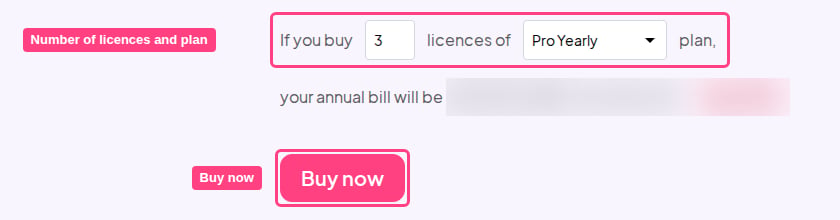
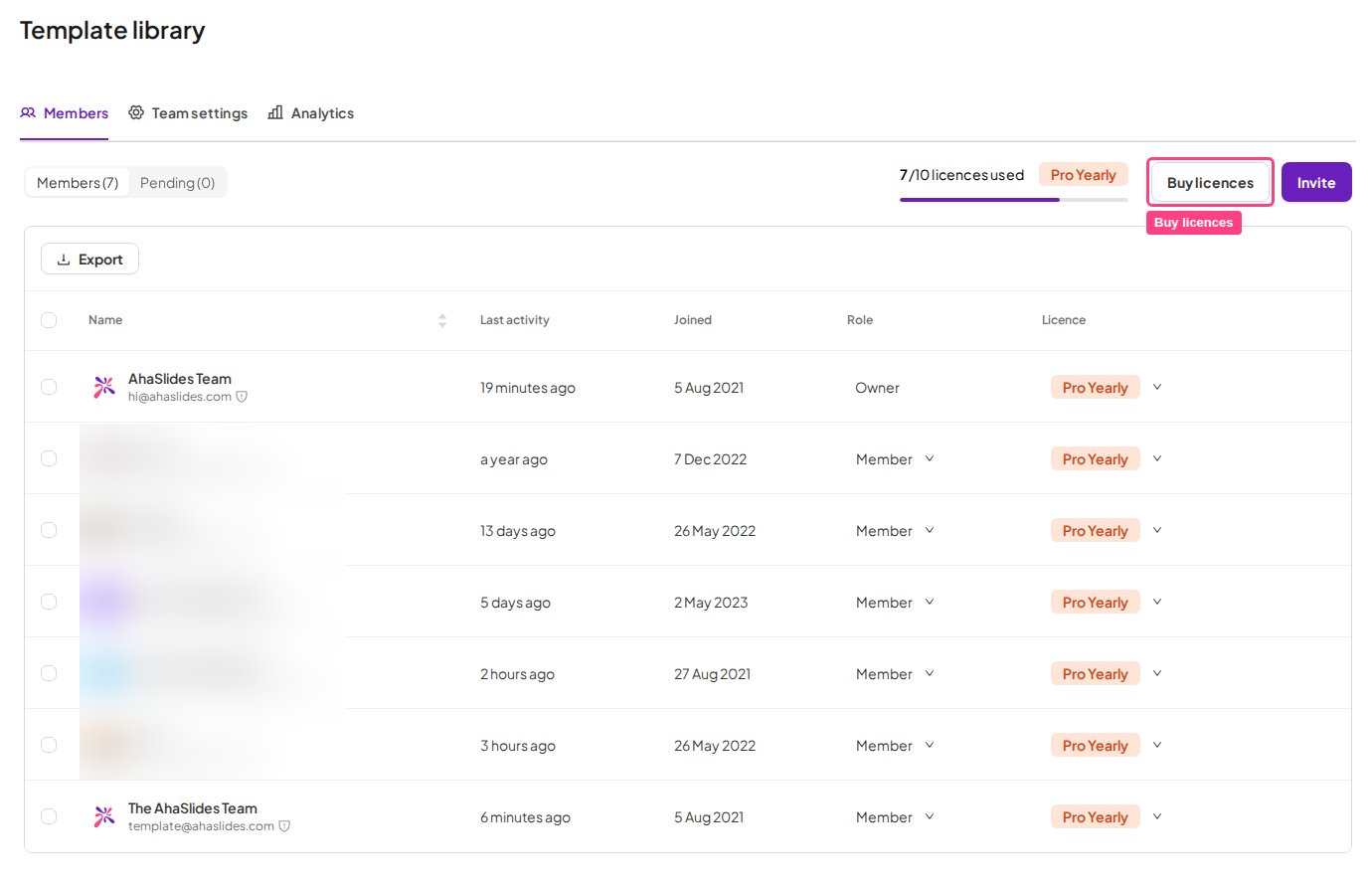
3
Enter payment information
On the payment page, enter your credit card or debit card details as prompted. Double-check the information to ensure accuracy. Once entered, click on the ‘Subscribe’ button to proceed with the payment.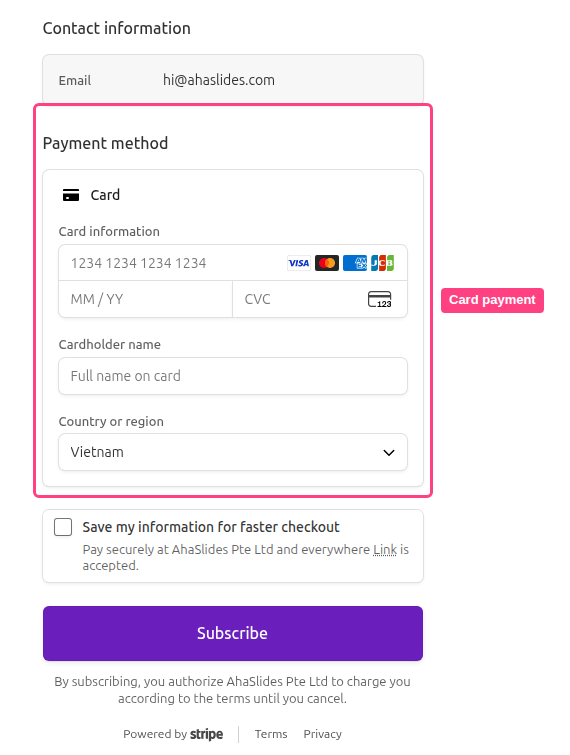
4
Set up team plans and add members
Upon successful payment, you will receive a confirmation email from AhaSlides. This email will contain essential instructions on setting up your team plans and adding team members.Follow the instructions in the confirmation email to set up your team plans. Add team members as needed, allowing them to access all the features included in the purchased Team Plan subscription.
How to Change the Number of Licences for Your Team Plan
Before You Make Changes
- If you currently have a single licence and want to add more, if you haven’t already, you’ll need to create a team before purchasing additional licences. For guidance on creating and managing a team, see Managing your Team Members.
- If you’re reducing the number of licences on your plan, you’ll need to remove team members first so that your team size matches the new licence count you’re switching to.
1
Open the Billing section
Log in to your AhaSlides account and navigate to the Billing section: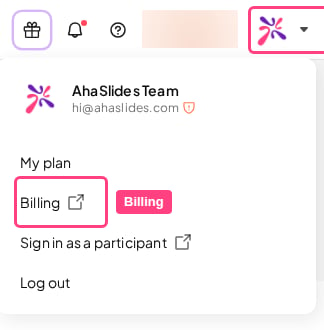
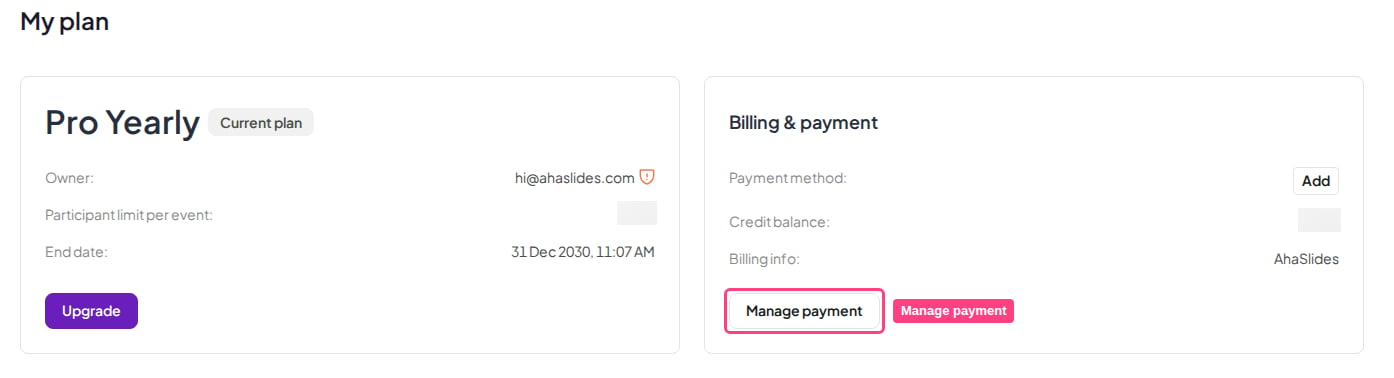
- Click on your profile image and select Billing
- Or click the Manage payment button in the Billing & payment card on the My Plan page
2
Update subscription
Click on Update subscription.
3
Adjust licence quantity
Adjust the quantity of licences according to your needs, whether you want to purchase more for your team plan or reduce the number of members. After that, click Continue.
4
Confirm
Select Confirm to confirm your updates.