

How the referral programme works
For you (the referrer)
- From September 2026, earn $20 USD via PayPal for every successful referral who subscribes to a paid AhaSlides plan.
- There is no limit to how many friends you can refer. If you have a large audience to refer, we suggest joining our Affiliate Programme instead. Contact hi@ahaslides.com for more information.
For the referred friend (the invitee)
- Invitees receive 30% off their first subscription when signing up through your referral link.
- The discount is applied during checkout for a paid plan.
Using the referral programme
1
Open your AhaSlides dashboard
Log in to your AhaSlides account.
2
Click the Referral Programme section
Find the gift box icon at the top right of the navigation bar. If you can’t see it, check If you can’t find the referral link below.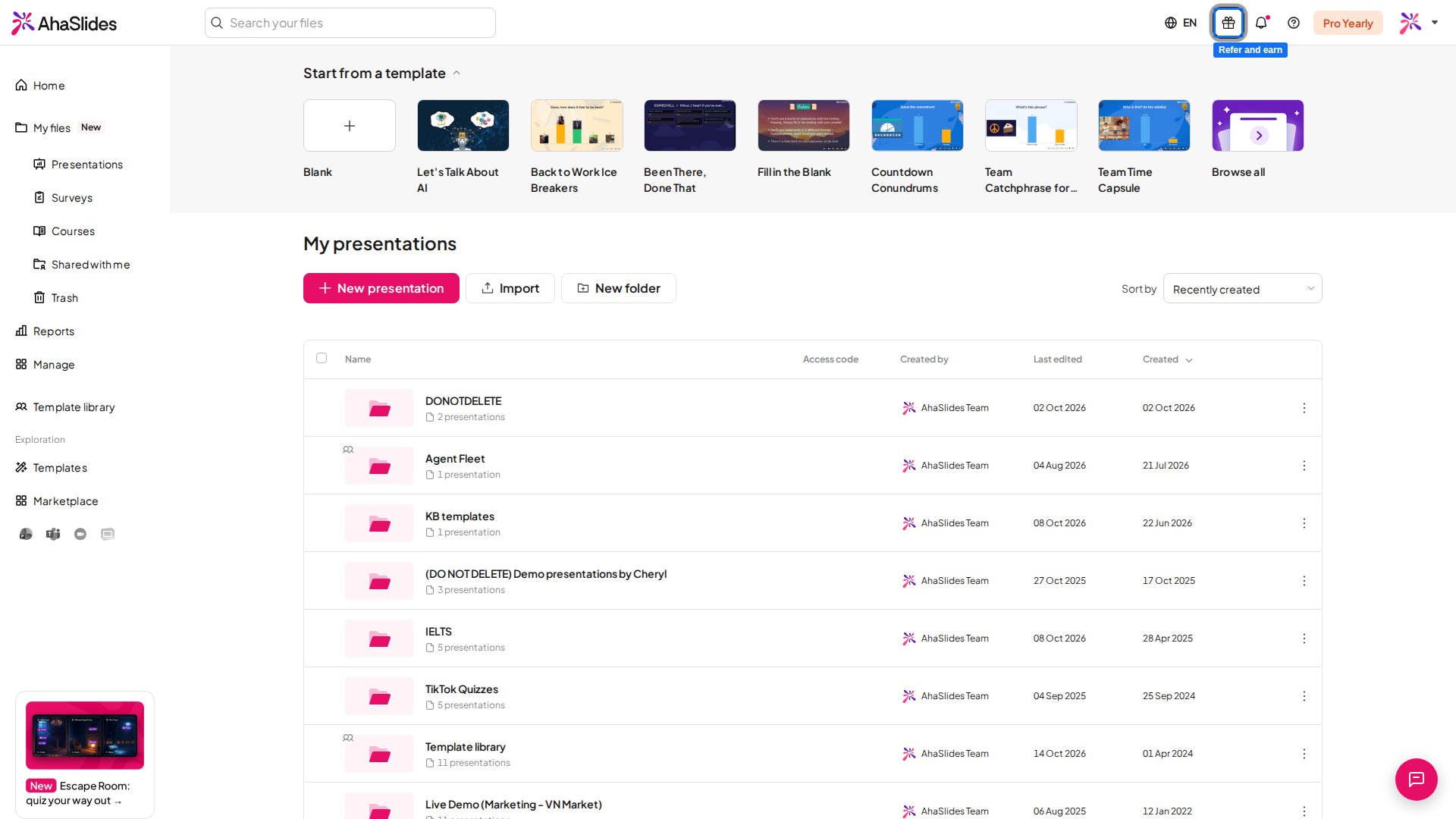
3
Click Copy referral link
This copies your unique referral link to your clipboard.
4
Share your link
Share your referral link with friends, colleagues, or teammates via email, social media, or messaging apps.
Get referral rewards from your audience
Audience referral turns the people in your sessions into referrals. When it is on, the sign-up link your audience sees at the end of a presentation carries your referral, and you can place a referral QR code on any Content slide. If someone signs up through either one and makes their first payment for an AhaSlides plan, you get a reward from AhaSlides.Before you start with audience referral
- Audience referral isn’t available on every plan. If yours doesn’t include it, you’ll see an upgrade prompt next to the settings.
- Join the referral programme first, from the gift box icon at the top right of your dashboard (see Using the referral programme).
- Both settings are in the presentation editor: click Settings in the right-hand toolbar, then open the Advanced tab.
Turn on audience referral for a presentation
Audience referral isn’t available on every plan. If yours doesn’t include it, you’ll be prompted to upgrade.1
Open the presentation settings
In the editor, click Settings in the right-hand toolbar, then open the Advanced tab.
2
Switch on Turn audience sign-ups into referral rewards
Your referral link is added to the sign-up button your audience sees at the end of the presentation.
3
Keep the AhaSlides link at the end switched on
The sign-up button only appears when Manage AhaSlides link at the end is on. If you have hidden it (see Hide the AhaSlides branding link), your audience has no sign-up button to use.
Add your referral QR code to a slide
The referral QR code isn’t available on every plan. If yours doesn’t include it, you’ll be prompted to upgrade.1
Open the Advanced tab of the settings
In the editor, click Settings in the right-hand toolbar, then open the Advanced tab.
2
Switch on Show my referral QR on slides
A preview of your QR code appears under the setting, headed Get AhaSlides for free. If you haven’t joined the referral programme yet, you’ll see a Join the referral programme button instead; join, and the QR code appears here.
3
Place the QR code on a Content slide
With a Content slide selected, click Add to current slide. The QR code is placed on the slide, where you can move and resize it like an image.To place it on a different Content slide later, click Copy QR code, go to that slide, and paste it (Ctrl+V, or Cmd+V on a Mac).
What your audience sees
- At the end of the presentation: the Get AhaSlides for free button, with two short notes under it. One tells them they get a discount on their first paid plan. The other tells them their presenter will also get a referral reward from AhaSlides if they buy a plan, at no extra cost to them.
- When they scan your QR code or tap the button: the AhaSlides sign-up page, which shows that the discount comes from you.
Audience referral rewards
- What counts: a person from your audience signs up through your sign-up link or QR code and makes their first payment for an AhaSlides plan.
- Reward: $20 for each of these first payments.
- How it is paid: via PayPal, in the same way as other referral rewards. Add your PayPal details as described in Getting paid for your referrals.
- Where you see it: audience referrals and rewards appear in the Rewards tab of the Referral Programme, with your other referrals. See Tracking your referrals.
Getting paid for your referrals
Before you can receive rewards, add your PayPal payout details:1
Open the Referral Programme section
Find it in your dashboard.
2
Go to the Rewards tab
Navigate to the Rewards tab within the Referral Programme section.
3
Click Add payment details
This opens the payment details form.
4
Enter your PayPal account information
Fill in your PayPal account details.
5
Save your payment details
Confirm to save.
Tracking your referrals
You can track your referral activity directly from the Referral Programme dashboard:- Open the Referral Programme section in your dashboard.
- Go to the Rewards tab.
If you can’t find the referral link
The gift box icon is the only place the referral link lives, so if it isn’t in the top-right of your navigation bar, one of these two things is usually why:1
Check whether you were referred yourself
If you joined AhaSlides through someone else’s referral link and haven’t claimed that reward yet, you’ll see a Redeem gift button in place of the referral icon. Redeem it first, and the referral programme becomes available to you as a referrer.
2
Widen the window
The top-right icons sit alongside the language and notification controls, so a heavily zoomed-in browser or a narrow window can push them out of view. Reduce your browser zoom or maximise the window and check again.
Still can’t find it after checking both? Email hi@ahaslides.com and we’ll check your account’s referral eligibility for you.
Programme policies
Eligibility criteria
- Referred users must be new AhaSlides users who have not previously created an account.
- The referred user must sign up using your referral link.
- The referred user must purchase a paid AhaSlides subscription.
Successful referral requirements
A referral is considered successful when:- The referred user signs up through the referral link.
- The referred user purchases a paid subscription.
- The subscription remains active and no refund is requested for at least 30 days.
Discount details
- Invitees receive 30% off their first subscription.
- The discount is applied during checkout.
Preventing abuse
The following activities are not permitted:- Self-referrals.
- Creating multiple accounts to generate rewards.
- Fraudulent or suspicious activity.