

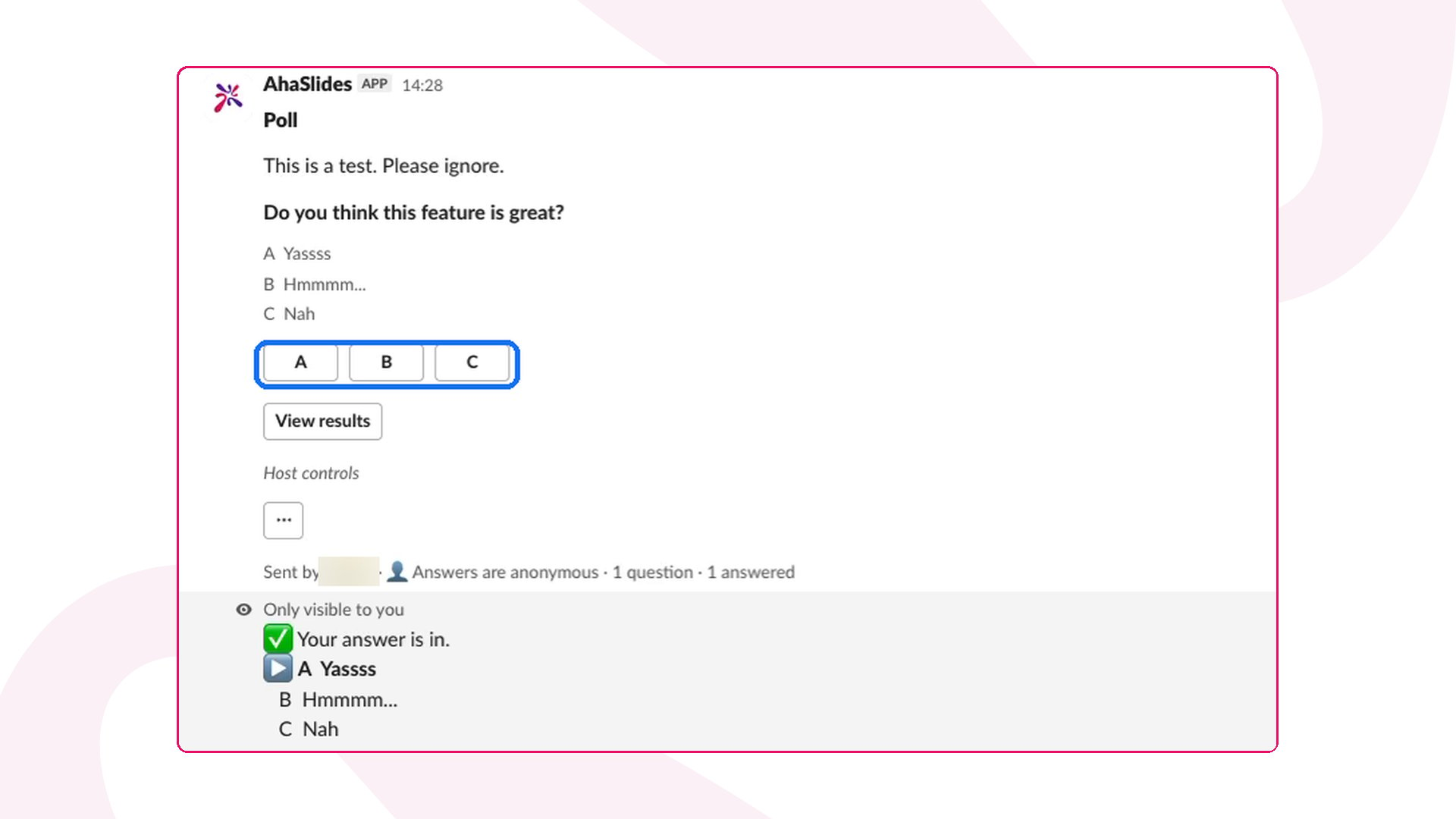
/ahaslides create to build a poll, rating, brainstorm or quiz, or /ahaslides run to bring an existing survey or presentation into a channel, and people answer with buttons right in the message.
AhaSlides for Slack at a glance
Before you start with AhaSlides for Slack
- Install the app. Open the AhaSlides for Slack install page. It opens Slack’s own install screen, where you pick your workspace and allow the app.
- Sign in once. In any channel, type
/ahaslidesand press Connect with AhaSlides. Sign in to your AhaSlides account and approve the connection. You only do this once. - Private channels only: type
/invite @AhaSlidesin the channel before you post there. Public channels need nothing extra.
Create a poll, rating, brainstorm or quiz in Slack
1
Type /ahaslides create
In any channel, type 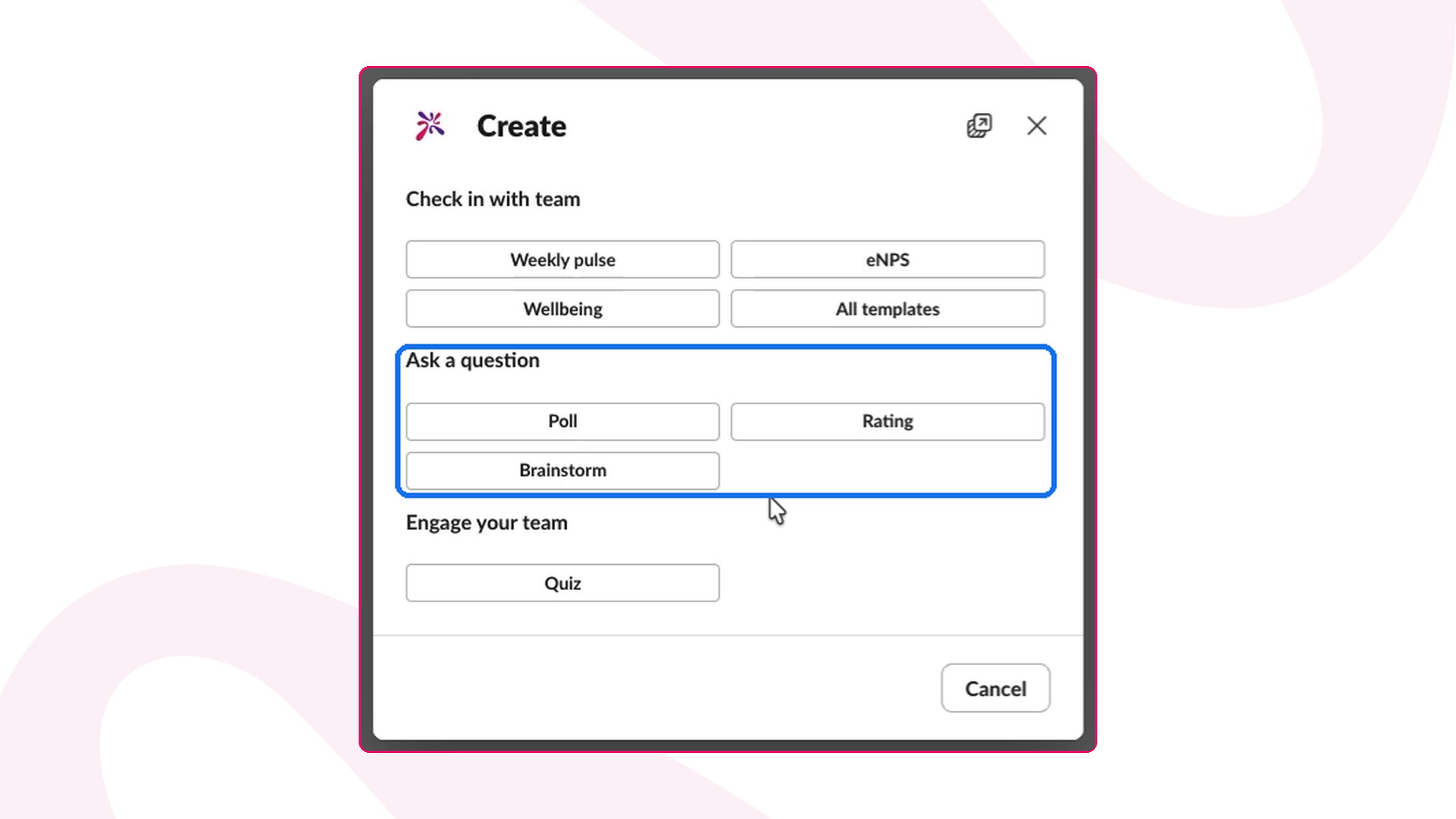
/ahaslides create. The Create window opens.2
Pick what to make
Choose Poll, Rating or Brainstorm under Ask a question, or Quiz under Engage your team. For a ready-made check-in, pick a template under Check in with team, such as Weekly pulse, eNPS or Wellbeing, or open All templates.
3
Pick a channel and write your question
Choose the channel to post in, add an optional message, then write your question and its options, one per line. Press + Add question to turn it into a longer survey.
4
Choose your settings
Under Settings, tick Anonymous responses to hide names for everyone, including you. Tick Show results to everyone if the whole channel should see the results.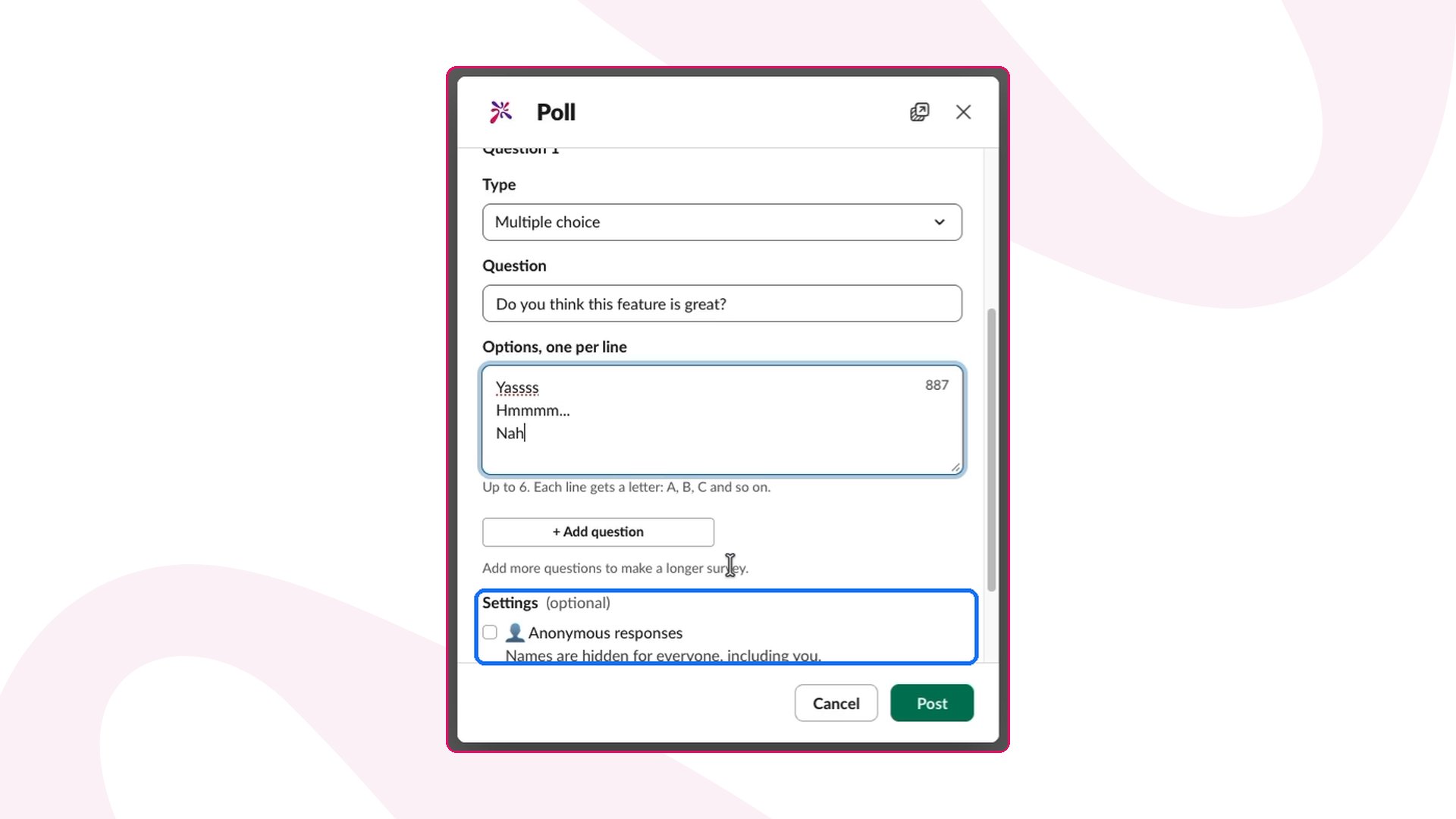
5
Post it
Press Post. AhaSlides creates it in your account and posts it to the channel, ready for answers.
Run an existing survey or presentation in Slack
1
Type /ahaslides run
In any channel, type 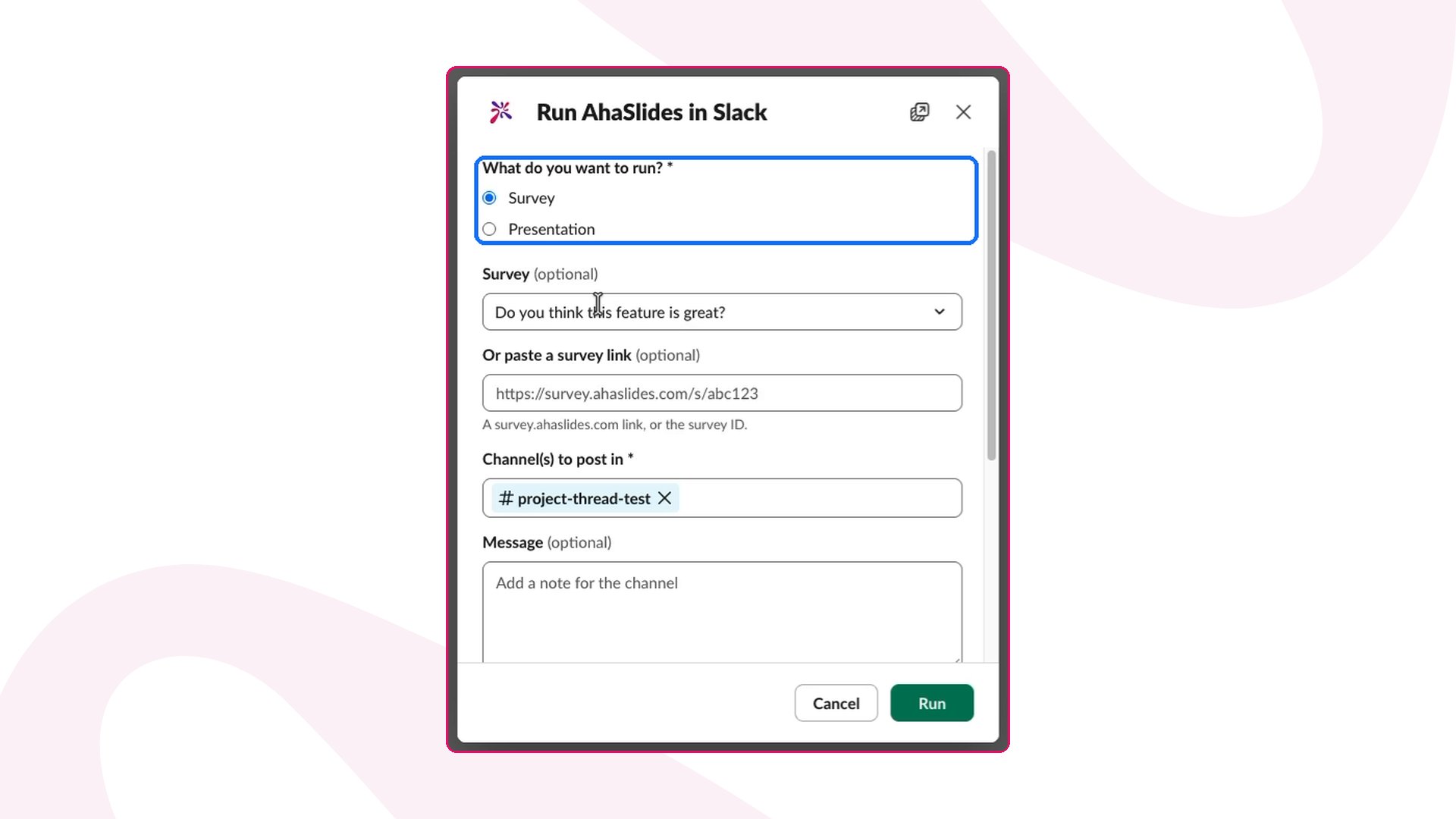
/ahaslides run. The Run AhaSlides in Slack window opens.2
Choose a survey or a presentation
Under What do you want to run?, pick Survey or Presentation. Then pick it from your list, or paste a survey link or a presentation ID.
3
Pick a channel and settings
Choose the channel to post in and add an optional message. Tick Anonymous responses if nobody should see who answered, and choose who sees the results under Show results.
4
Preview and post
For a survey, press Run. For a presentation, press Preview to check the post, then press Post.
Answer and see results in Slack
- Answering. Anyone in the channel answers by pressing a button in the message. They don’t need an AhaSlides account. Only they see the confirmation that their answer is in.
- Results. Every answer appears in your AhaSlides report, just like answers from a live session.
- Host controls. As the host, press the … button under Host controls to View results, End answering or Open in AhaSlides.
- Anonymous mode. With Anonymous responses on, names are hidden for everyone, including you, in Slack and in AhaSlides.
Troubleshoot AhaSlides for Slack
AhaSlides says it isn’t in the channel yet
AhaSlides for Slack shows this when you post to a private channel the app hasn’t been invited to. AhaSlides stops before posting anything, shows the exact/invite @AhaSlides command to copy, and keeps your draft. Type /invite @AhaSlides in that channel, then press Post now, or type /ahaslides again.
Typing /ahaslides asks me to connect
AhaSlides for Slack asks you to connect when you haven’t signed in yet, or your sign-in has expired. Press Connect with AhaSlides and sign in again.Frequently asked questions
Does everyone in the channel need an AhaSlides account?
Does everyone in the channel need an AhaSlides account?
No. Only the host who creates or runs the question signs in. Everyone else just presses a button in Slack.
Do I need to upgrade to use AhaSlides for Slack?
Do I need to upgrade to use AhaSlides for Slack?
No. AhaSlides for Slack is available on every plan, with no upgrade needed.
Can I post the same question to more than one channel?
Can I post the same question to more than one channel?
Yes. Pick several channels in the channel field before you post.