

Escape Room at a glance
Before you start
You need:- An AhaSlides account and a course you own. Build it first as a standard course, or ask your assistant to create one.
- An AI assistant that supports custom MCP connectors, such as Claude or ChatGPT, connected to the main AhaSlides MCP server:
Turn a course into an escape room with AI
1
2
Ask for the Escape Room style
Name the course and the style. For example:
- “Use the Escape Room plugin on my course Phishing basics.”
- “Turn my course Safety induction into an escape room with the Space Station theme, and show a timer in each room.”
- “Make a 3-lesson escape room course on spotting fake websites. End each lesson with one multiple-choice question, and turn on the finale.”
3
Preview it the way learners will
Open My files, click Courses in the sidebar and open the course. Click Preview in the top bar to play through the rooms. You can also ask your assistant for a preview link.
4
Publish and share it
Publish the course and share its link the same way as any other course. See Publish and share your course. If the course was already published, publish it again so learners get the new style.
What learners do in an Escape Room course
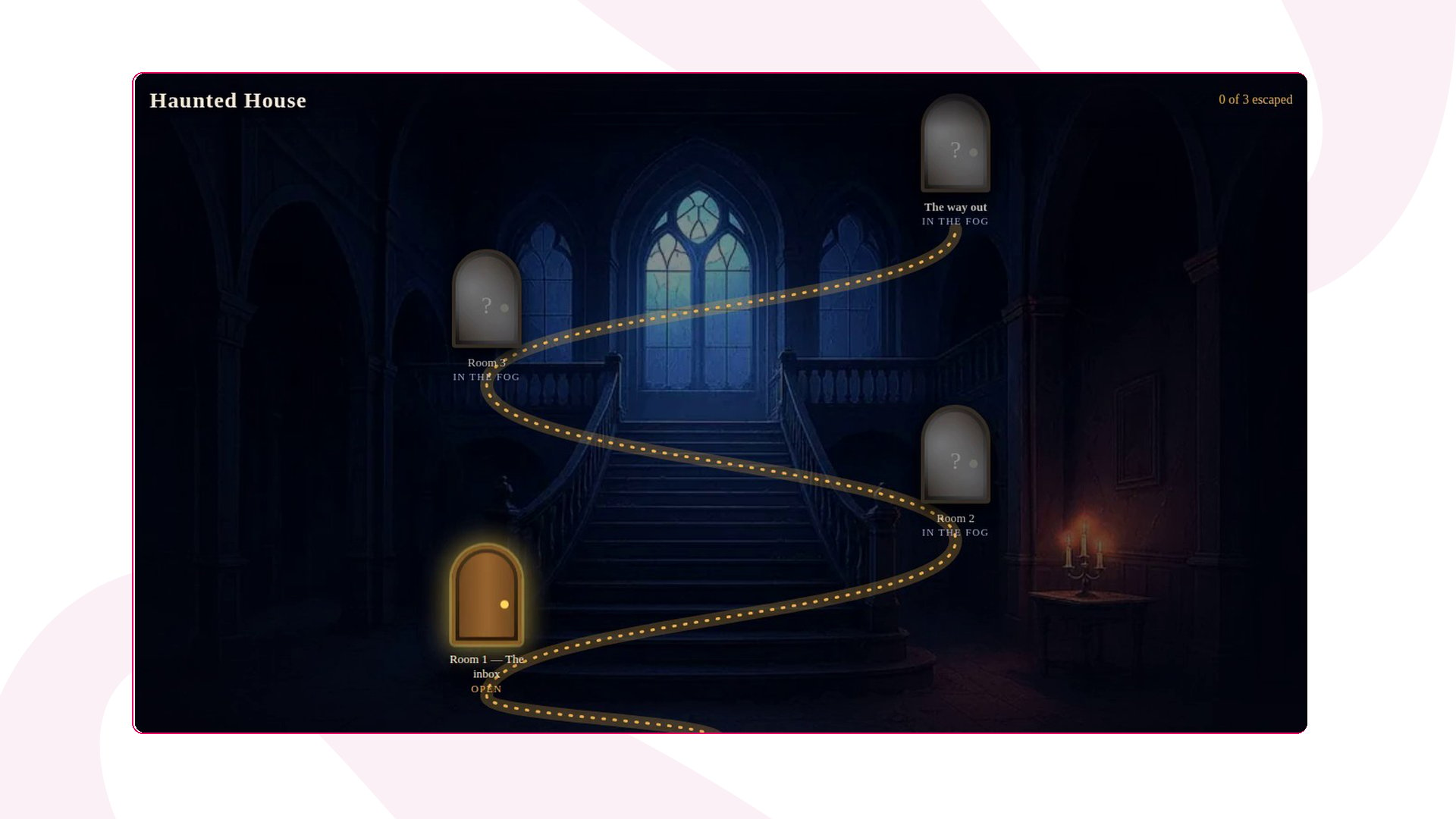
- Pick a room on the map. Room 1 is open. Later rooms show In the fog until the room before them is escaped, and an escaped room shows Escaped.
- Look around for clues. Each room has up to 4 objects to tap; the names are also listed under Find objects. Each object opens a clue card with part of the lesson. Learners read it and tap Keep clue; clues are never answered.
-
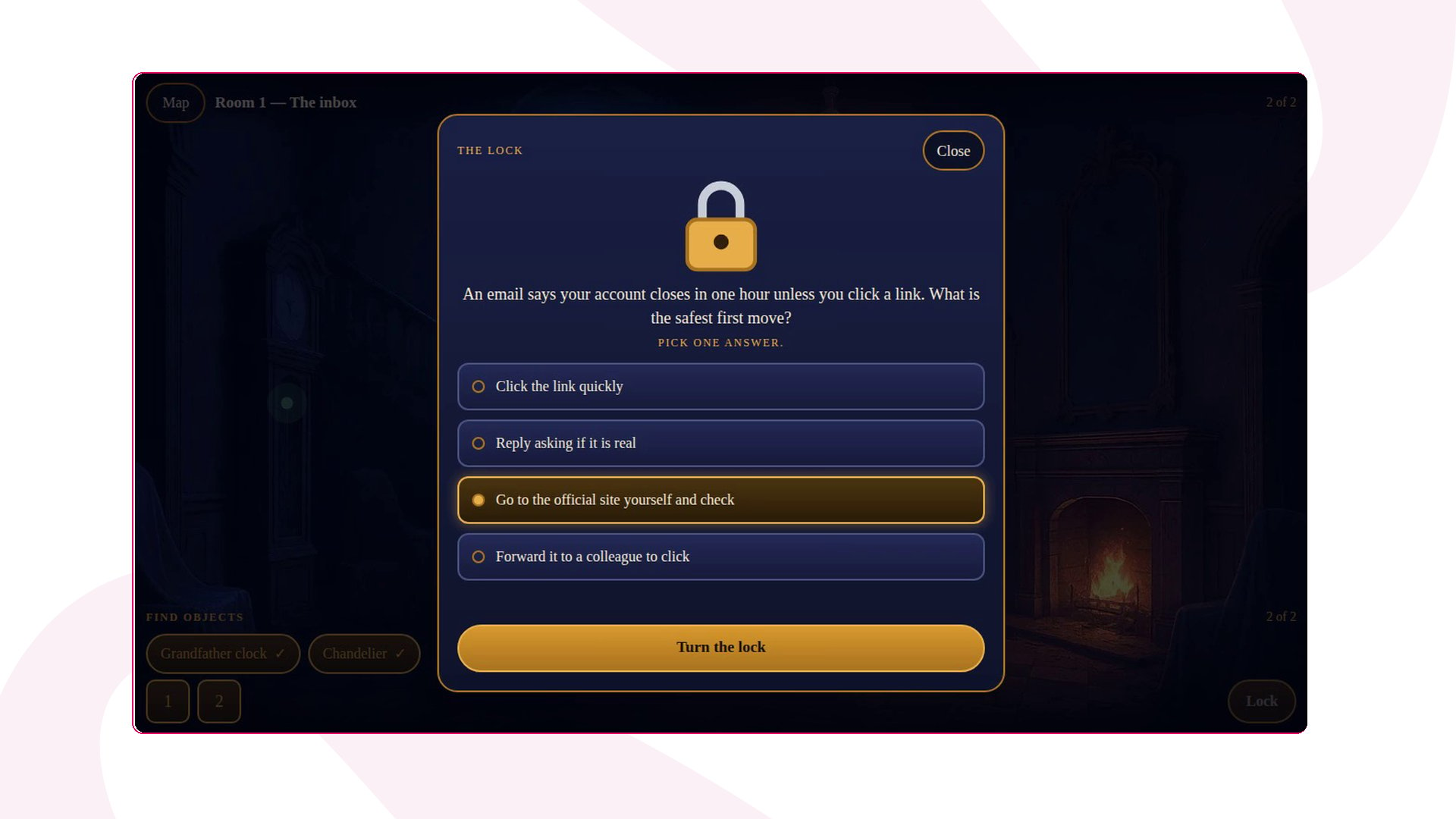
Open the lock. Once every clue is found, learners tap Lock and answer the lesson’s knowledge check:
A wrong answer shows “Not quite. Try again.” and learners can try again as often as they need. After two wrong tries, a hint appears.
- Escape to the next room. The door opens and the map walks learners on to the next room. A lesson with no knowledge check has no lock: the door opens as soon as every clue is found.
Escape Room course settings
Ask your assistant to change any of these. Your learners see the change after you publish the course again.Frequently asked questions
Can I apply Escape Room without an AI assistant?
Can I apply Escape Room without an AI assistant?
Not yet. Escape Room is applied by an AI assistant connected to AhaSlides. Once the course has the style, you can still edit its lessons by hand in the course editor, the same way as a standard course.
What happens if a lesson has more than one knowledge check?
What happens if a lesson has more than one knowledge check?
Only the first Multiple choice, Multiple response, Fill in the blank or Matching question becomes the lock. Any other question in that lesson shows up as a clue card with its question text only, so keep one knowledge check per lesson.
Can I switch a course back to the standard style?
Can I switch a course back to the standard style?
Yes. Ask your assistant to set the course back to the standard style, then publish it again.
Can I export an Escape Room course to my LMS?
Can I export an Escape Room course to my LMS?
Not yet. SCORM export isn’t available for courses that use a course style such as Escape Room. To export a course, keep it in the standard style. See Export a course to your LMS.
Are there other course styles?
Are there other course styles?
Yes. Stick turns a course into short cards learners swipe through on their phone. You apply it the same way, by asking your AI assistant.
Where do learners take an Escape Room course?
Where do learners take an Escape Room course?
They open your course link on
learn.ahaslides.com, on a phone or a computer. See Take a course as a learner.