

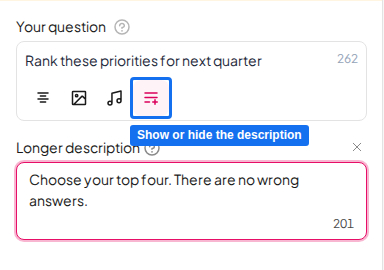
Before you start
The description button is in the toolbar of the question box, in the right-hand panel of the editor. It comes after the align, image and audio buttons. It appears on slides with a question box that has a description field.Add a longer description
1
Open the slide
In the editor, select the slide that has your question.
2
Click the description button
In the question box toolbar, click the paragraph icon. Its tooltip reads Add a longer description. The Longer description field opens under the question.
3
Type your description
Write up to 250 characters. Your changes are saved as you type.
Hide or show the description
Click the same button again to hide the field. The tooltip changes to Hide longer description while the field is open and Show longer description while it is hidden. Hiding the field does not delete your text. A small dot on the button tells you that hidden text is still there, and clicking the button brings it back. A slide that already has a description opens with the field shown. To remove a description, open the field and delete all the text.What participants see
Participants see the description under the question on their own devices.Frequently asked questions
Where did the Add a longer description link go?
Where did the Add a longer description link go?
It is now the paragraph icon in the question box toolbar. It does the same job: click it to open the description field.
How long can the description be?
How long can the description be?
Up to 250 characters. The counter in the field shows how many you have left.