

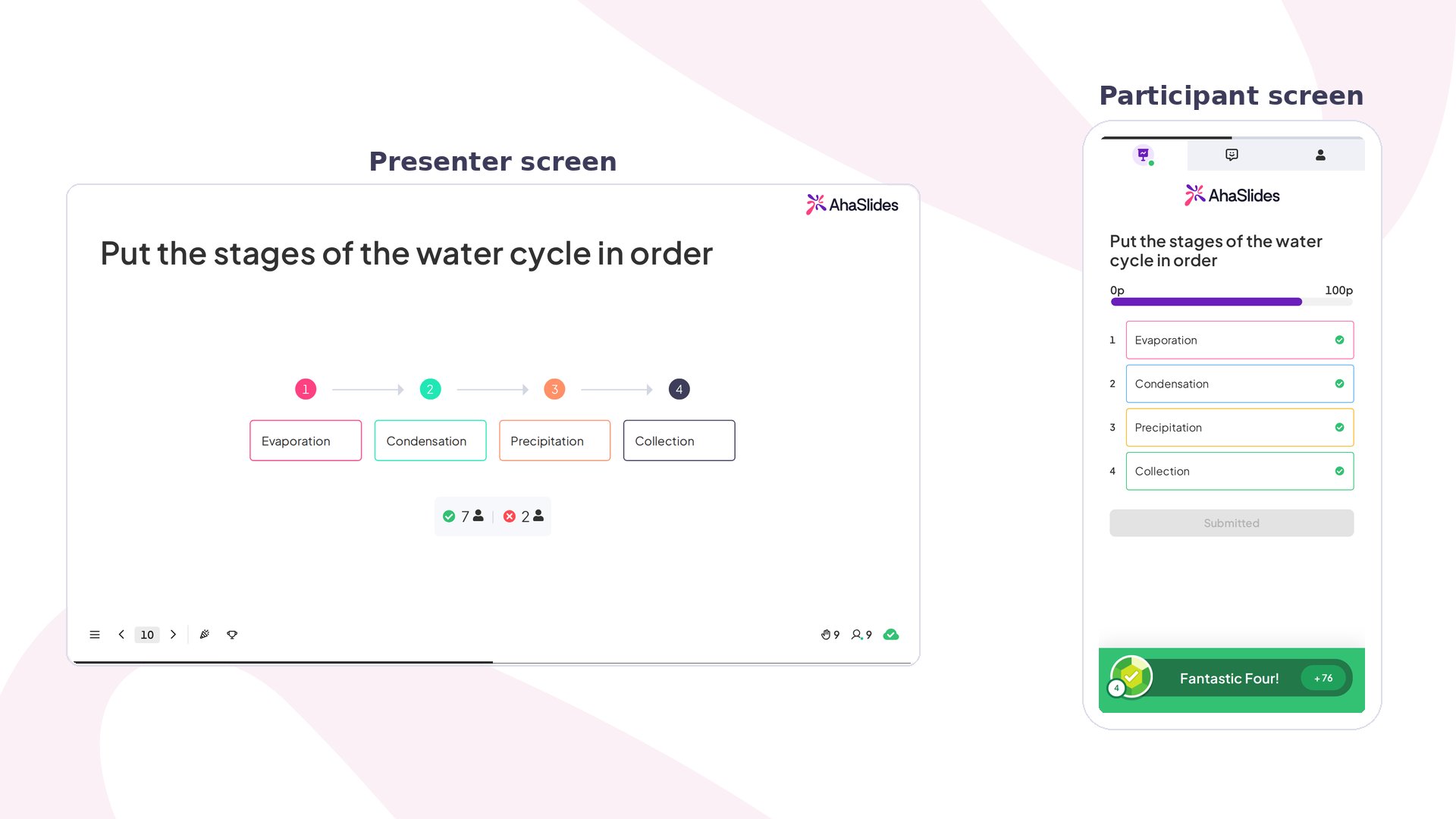
Correct Order at a glance
Create a Correct Order slide
1
Add a Correct Order slide
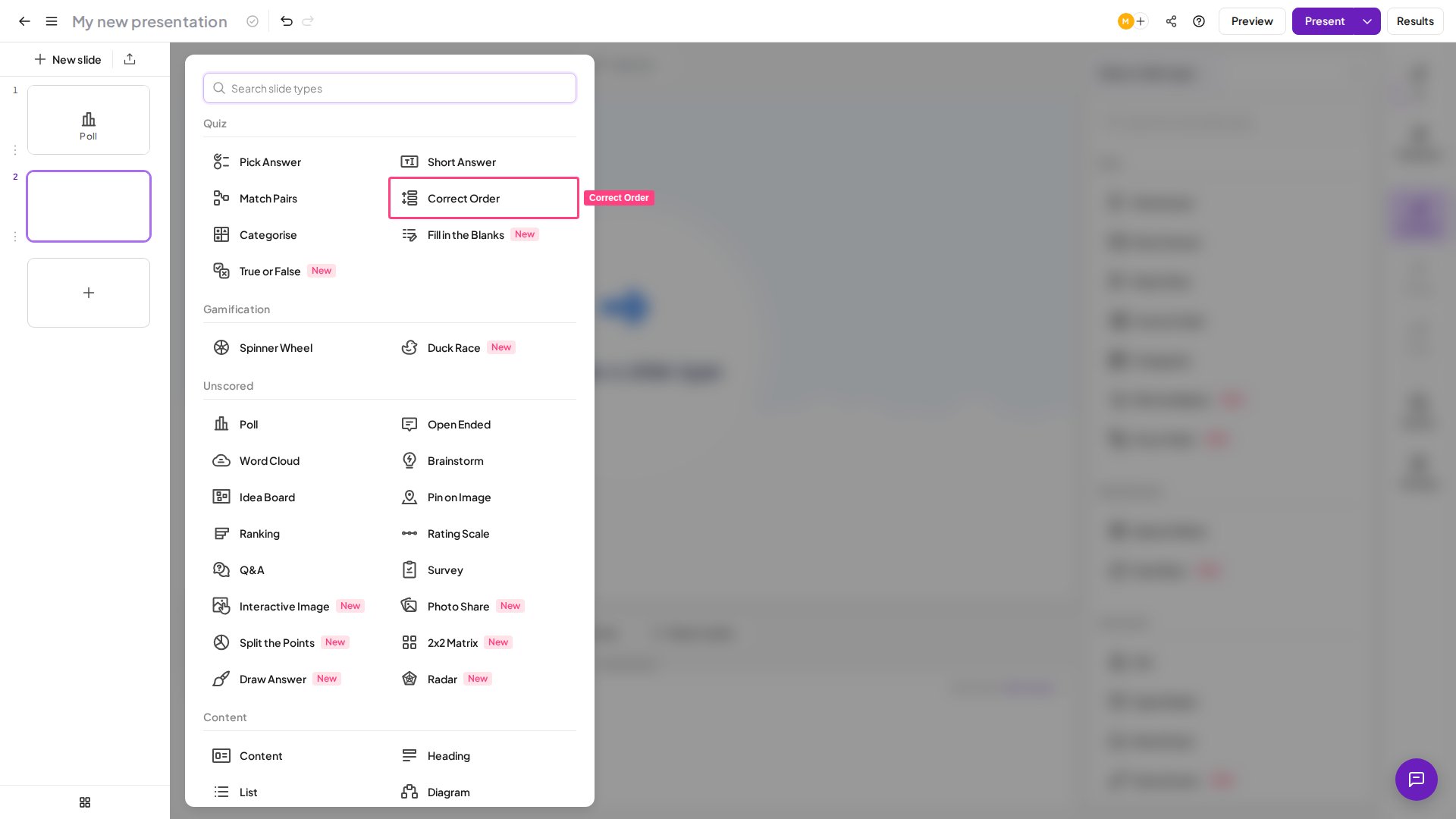
In the editor, select Correct Order from the Quiz section of the slide type picker.
2
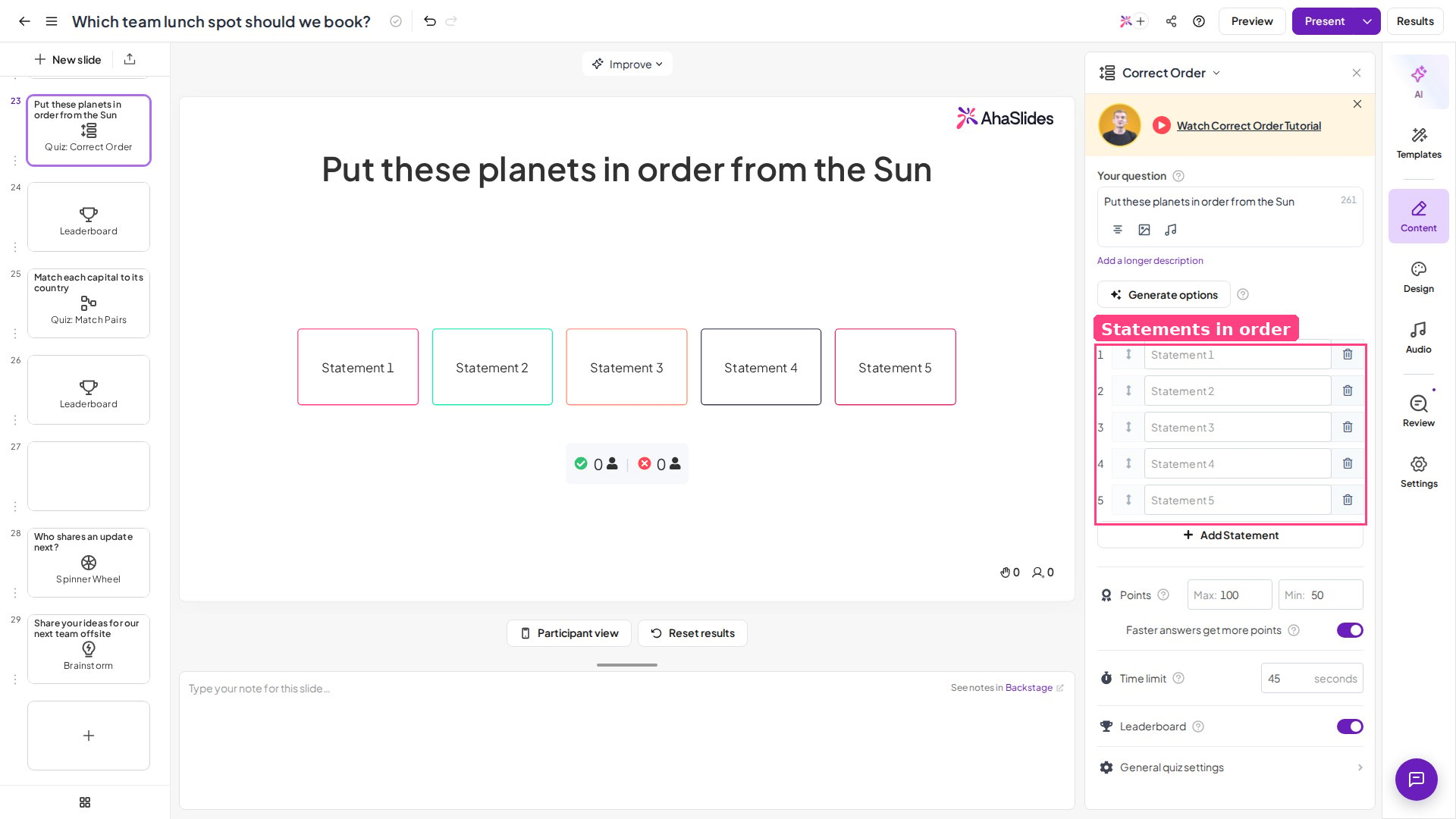
Type your question
Enter your question or instructions in the Your question field. A clear, unambiguous question works best — for example, “Put these steps in the correct order.”
3
Add your statements
Under Statements, enter up to 7 statements in the correct order. AhaSlides automatically shuffles them for participants on the presentation canvas. The Correct Order slide always shuffles the statements. The Shuffle Options quiz setting doesn’t turn that shuffle off. Each Correct Order statement is text only, with up to 50 characters. You can’t add an image to a Correct Order statement. You can add an image to the question of the Correct Order slide.
4
Configure points and time
Scroll down to set the point range and time limit — see Correct Order settings.
- Keep the list to 5 items max — fewer items means less cognitive load and easier dragging on mobile.
- Make each item distinct — avoid items that could plausibly swap positions.
- Choose a logical sequence type — chronological events, process steps, or ranked priorities work best.
- Keep item text concise — short phrases of 3–7 words are easier to read and drag.
- Avoid numbering items — don’t write “Step 1: …” in the text, as it gives the answer away.
Present a Correct Order slide
Participants see the question and a row of shuffled statements on their device. They have the time limit you set to drag and drop the statements into what they believe is the correct order, then press Submit to lock in their answer.Correct Order does not support partial scoring. Participants must get every statement in the exact correct order to earn any points — even one misplaced statement results in 0 points.
Correct Order settings
Have a question?
Contact our support team — if you’re logged in, use the chat bubble in the bottom-right of your dashboard; otherwise contact us here or email hi@ahaslides.com.
Want to connect with other users? Join the AhaSlides community to share tips, request features, and see how others engage their audiences.