

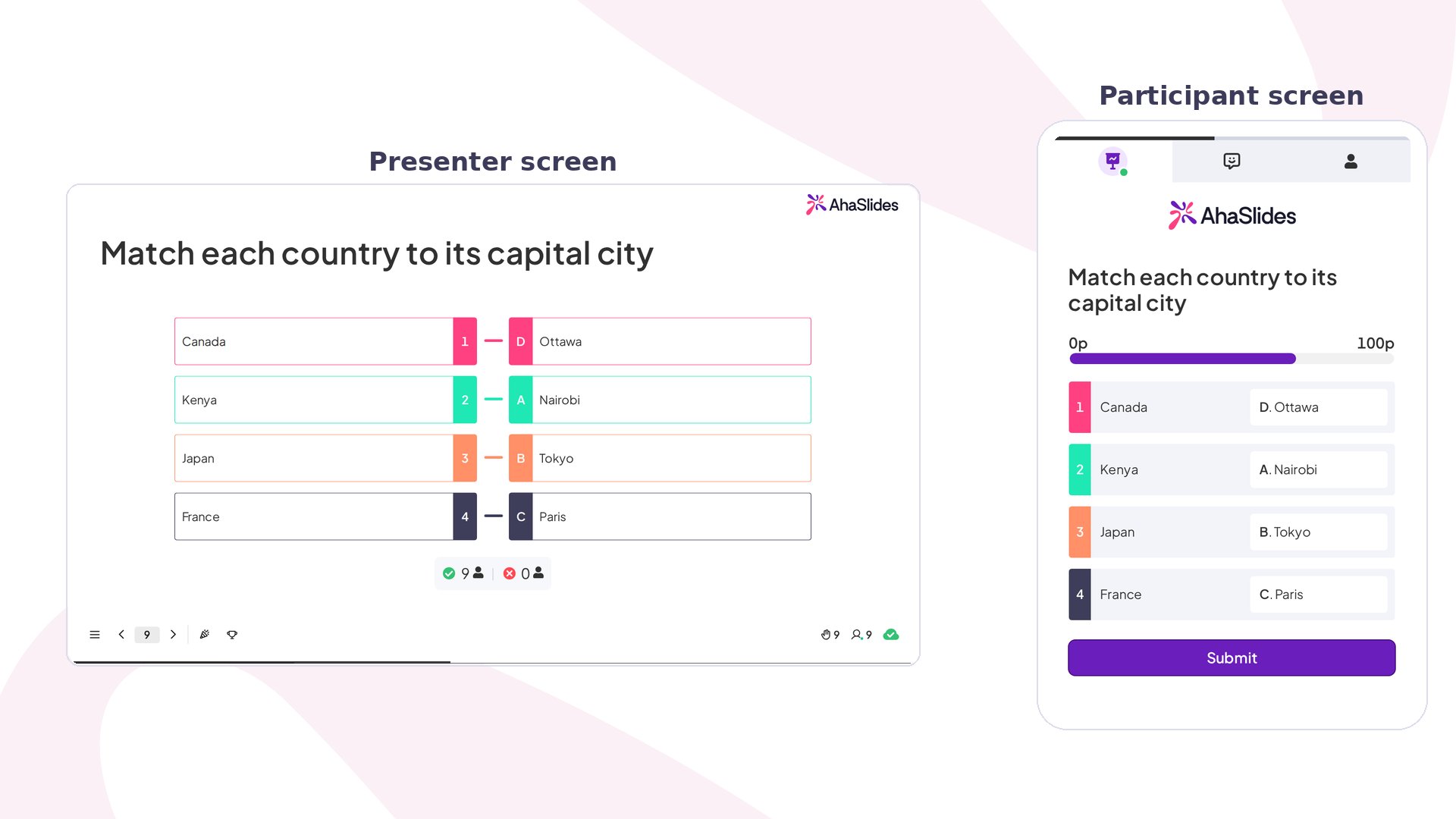
Match Pairs at a glance
Create a Match Pairs slide
1
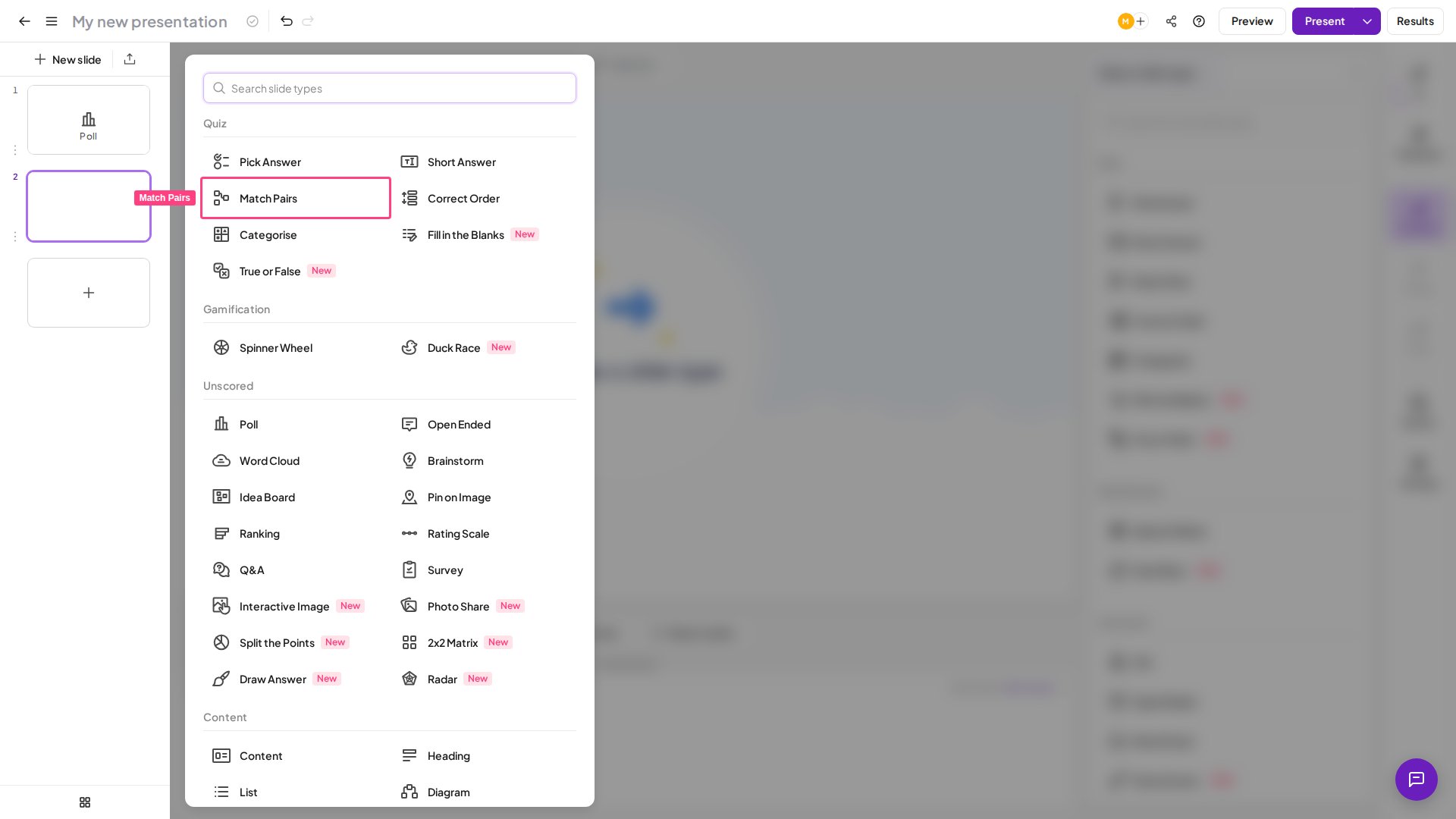
Add a Match Pairs slide
In the editor, select Match Pairs from the Quiz section of the slide type picker.
2
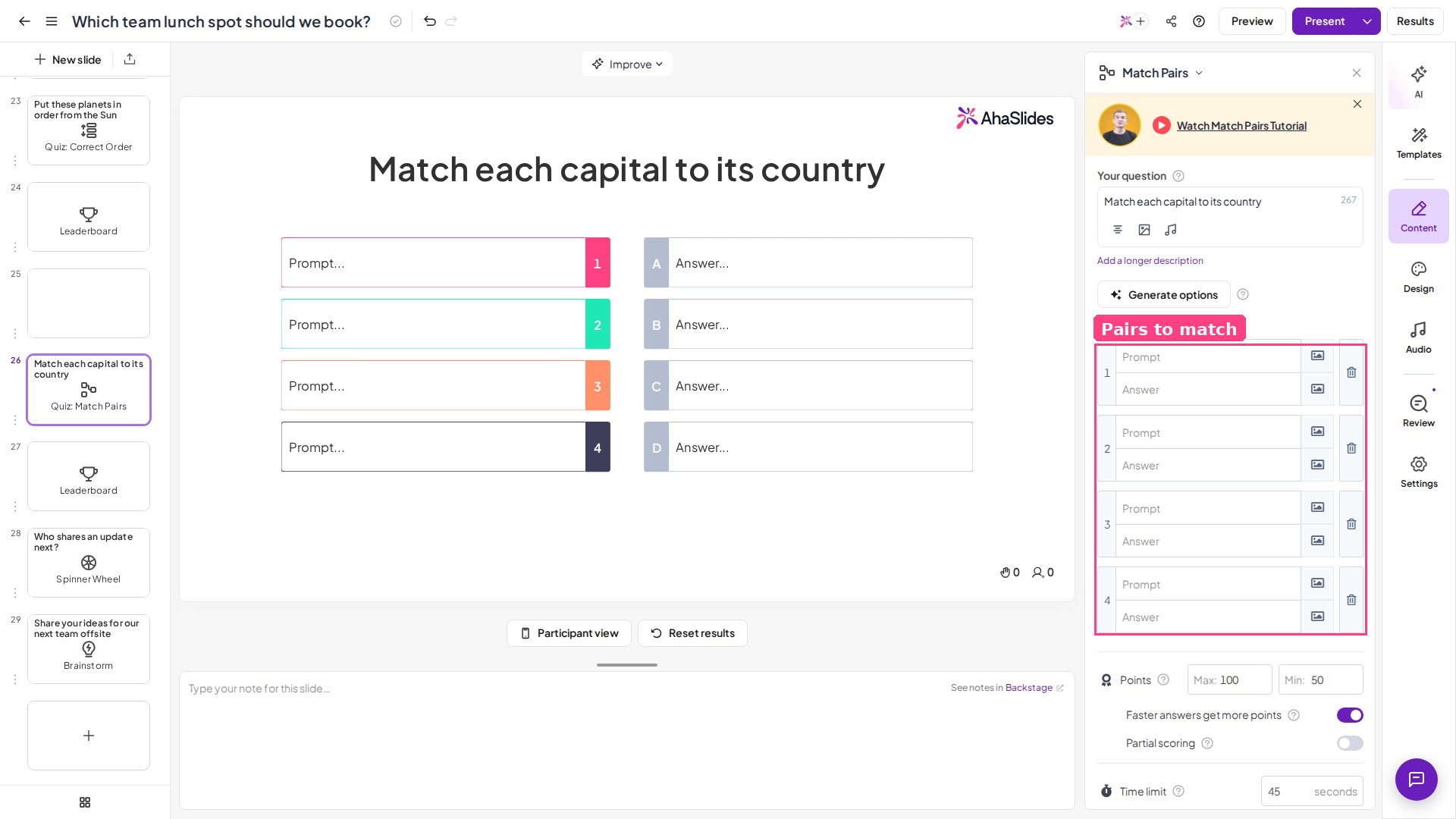
Type your question
Write your question or instructions in the Your question field.
3
Add your pairs
Under Pairs, type up to 4 prompts and the answers they match with. You can upload an image in place of text for any prompt or answer using the image icon next to the field.
4
Configure scoring and time
Adjust the settings below the pairs — see Match Pairs settings.
- Keep pairs clear and unambiguous — each left-side item should have exactly one correct match on the right.
- Aim for 3–4 pairs — enough to be engaging without crowding a small mobile screen.
- Balance difficulty — mix one or two obvious pairs with a few trickier ones.
- Use parallel structure — if the left column uses terms, keep the right column consistently in definitions, images, or examples.
- Keep text short — a word or short phrase per item is easier to scan and drag than a long sentence.
- Test for red herrings — make sure no right-side option almost fits multiple left-side items, unless that’s intentional difficulty.
Present a Match Pairs slide
Participants see the question along with two columns: prompts, numbered 1, 2, 3, 4, on the left, and answers, lettered A, B, C, D, on the right. The answer column shuffles automatically so participants can’t just copy the on-screen order. Within the time limit, participants match each prompt with the answer it goes with. For scoring mechanics, the leaderboard, and other quiz-wide settings, see How to make and run a quiz.Match Pairs settings
Without partial scoring enabled, players must match all prompts and answers correctly to earn any points.