

Before you start
Per-slide settings sit on the Content tab. Whole-quiz settings can be reached two ways: from the bottom of the Content tab via General quiz settings, or under Settings, then Quiz experience. The answer Time limit is still a per-slide setting, so you set it for each quiz slide on the Content tab.Change quiz slide settings
Each quiz slide has its own settings. Select the slide, open the Content tab in the right-hand column of the editor, and scroll down to find them.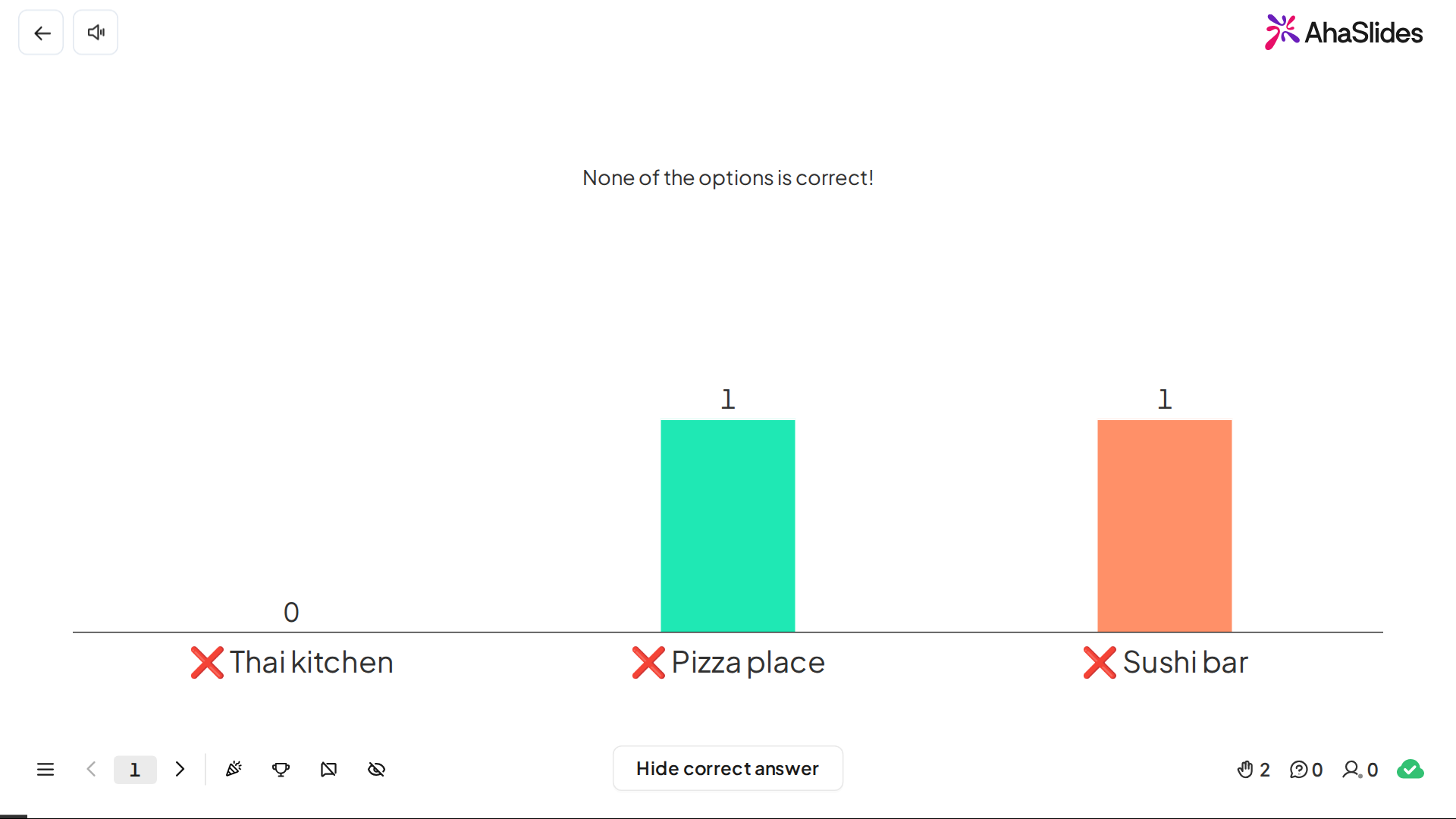
A quiz slide always keeps a time limit. You can change its length but can’t switch it off, because scoring depends partly on how quickly players answer. When the time runs out, the slide switches to its results screen but the quiz does not move on by itself, so you advance to the next slide when you’re ready. Set the time limit on each quiz slide separately; the Apply to all option that interactive slides offer isn’t available on quiz slides.
To run a question with no countdown, use an interactive slide type where the timer is optional instead: Poll, Word Cloud, Open Ended, and Rating Scale all let you turn the timer off.
Turn on partial scoring
When setting up a Pick Answer slide, you can mark multiple answers as correct. If you do, participants can pick more than one answer, and the Partial scoring option appears — toggle it on or off:- On — Players score points for each correct answer, but any incorrect answer results in 0 points.
- Off — Players must select all correct answers to score points.
Add hints to a quiz question
You can add hints to your quiz questions to help out players. Only the presenter can choose to reveal a hint during a question.1
Turn on hints
In the right-hand panel, click the lightbulb icon next to Your question (its tooltip reads Add hints to aid players). A Hints section opens below your question.
2
Write your hints
Write up to 3 hints in the boxes.
3
Reveal hints while presenting
While the question is running, click the hint icon on your presenting screen to show the first hint. Use the arrows to move to the next hint.
Hints are currently only available on the Pick Answer slide, whether its answer options are text or images. They aren’t available in self-paced mode, because there is no presenter to reveal them. If your participants can’t see a hint, check that you revealed it while the question was still running.
Add audio to a quiz question
On any paid plan, you can also add accompanying audio to your quiz questions. Select the quiz slide, click Audio in the right-hand editing panel, and on the Slide sub-tab click Select to pick a library track or Upload to add your own mp3. See Slide and Presentation Audio for more.Change Quiz experience settings
Aside from the settings on each slide, you can also enable or disable general settings for the whole quiz. There are two ways to open them. Select a quiz slide, scroll to the bottom of the Content tab and click General quiz settings, and the settings open in a pop-up. Or click Settings in the right side menu bar, then Quiz experience.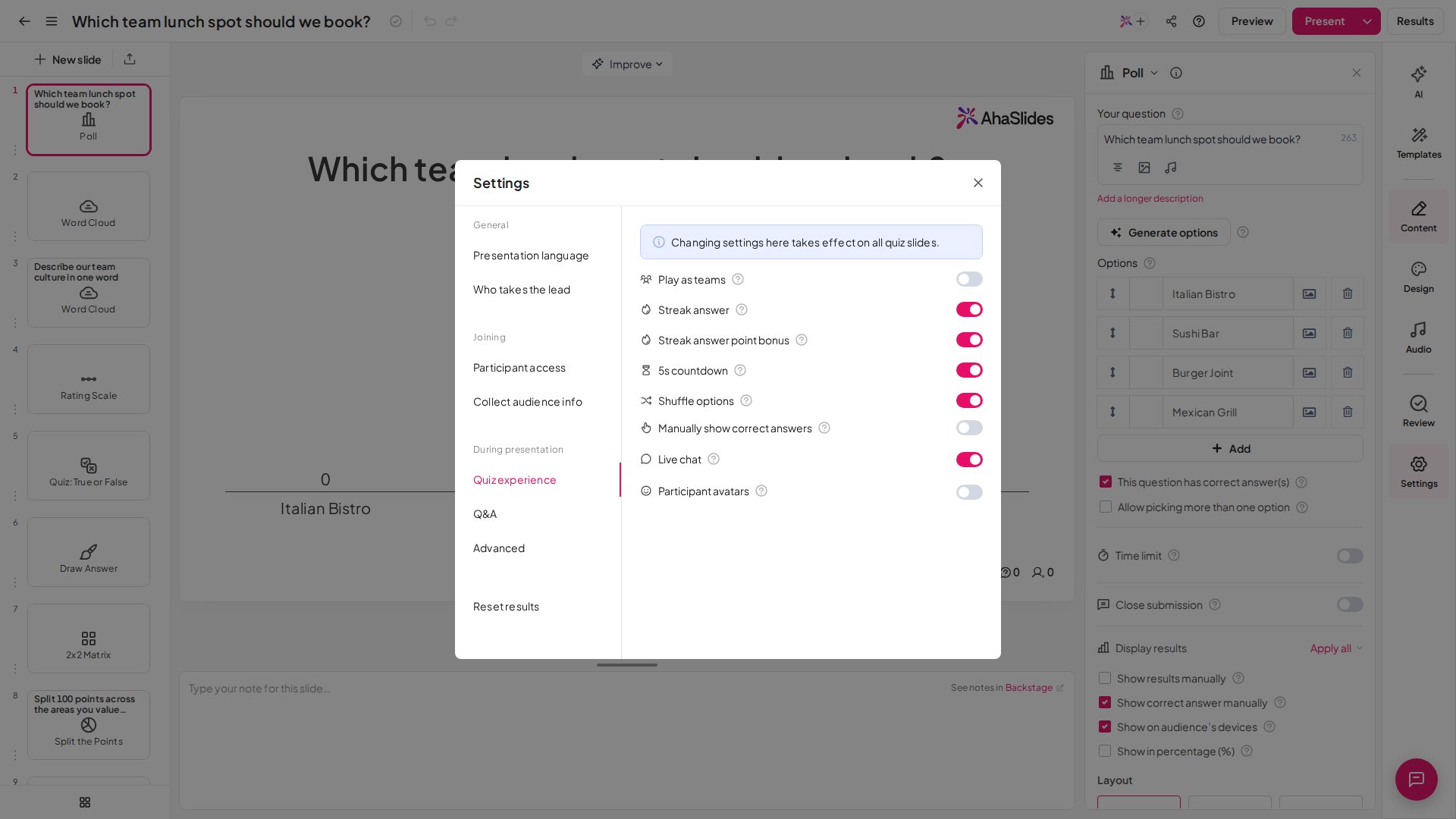
Live Chat
When turned on, the presenter and participants can exchange messages, inspire friendly competition, and have lively discussions on the quiz lobby screen. This cultivates a thriving atmosphere, transforming the quiz into an exciting and bonding experience. To clear the chat feed before reusing the presentation, reset the presentation’s results — this wipes the Live Chat messages along with all other participant submissions.Sound Effects
Sound effects aren’t in Quiz experience — they sit on the Presentation sub-tab of the Audio tab in the right-hand editing panel, and they’re available on every plan. Sound effects are the short sounds AhaSlides plays to lift the energy of a live quiz — the start-quiz and 5-second countdown sounds, the timer as it winds down, the jingle as a leaderboard rearranges, and the more triumphant jingle for the winner on the final leaderboard. They are selected by AhaSlides and are not customisable. You control them under Sound effects on the Audio tab’s Presentation sub-tab, with separate toggles for On the presenting screen and On participants’ devices. While presenting, you can also mute or unmute everything you hear on the presenter screen using the speaker icon in the top-left corner. See Slide Audio, Presentation Audio, and Sound Effects for the full audio setup. The quiz lobby music is separate from the sound-effects toggles. It plays by default on the lobby screen and there is no toggle to switch it off — you can only silence it with the on-screen volume control, or, on a paid plan, replace it by choosing a Presentation audio track from the AhaSlides library on the same Presentation sub-tab.5s Countdown
When on, each question is preceded by a 5-second countdown timer, giving players time to read the question before they answer.Play as Teams
Not available on every plan; if yours doesn’t include it, you’ll be prompted to upgrade. Players play the quiz in teams rather than individually. See Running a Team Quiz to set this up.Shuffle Options
Not available on every plan; if yours doesn’t include it, you’ll be prompted to upgrade. When Shuffle Options is on, Pick Answer options appear in a different order for each player, which makes it harder for players to swap answers by showing each other their screens. Match Pairs and Correct Order slides always shuffle for players, whether Shuffle Options is on or off. This shuffles the answer options within each question; it does not change the order of the questions themselves, which always appear in the order you built them in.Manually show correct answers
Not available on every plan; if yours doesn’t include it, you’ll be prompted to upgrade. Does not work in Self-paced mode. When Manually show correct answers is on, the correct answer stays hidden at the end of each question: on your screen the results show without the correct answer marked, and participants’ phones don’t show whether they were right or how many points they scored. Click Show answers when you’re ready, and the correct answer and each player’s result appear on both. That gives you time to explain the question before the reveal. To show a written explanation on screen, add a Content slide straight after the quiz question and put your explanation on it. Quiz slides have no explanation field of their own.Participant Avatars
Enabled — participants select an avatar when they join the quiz at the Lobby screen. Disabled — participants can join the quiz without avatars.Run a self-paced quiz
You can also let your players play a quiz without a host. This is great for teachers who want to assign a quiz as homework, or quiz masters who want to give players freedom to complete a quiz at a time that suits them. To set this up, see Setting up a Self-Paced Presentation on AhaSlides.Related pages
How to Make and Run a Quiz
The full walkthrough — choosing a quiz slide, editing it, getting players in, and presenting.
Quiz troubleshooting and FAQs
Auto-end quiz timers, character limits, hiding results, and what you can restyle on a quiz slide.