

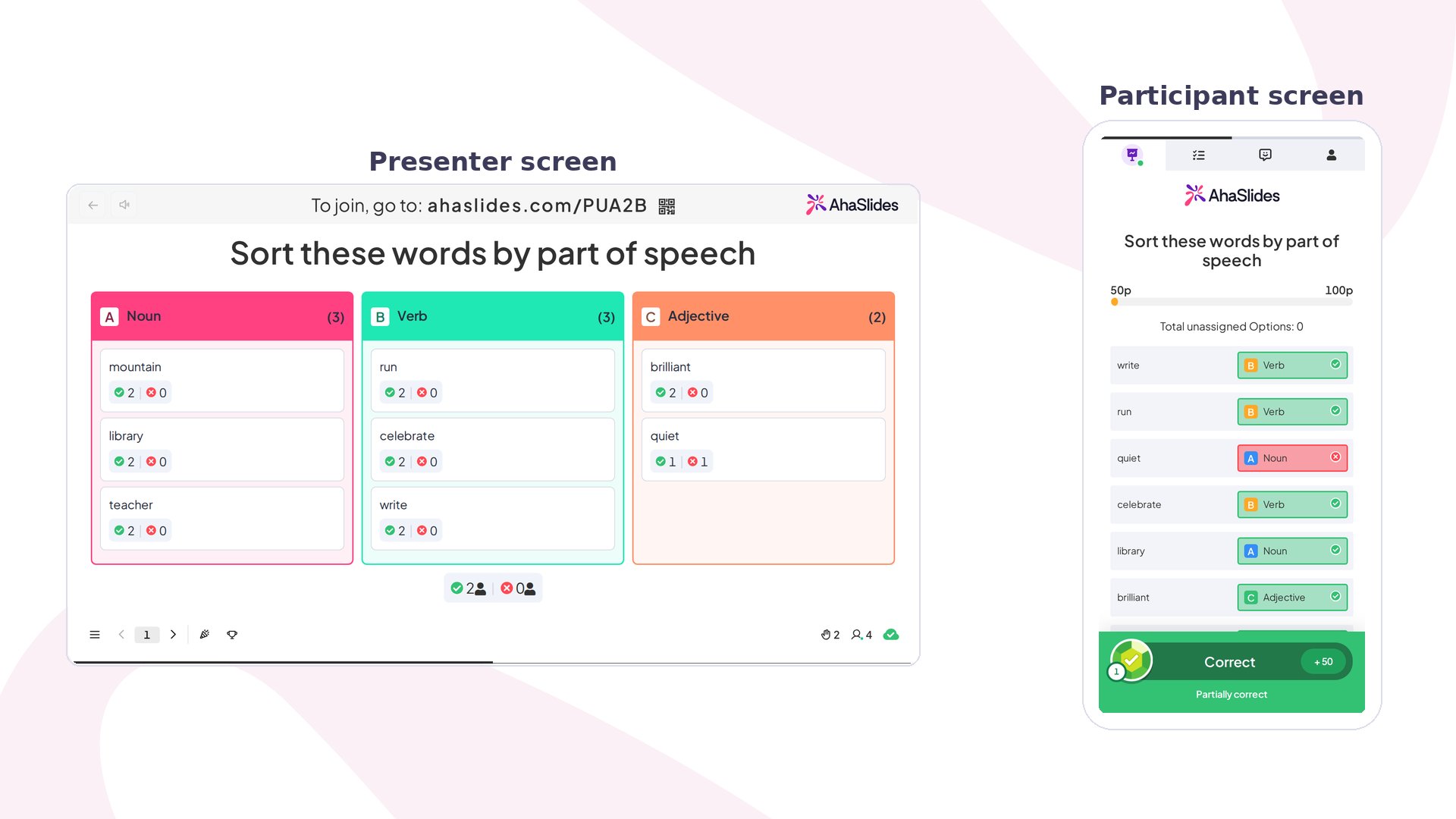
Categorise at a glance
Create a Categorise slide
1
Add the slide
In the editor, click New slide and select Categorise from the Quiz section of the slide type picker.
2
Write your question
Click into the Your question field and type the challenge you want participants to tackle. Be specific about what they’re sorting.
3
Add items to sort
In the Category & options section, enter all the items participants will sort into the shared “Enter options, separated by commas” field. AhaSlides splits them automatically into draggable items on the participant screen. You can also press Enter after each item instead of typing a comma. Each item can be up to 150 characters long. If an item contains a comma or semicolon, see Why did one of my items split into several items?.
4
Name your categories
Fill in a name for each category block. You can add up to 8 categories by clicking + Add Category. You can also type category-specific items into the “Enter options, separated by commas” field inside each category to pre-assign them as correct answers.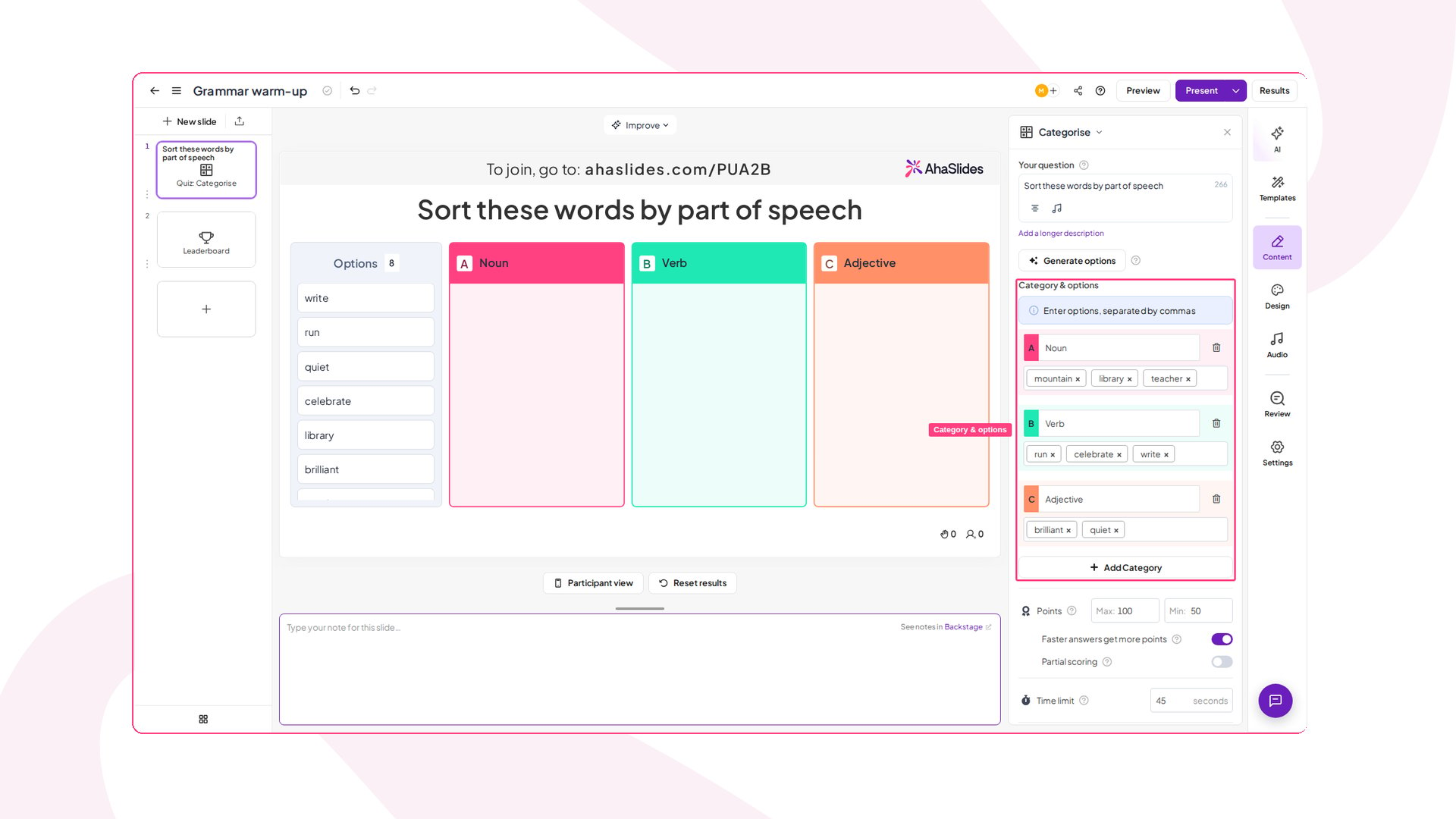
5
Adjust settings and save
Configure scoring and timing — see Categorise settings — then save your slide.
Present a Categorise slide
When you present a Categorise slide, participants see a list of shuffled items on their devices and drag each one into the category they think it belongs in. The more items they get right — and the faster they answer — the more points they earn. On your presenter screen, the category columns populate with items in real time as responses come in. For scoring mechanics, the leaderboard, and other quiz-wide settings, see How to make and run a quiz.Categorise settings
Ideas for using Categorise
Classroom and Education
Sort vocabulary words by grammatical category, classify organisms into kingdoms, or group historical events by era — live results show teachers where the class needs revisiting.
Corporate Training and Onboarding
Have new hires sort company values into “strategic priority” or “cultural pillar” buckets, or classify customer complaints by support tier.
Team Workshops and Retrospectives
Sort a backlog of improvement ideas into “quick win”, “big bet”, and “park for later” buckets, or group blockers by root cause.
Icebreakers and Events
Sort fun facts, team trivia, or product features into themed categories to warm up a conference session or all-hands.
Market Research
Ask participants to sort product attributes into “must-have”, “nice-to-have”, and “not needed” columns, or group use cases by department.
Try the Corporate Training and Onboarding template
Want a ready-made example? This template runs three Categorise rounds built for onboarding: sort company values into Strategic Priority or Cultural Pillar, classify customer complaints by support tier, and assign onboarding tasks to HR, IT, or Manager.Frequently asked questions
Why did one of my items split into several items?
Because the item text contained a comma or a semicolon. The options field treats both, and ; as item separators, and pressing Enter or Tab ends the current item too. There is no escape character, so an item cannot contain a comma or a semicolon in its own text — paste a full sentence with a comma in it and it arrives on the participant screen as two separate draggable cards.
This matters most for language and grammar activities, where the items are complete sentences rather than single words. If your items need internal punctuation, replace it with something the field doesn’t split on:
A dash, a colon, or parentheses all stay inside a single item. If a delimiter you can choose yourself would help your activity, tell our support team — we pass this kind of feedback to our product team.