

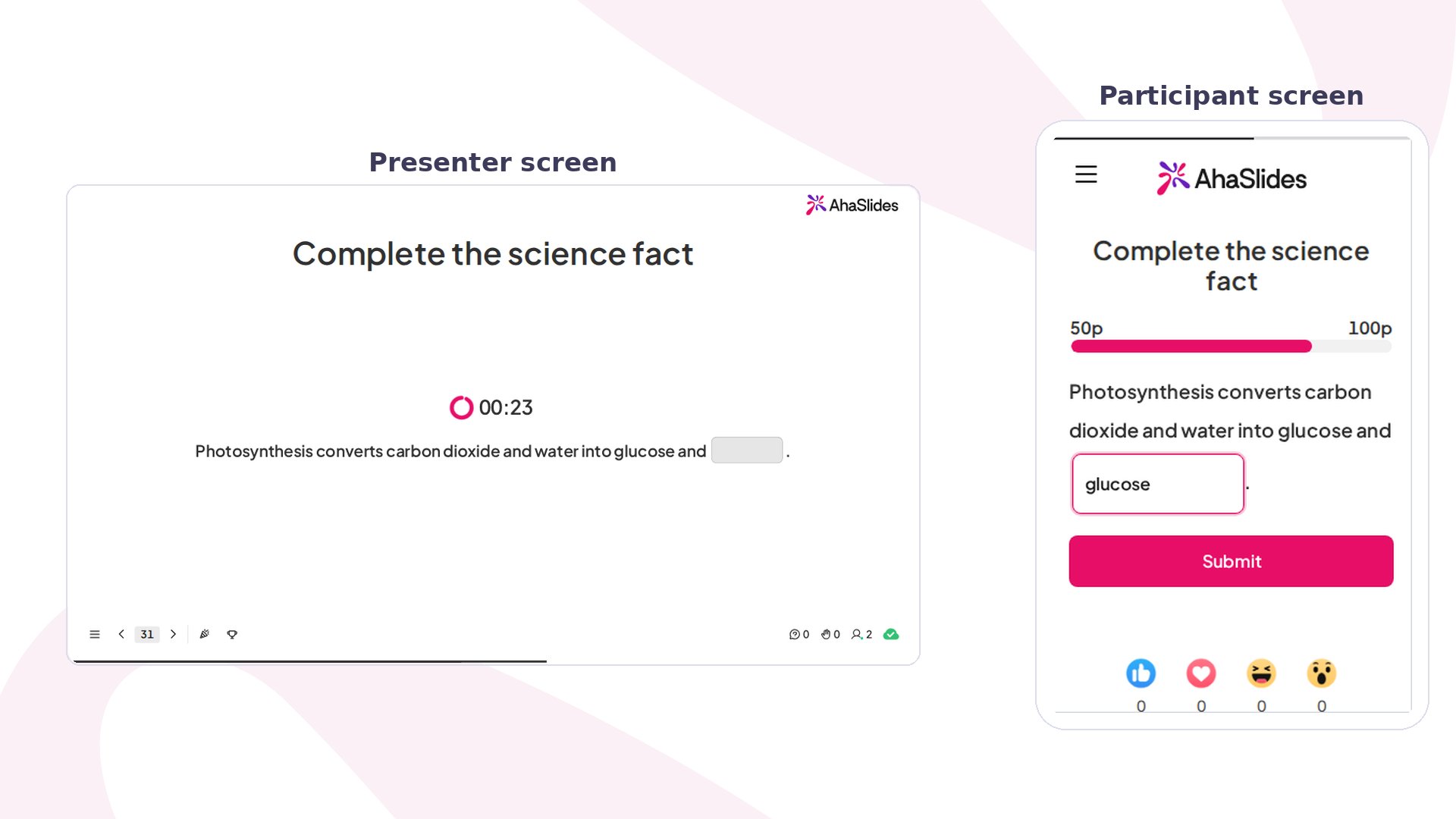
Fill in the Blanks at a glance
Create a Fill in the Blanks slide
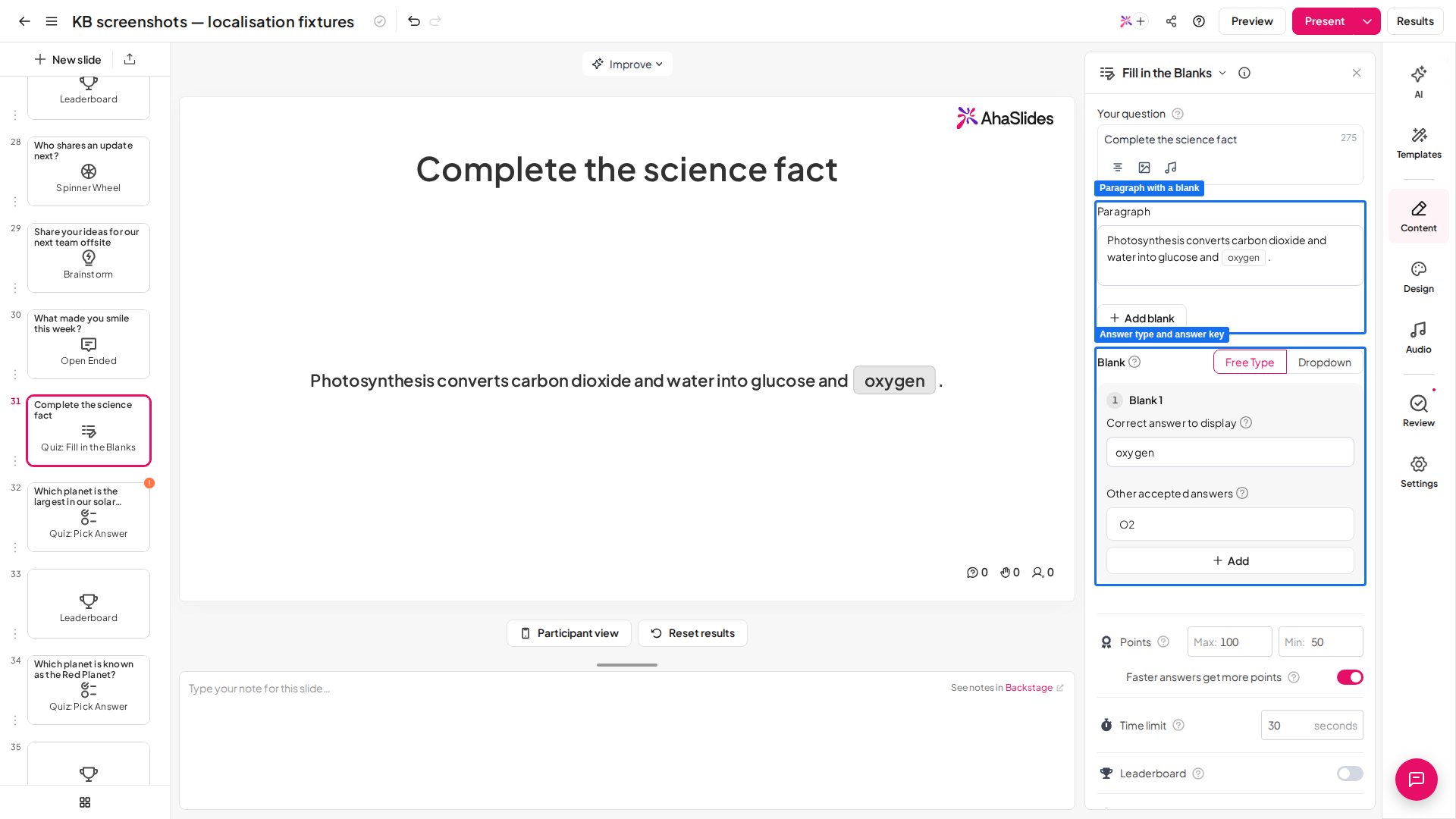
You don’t type underscores to make the gaps: type the full sentence, then select each word you want to hide and click Add blank.1
Add the slide
Click New slide in the editor and pick Fill in the Blanks from the Quiz group.
2
Write your sentence
Type the full sentence into the Paragraph field, exactly as you want it read once the answers are revealed. Write it complete first — you mark the gaps in the next step. There is a separate Question title field for an optional prompt or heading above the sentence.
3
Blank out the key words
Select a word and click Add blank (the button reads Convert to a blank while a word is selected) to turn it into a gap. You can blank out up to 4 words per slide, so pick the terms that actually test recall rather than filler.
4
Choose how the room answers
Under Blank, pick one answer type for the whole slide: Free Type lets players type their own answer, and Dropdown lets them pick from options you set.
5
Set the answer key
For a Free Type blank, fill in the Correct answer to display — the answer shown on the reveal — and add any Other accepted answers (synonyms or spellings that also count but are never shown). For a Dropdown blank, write the Options and tick the one correct answer. Each blank takes up to 4 accepted answers or 4 options.
6
Tune points and timer
Set the points, countdown, and speed bonus in the slide’s quiz settings, and turn on a leaderboard to rank players (see Fill in the Blanks settings).
Present a Fill in the Blanks slide
Click Preview to rehearse, then Present. Participants join at the access code on screen, fill the gaps before the countdown ends, and see the completed sentence with their place on the leaderboard. On their phones, participants see the sentence with each gap as a field they complete in place — a Type answer… box for Free Type, or a Select answer… dropdown — then tap Submit before the timer runs out. When you click Reveal answers, the completed sentence and each player’s score appear, and the leaderboard updates. For a Free Type slide, the presenter view has an Accept more answers control: after the reveal you can mark a valid response players typed — a synonym or an alternative spelling you hadn’t listed — as correct, and scores update to match.Fill in the Blanks settings
Fill in the Blanks reuses the same scoring controls as every AhaSlides quiz slide — found in the slide’s quiz settings — plus two controls of its own.Ideas for using Fill in the Blanks
Fill in the Blanks needs no explanation for player or presenter — a sentence with gaps is instantly understood — and completing a blank proves real recall, not just recognition. Here’s a sentence you can borrow for each room:Classroom and revision
Test vocabulary, definitions, formulas, or language practice with the answer baked into the sentence. “Photosynthesis converts carbon dioxide and water into glucose and ___.” (oxygen)
Training and onboarding
Check that process steps, product facts, or policy details actually landed. “A refund must be approved within ___ business days.”
Events and conferences
Run a familiar quiz round anyone can jump straight into, with a Dropdown so a big audience answers in one tap. “AhaSlides was founded in the year ___.”
Fun and trivia
Song lyrics, famous quotes, movie taglines — leave a gap and let the room finish the line. “May the ___ be with you.” (Force)