

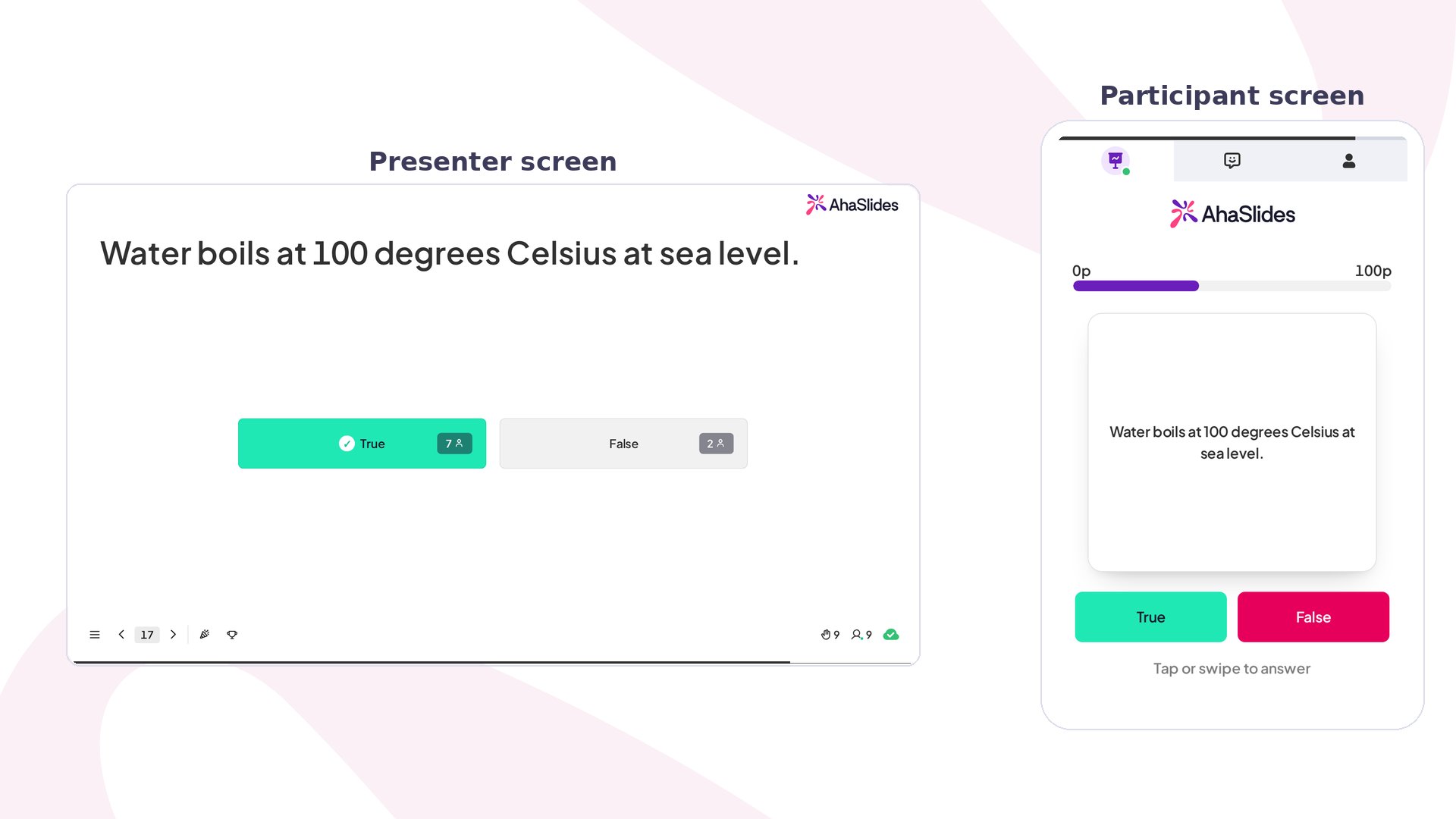
True or False at a glance
Create a True or False slide
1
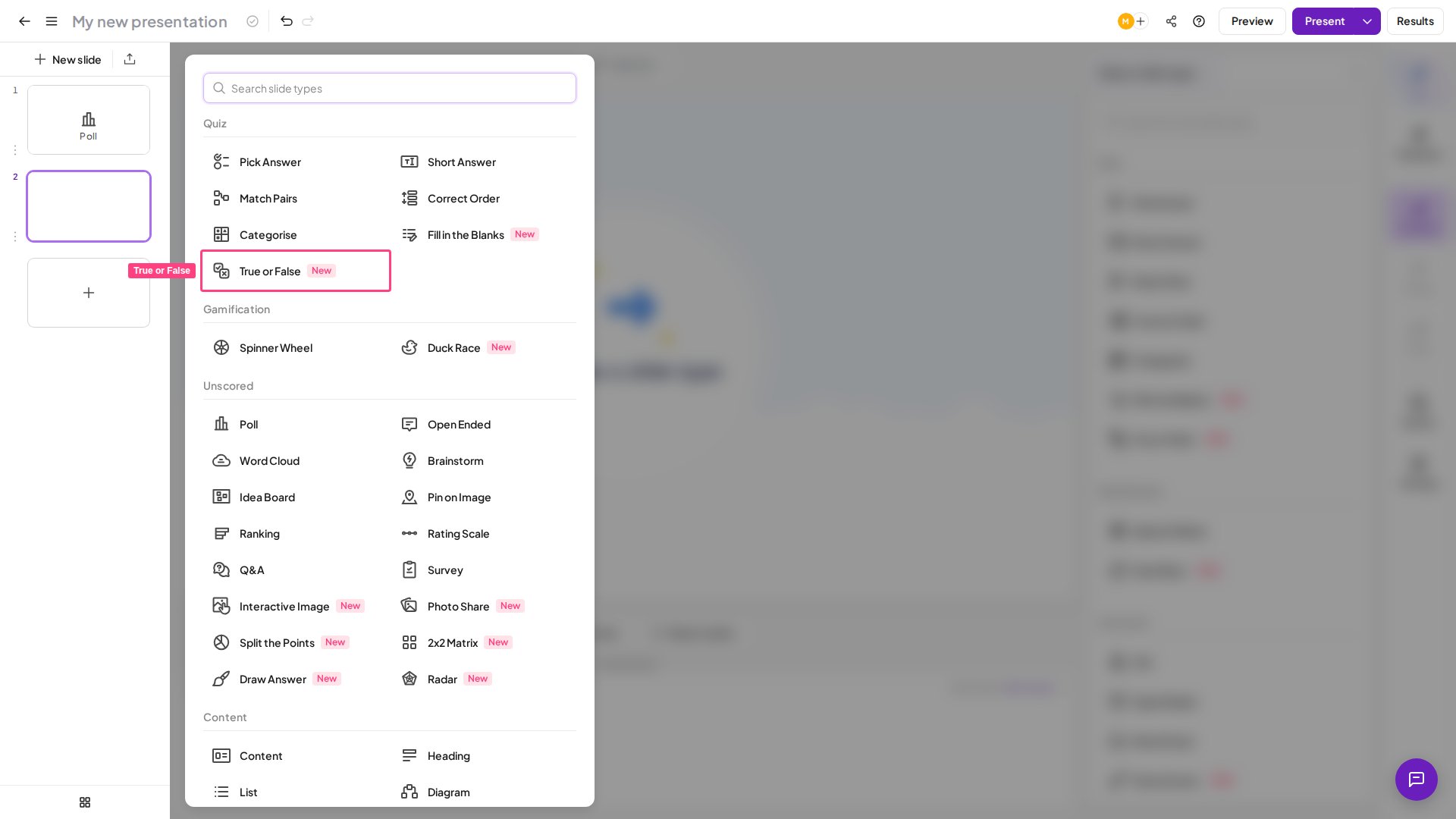
Add the slide
Click New slide in the editor and pick True or False.
2
Write a statement worth debating
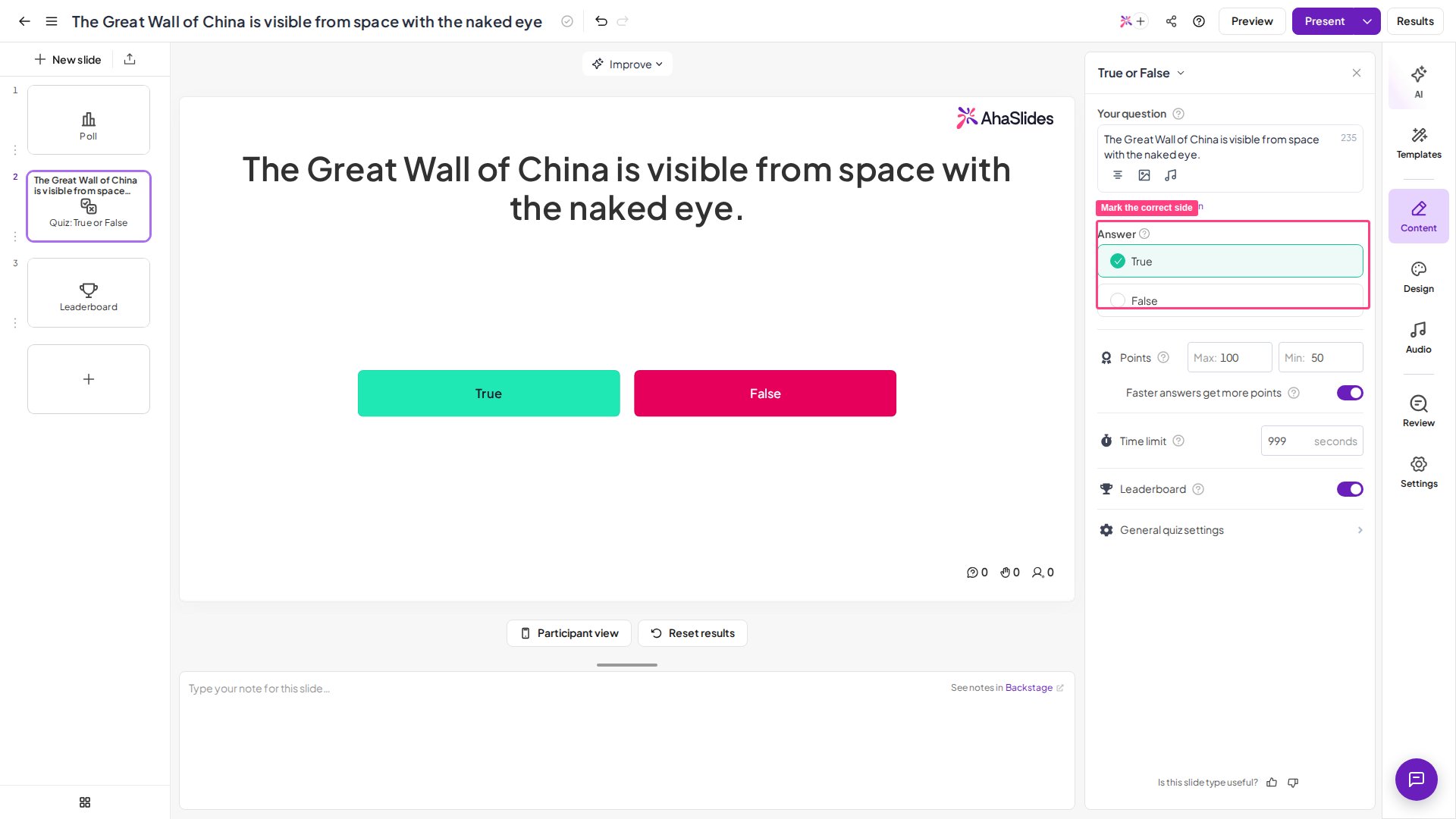
Type your claim into Your question as a flat statement, not a question. The best ones are surprising, or widely believed but wrong, so the room genuinely splits — “The Great Wall of China is visible from space with the naked eye.” Keep it to one claim per slide.
3
Mark the correct side
Choose whether True or False is right — that’s the card that takes centre stage and scores when the round ends.
4
Relabel the cards (optional)
“True” and “False” are just the default labels — you can rename both cards to fit your topic: Fact / Myth, For / Against, Pass / Fail, or Compiles / Broken for a code round. You still mark one side as the correct, points-winning answer.
5
Set a tight timer and points
A short countdown of 15–30 seconds keeps the energy up, and the speed bonus rewards quick thinking. Tune the timer, points, and leaderboard in the slide’s Points and Time limit panels (see True or False settings).
Present a True or False slide
Click Preview to rehearse, then Present. Participants join at the access code on screen, tap their answer before the countdown ends, and see the correct card revealed with their place on the leaderboard. On the big screen, the two cards stay readable from the back of the room while a countdown and the join QR code sit alongside them. On their phones, participants swipe the question card left for True or right for False, or tap the teal True or crimson False button, before the timer runs out. When the round closes, the correct side is revealed, points are awarded by speed, and the leaderboard updates.True or False settings
True or False reuses the same scoring controls as every AhaSlides quiz slide, so they live in the slide’s quiz settings rather than a dedicated panel.Ideas for using True or False
True or False is faster to set up than a two-option multiple-choice question — you write one statement and mark the correct side, nothing more. That low effort is exactly why it fits so many rooms; here’s a statement you can borrow for each:Classroom icebreaker or knowledge check
Open a lesson with a quick icebreaker, or close it with an end-of-lesson test that reveals who’s got it — the same slide works either way. “Photosynthesis only happens in a plant’s leaves.” (False.)
Training and onboarding
Confirm a policy, product, or compliance point actually landed — instantly, with a score to back it up. “Our refund window is 30 days.”
Meetings
Break up a long update with a fast, scored question that pulls a distracted room back in. “We closed more deals this quarter than last.”
Events and conferences
Warm up a big audience — the two cards read in a second from the back of the hall, so hundreds can play at once. “This city is older than Rome.”
Fun and trivia
Trivia nights, myth-busting, “would you believe it” rounds — zero prep, all energy. “Honey never spoils.” (It’s true.)