

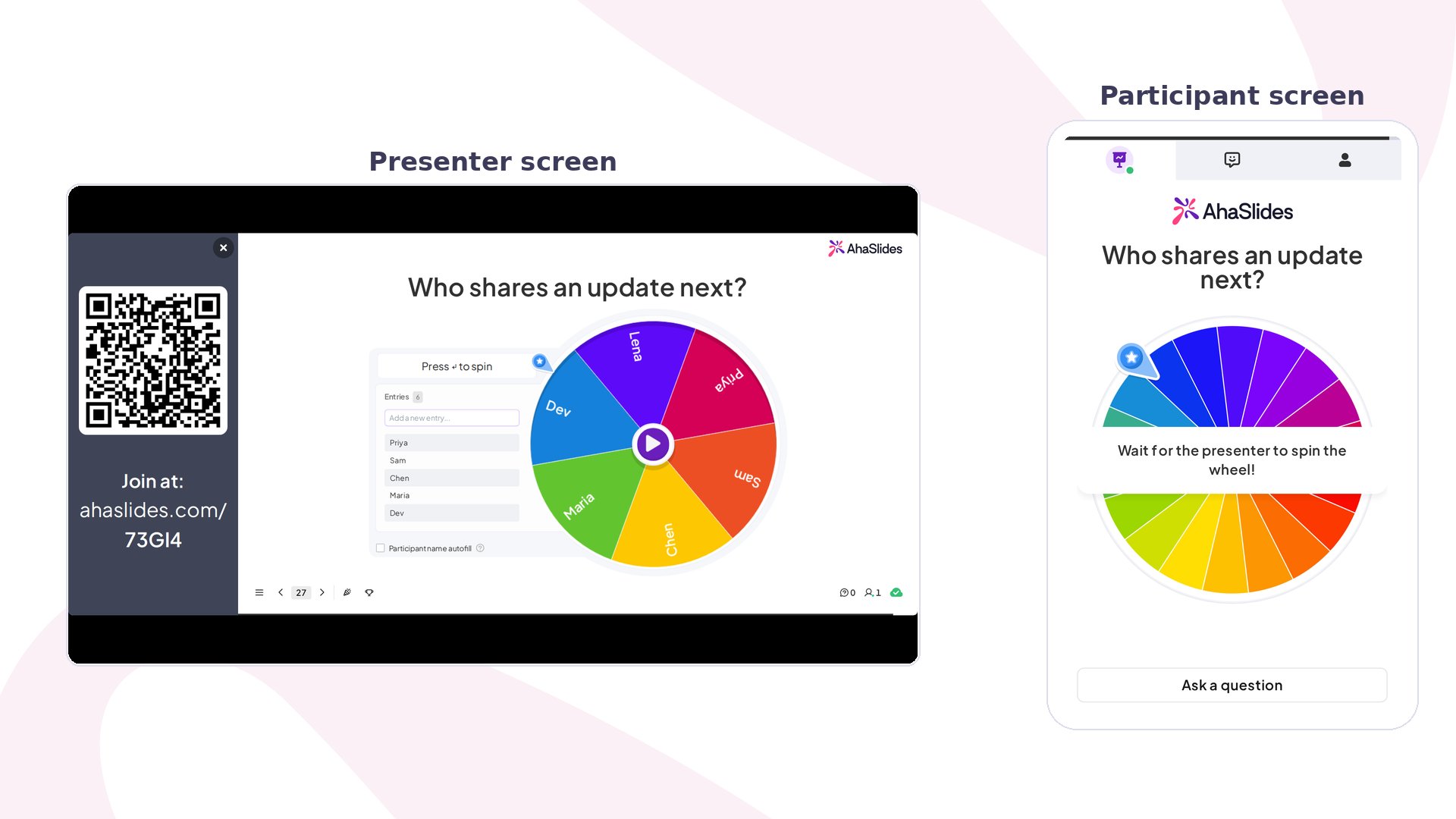
Spinner Wheel at a glance
Only the Presenter side can spin the wheel. Spin results will not be saved in the Excel export file.
How to run the Spinner Wheel
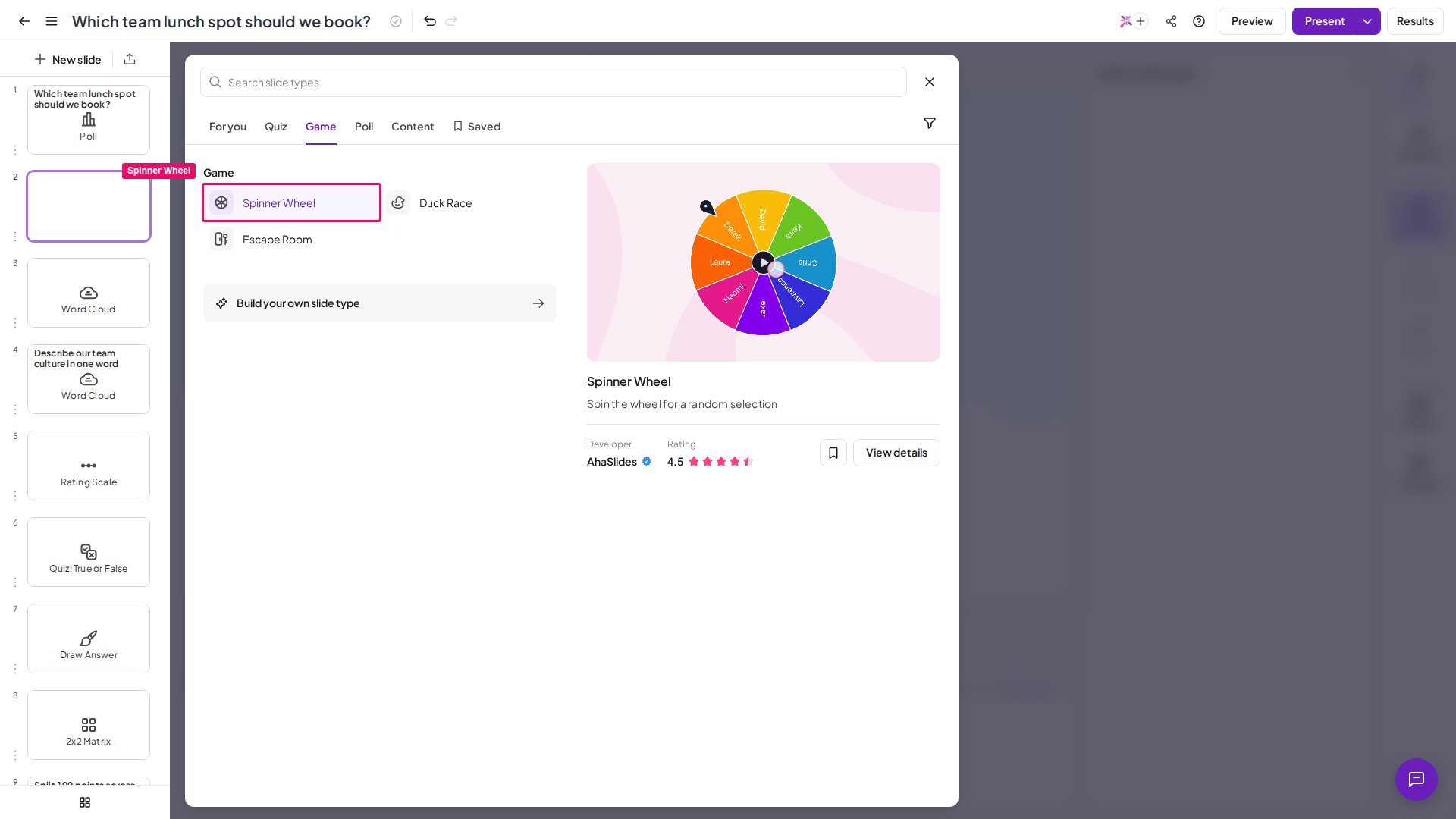
- In the editor, click New slide and choose Spinner Wheel.
- Add entries by typing them or autofilling participant names (see Add entries to the Spinner Wheel).
- Click Present, then click the Spin button in the presenter controls or press the spacebar. The wheel spins and gradually slows down with every entry visible to the audience, then stops on a segment and highlights the selected name or option for everyone to see.
- Choose what happens to the selected entry: Remove it from the wheel so it cannot be selected on the next spin (for elimination-style draws or picking several unique winners in sequence), or Keep it in for independent spins where repeated selections are acceptable. Click Spin again at any time to run another selection.
Add entries to the Spinner Wheel
- Type Entries Manually
- Autofill from Participant Names
Click the Entries field on the right panel of the editor and type your first entry. Hit ⏎ Enter after each one to add the next, or paste a list you’ve copied to your clipboard all at once. Click Save when you’re done.This method is ideal for fixed lists where the entries are known in advance — for example, team names, discussion topics, prize categories, or a list of cities.
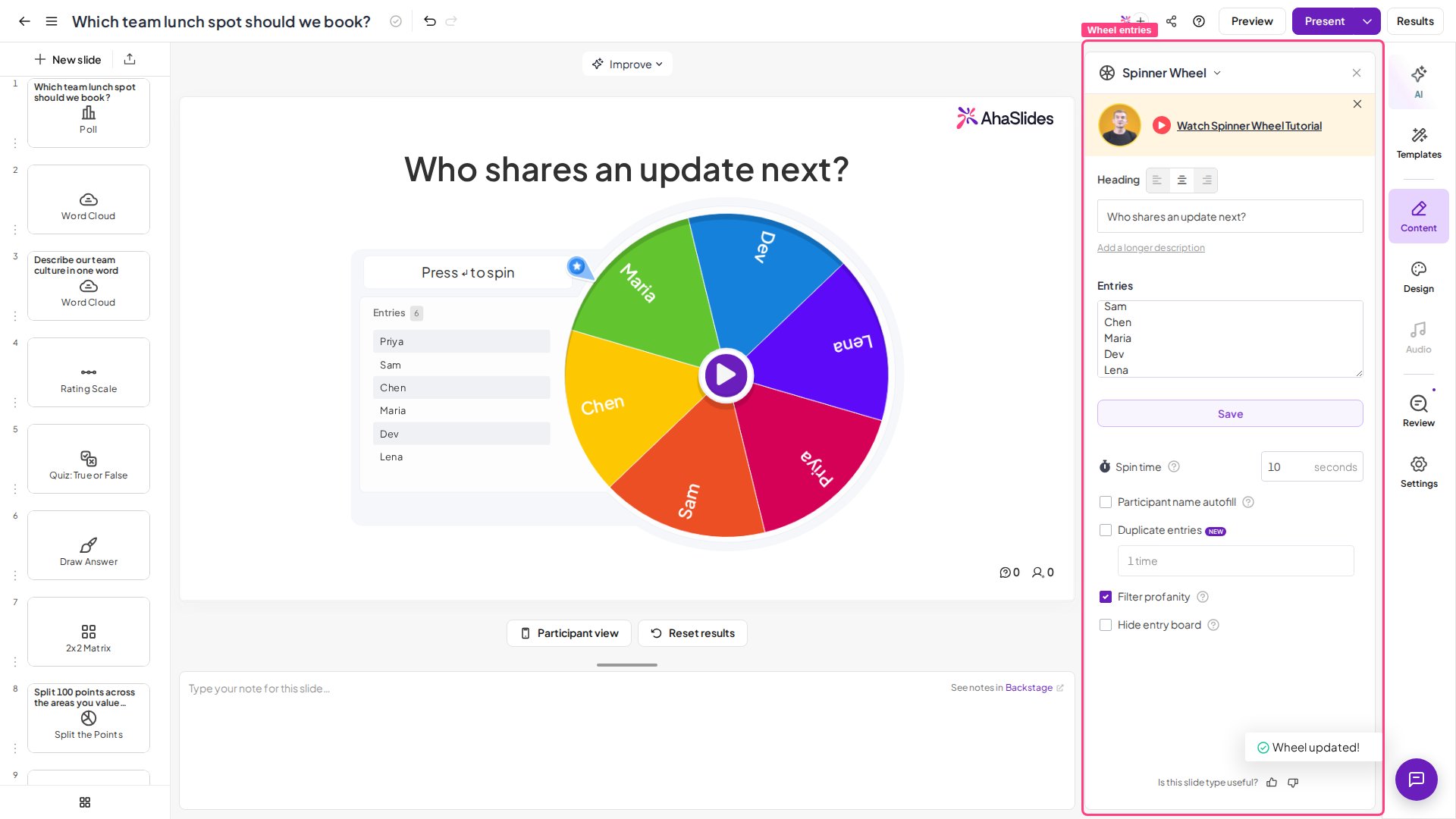
Spinner Wheel settings
Ideas for using the Spinner Wheel
- Combine with a Word Cloud — collect word submissions on a Word Cloud slide, then spin through the top responses on a Spinner Wheel to select one as the focus for discussion.
- Use autofill for fair random draws — letting participant names populate automatically means no manual setup and no accusations of a rigged list.
- Set a long spin duration for dramatic prize reveals — a 30–60 second spin with music or a countdown builds real anticipation in a live audience.
- Paste a bulk list of names directly into the entry panel — no need to type one by one; a line-separated list pasted in one go is split into individual entries automatically.