

Halloween Race at a glance
How to run Halloween Race
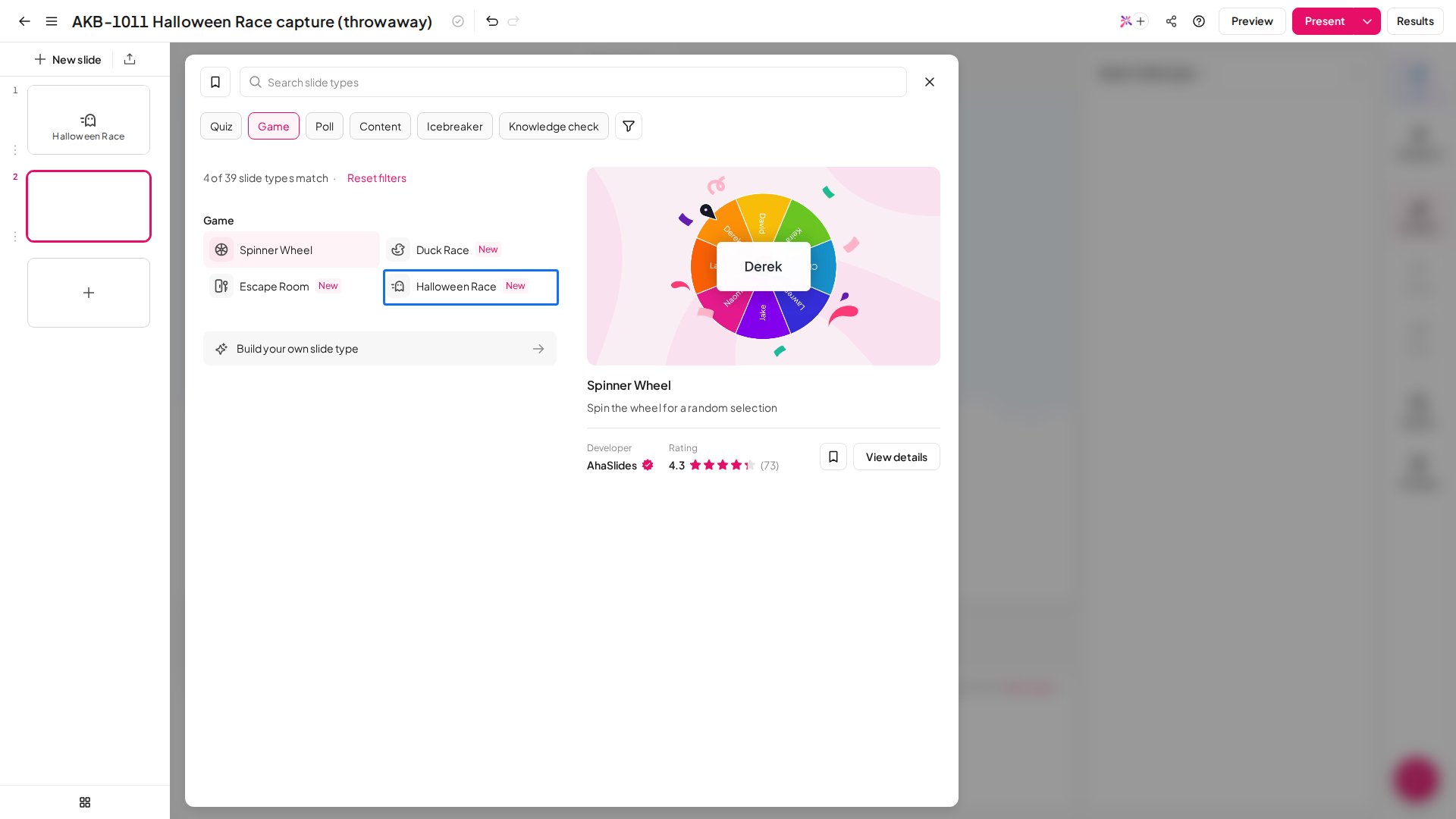
- In the editor, click New slide and choose Halloween Race. A new slide is already a complete, playable race.
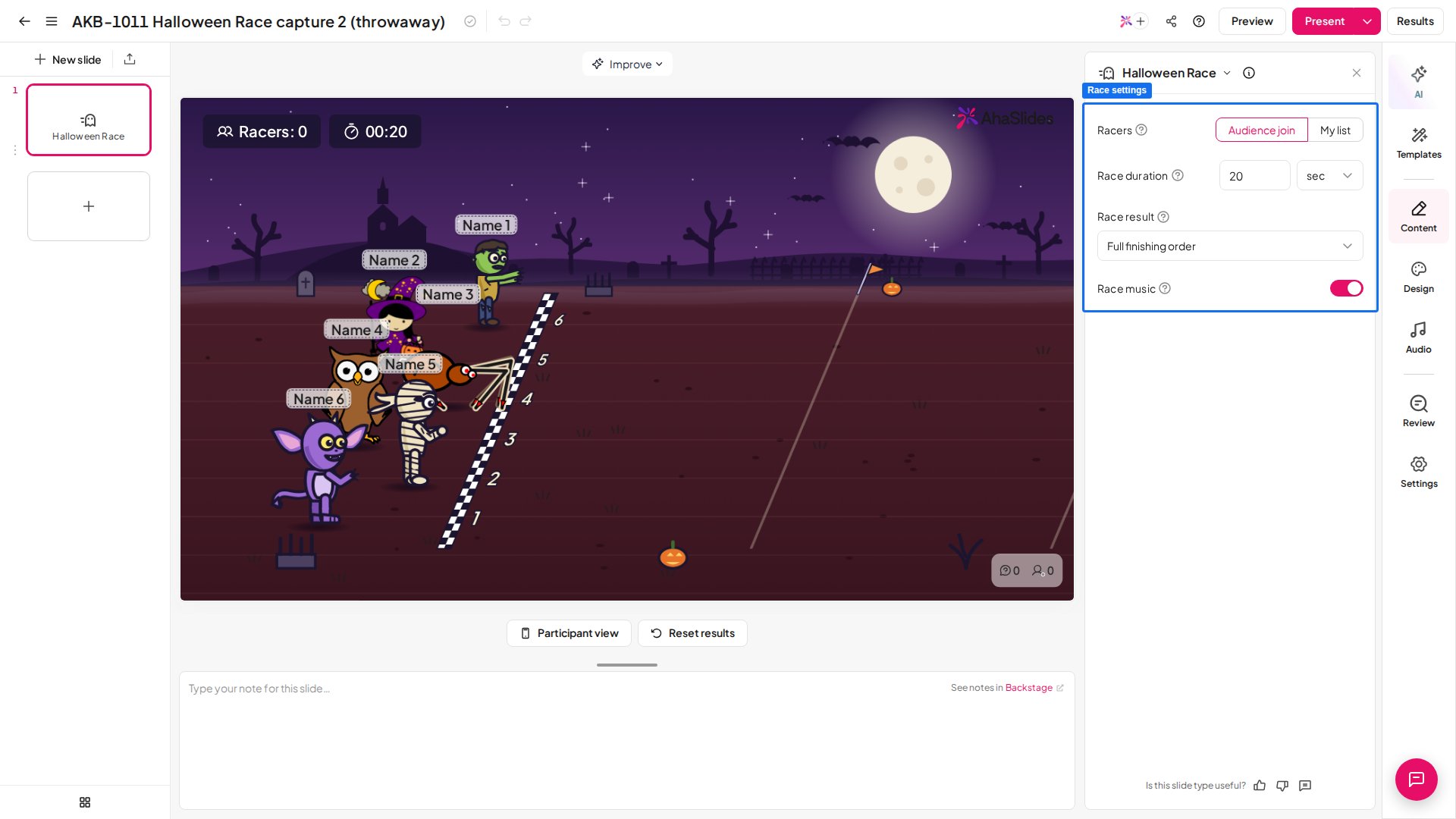
- Optionally adjust the race duration, the result screen or the music (see the settings below).
- Leave Racers on Audience join and click Present. Everyone who joins gets a racer automatically and can swap it with Change racer until the race starts.
- Once at least 2 racers are on the track, click Start race or press Enter. The winner appears on the big screen and on every phone.
- Use Race again for another round, or Race again without the winner’s name to let everyone else race without them.
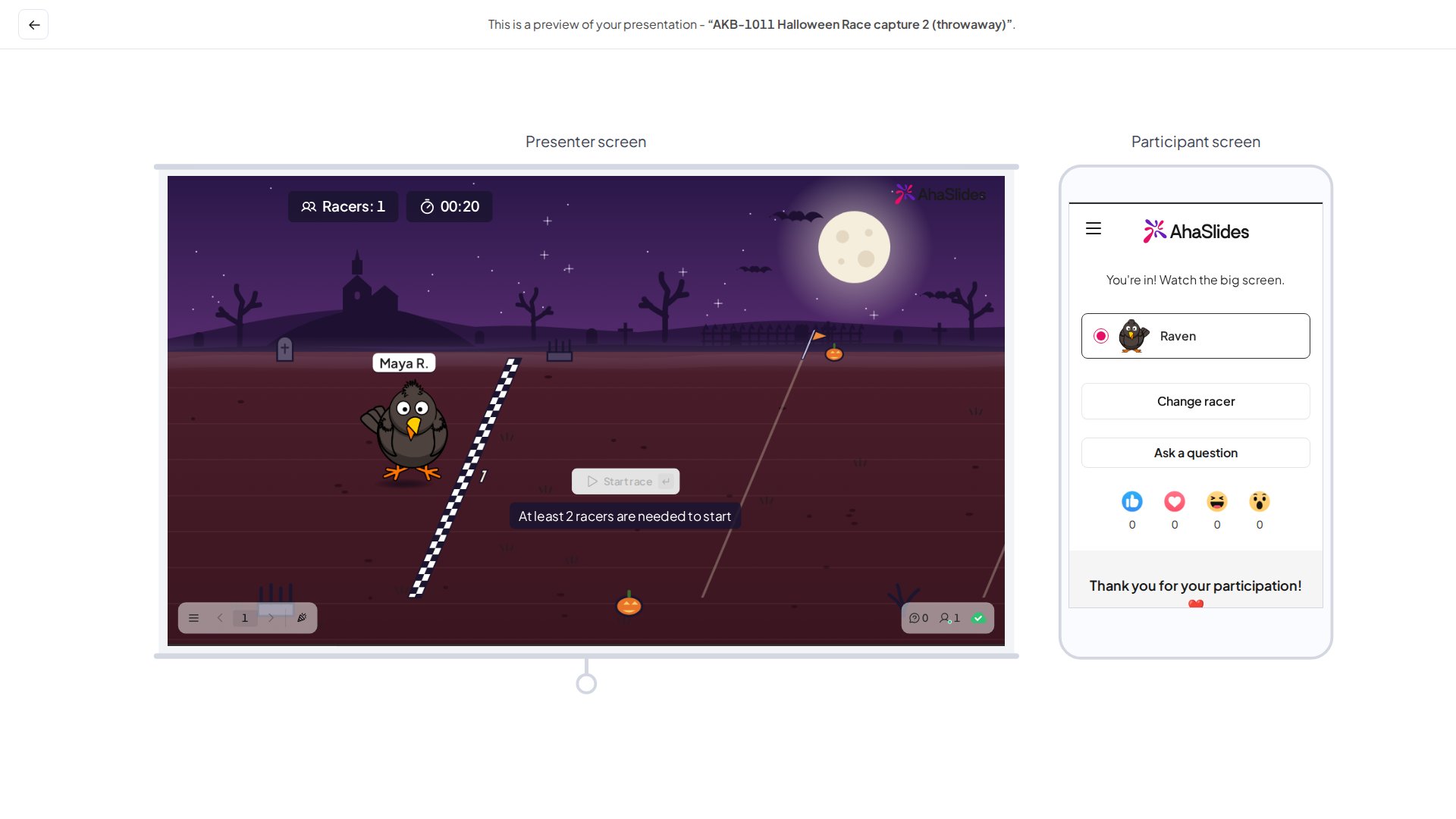
Halloween Race settings
Ideas for using Halloween Race
- Halloween parties and team events: a quick, spooky shared moment for any room.
- Prize draws and giveaways: everyone who joined is a racer, so the track picks a winner with nothing rigged.
- Fair volunteer picks: choose someone without singling anyone out.
- Icebreakers and energisers: a no-stakes laugh before the serious part starts.
Halloween Race vs. other slide types
- Not a scored quiz: for a graded competition, use a quiz slide.
- Not a name spinner: to spin one pre-entered name or option, use the Spinner Wheel.
- Not the same race with ducks: for a pond race instead of a graveyard, use Duck Race.