


Poll at a glance
Create a Poll slide
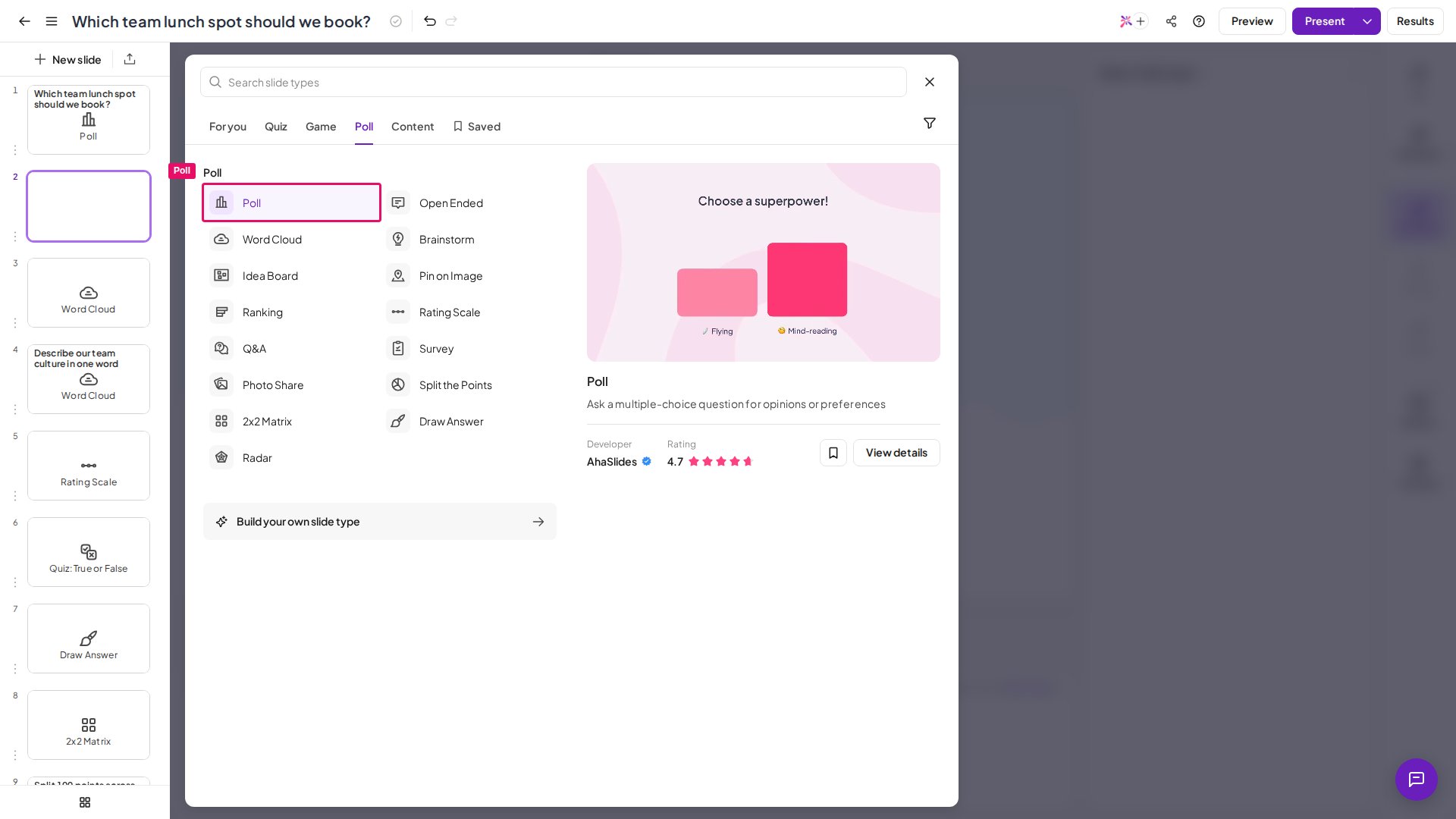
1
Add a new slide
On the AhaSlides editor, click + New slide in the top-left corner. (On a brand-new presentation, you can also click Choose a slide right on the canvas.)
2
Select Poll
Pick Poll from the slide type list — you’ll find it in the Poll tab.
3
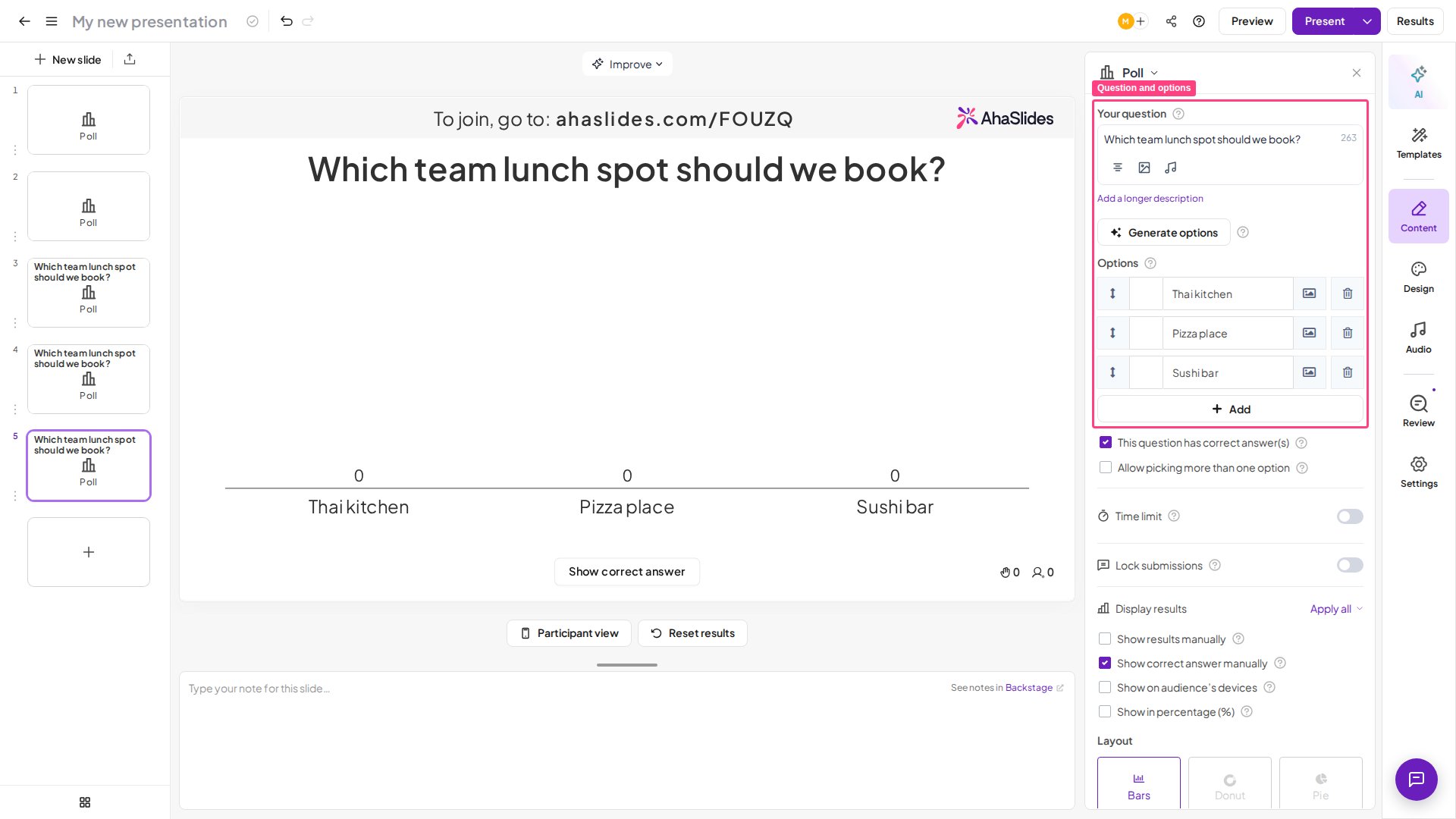
Type your question
Fill in your question in the Your question box on the right.
4
Add answer options
Fill in or upload images as your answer options. You can have between 2 and 30 answer options, and each option can be up to 150 characters long.
Present a Poll slide
Want to see exactly what your audience will see before going live? Hit Preview in the top-right corner — see how previewing works. When your slide is ready for your audience to vote on, invite your audience to your presentation and press the Present button in the top-right corner. Your audience votes for one or more of the answer options on their phones. The poll updates live, so on the presenter screen you see a chart displaying the results. By default, participants don’t see the vote counts on their phones after voting; tick Show on audience’s devices in the slide settings if you want them to.Poll settings
A multiple-choice slide with a correct answer is not scored. If you’d like to create a quiz question where your audience earns points for correct answers, use one of the slides in the Quiz section instead.