

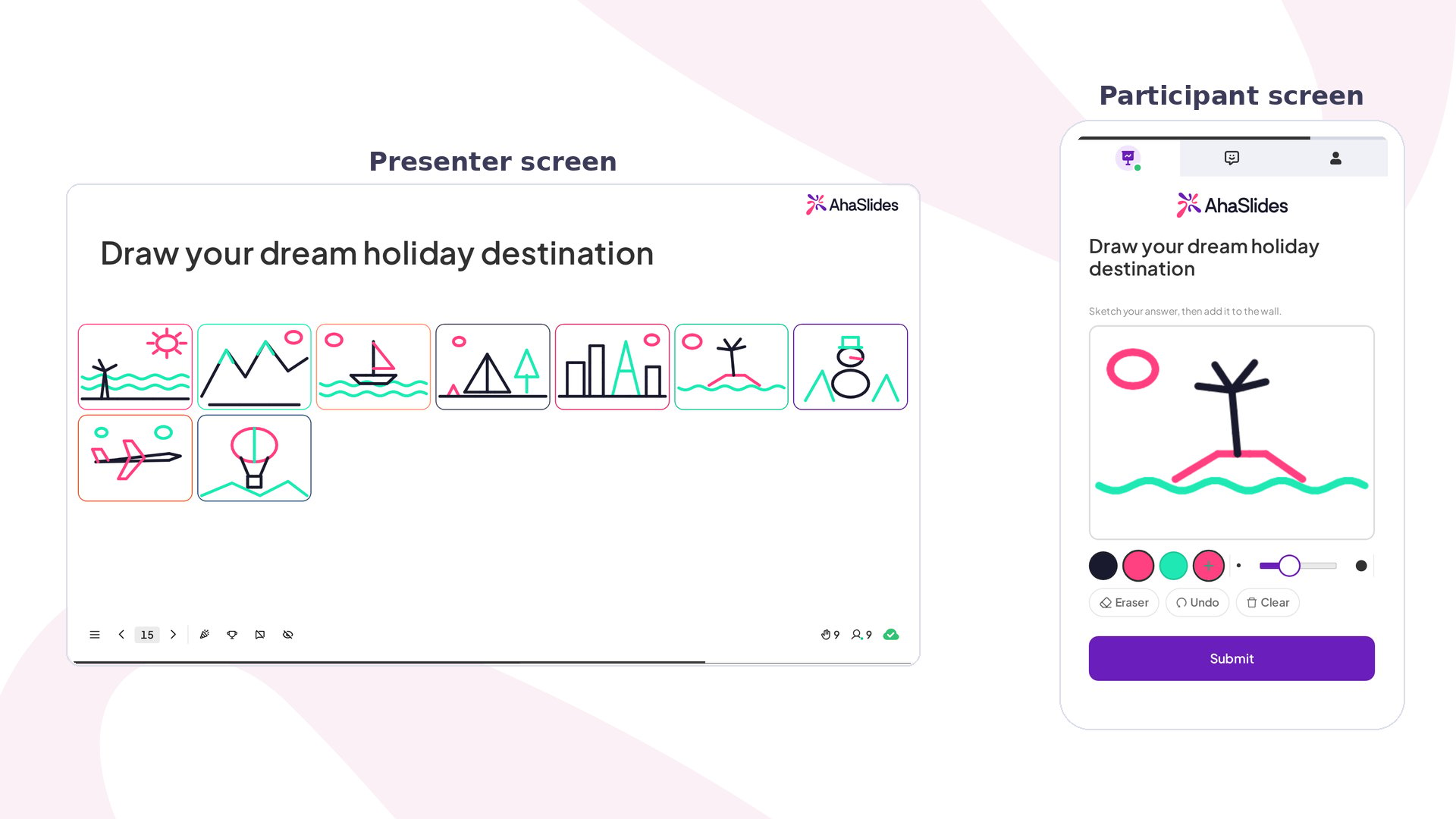
Draw Answer at a glance
Create a Draw Answer slide
1
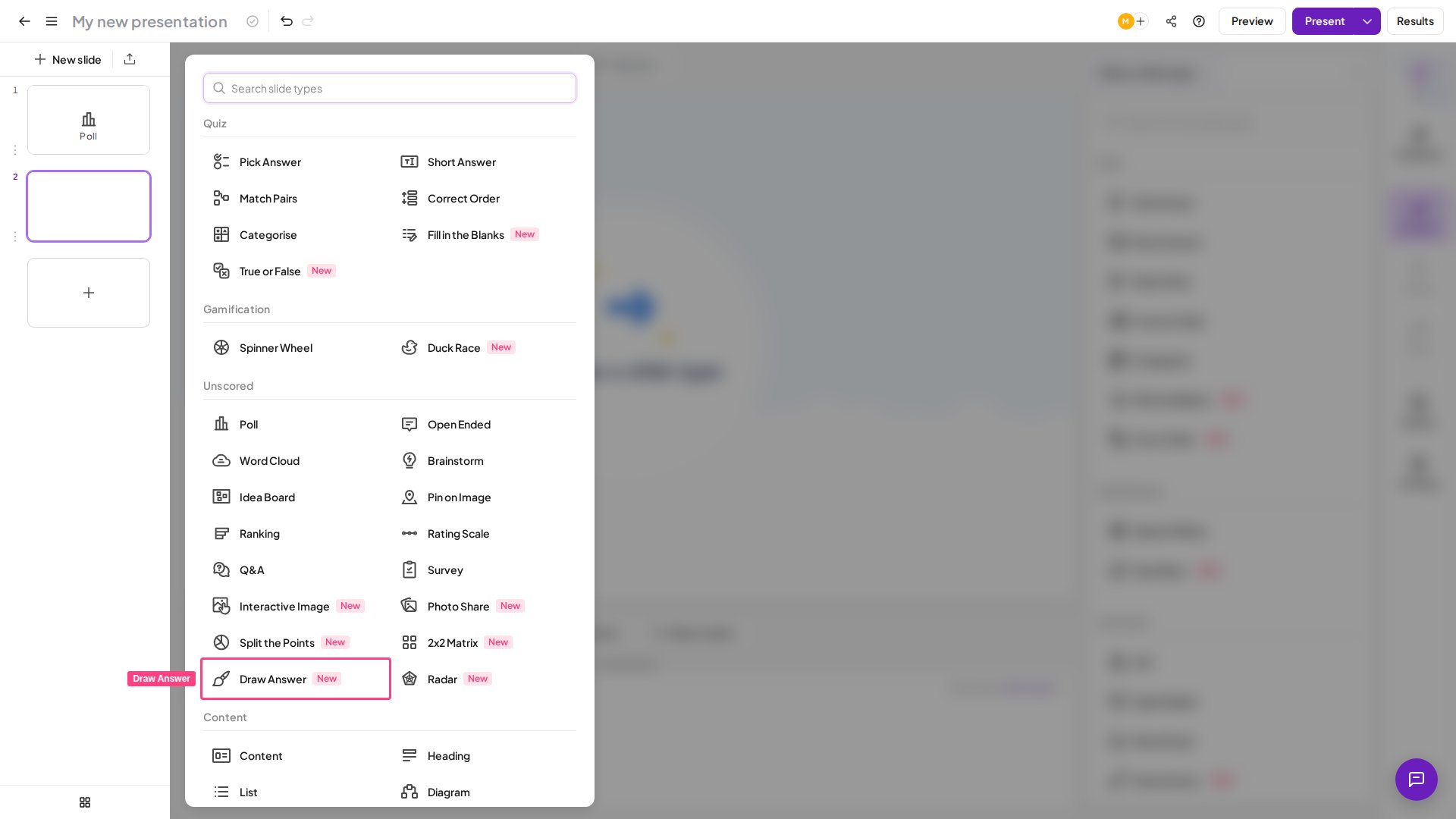
Add the slide
In the editor, click New slide and select Draw Answer from the slide type picker.
2
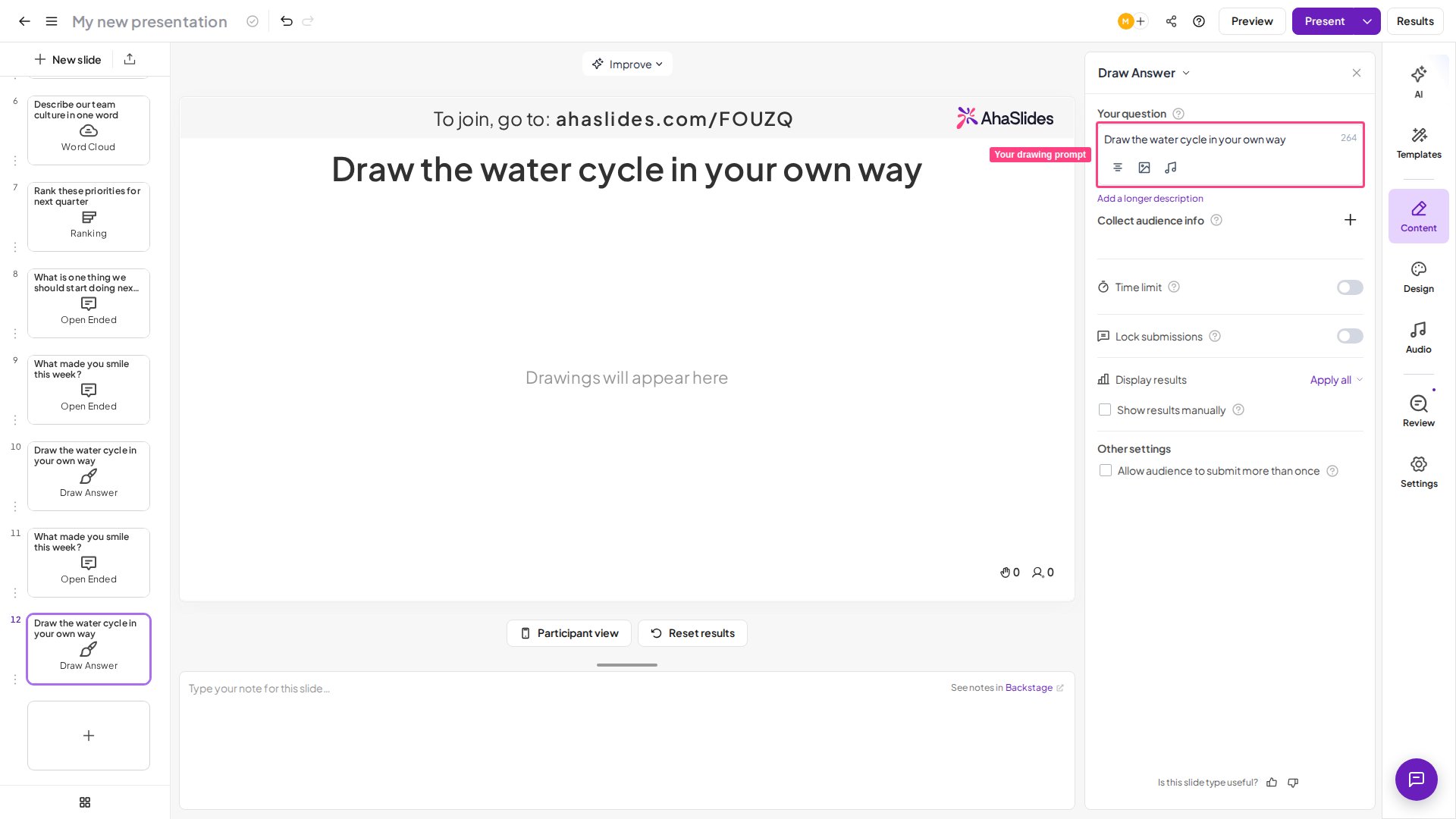
Write your prompt
Type the drawing prompt into the slide’s title field, the same way you would for any other slide. Keep it short and visual — easier to draw than to type.
3
Adjust settings
In the settings panel, configure Multiple submissions and Clear all drawings — see Draw Answer settings.
Present a Draw Answer slide
Click Preview in the top header to see both the presenter wall and the participant drawing canvas before going live. When you’re ready, click Present. Participants join at the access code shown on screen and start drawing. The drawing prompt lives in the same title field every other AhaSlides slide uses — there’s no separate “prompt” field. Whatever you type as the title (for example, “Draw your happy place” or “Sketch our mascot”) is what participants see above their canvas. On their phone, each participant gets a blank canvas with a toolbar underneath it:- Pen — tap any of the preset colour swatches and draw; each swatch is a fixed on-brand colour, so drawings stay legible no matter what theme the presentation is using.
- Custom colour — tap the ”+” swatch to open the device’s own colour picker and draw in any colour, not just the presets.
- Brush size — a thin-to-thick slider controls how wide the next stroke paints, for both the pen and the eraser.
- Eraser — toggles into an eraser tool: drag over any part of the sketch to remove just that stroke, without wiping the whole canvas. Tapping a colour again switches back to drawing.
- Undo — steps back one stroke at a time, so a slip doesn’t mean starting over.
- Clear — wipes the participant’s own in-progress sketch and starts a fresh blank canvas. This is separate from the presenter’s “Clear All Drawings” setting below, which resets the whole wall for everyone.
Draw Answer settings
Ideas for using Draw Answer
Classroom
- Warm-up — kick off a lesson with a quick sketch.
- Comprehension check — students draw a concept instead of describing it.
- Language practice — drawing takes the pressure off spelling.
Meetings
- Mood check-in — the wall shows how the room feels faster than any text answer.
- Loosen up the group creatively before a brainstorm.
Training and Workshops
- Break the ice with a room of strangers at the start.
- Lighten the mood with a quick knowledge check between formal sections.
Events
Turn the big screen into a crowd moment — drawings populate live, and watching the wall fill in real time is the payoff.Icebreakers
Any low-stakes prompt gets everyone active in under a minute — no prep beyond typing a title.What Draw Answer is not
- Not a scored quiz — there’s nothing to grade and no points awarded for a “correct” drawing.
- Not a gallery or voting experience — participants don’t see or rate each other’s drawings; only the presenter’s wall shows everyone’s submissions together.
- Not for detailed or precise art — it’s a phone-drawing tool optimised for quick, playful sketches, not fine illustration.
When not to use Draw Answer
Reach for a different slide type when:- Answers need to be measured, ranked, or compared — use a poll, rating scale, or 2×2 Matrix instead.
- The context is formal enough that doodles would undercut the tone.
- The question needs precise, specific text answers rather than a sketch.