

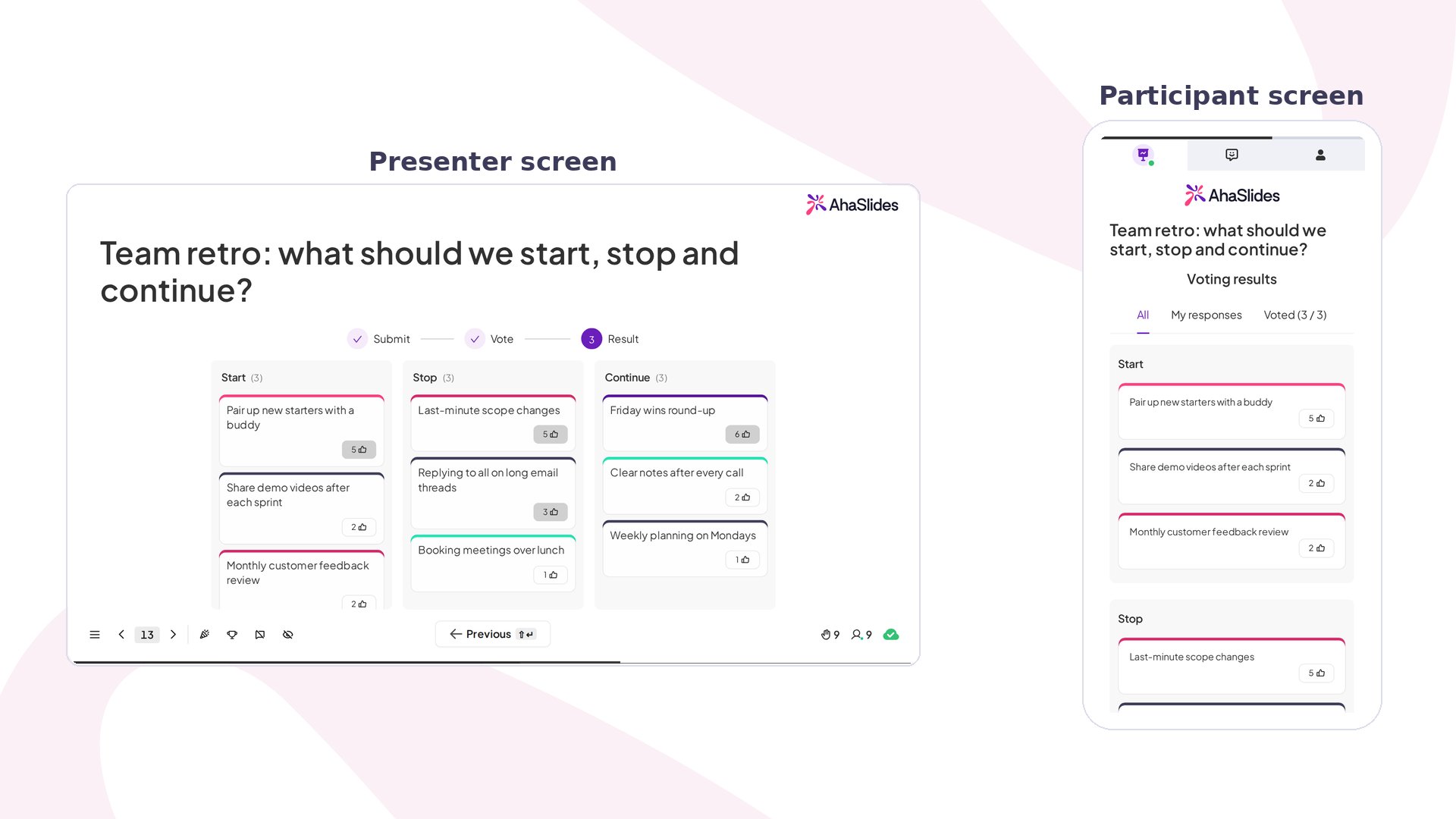
Idea Board at a glance
Create an Idea Board slide
1
Add a new slide
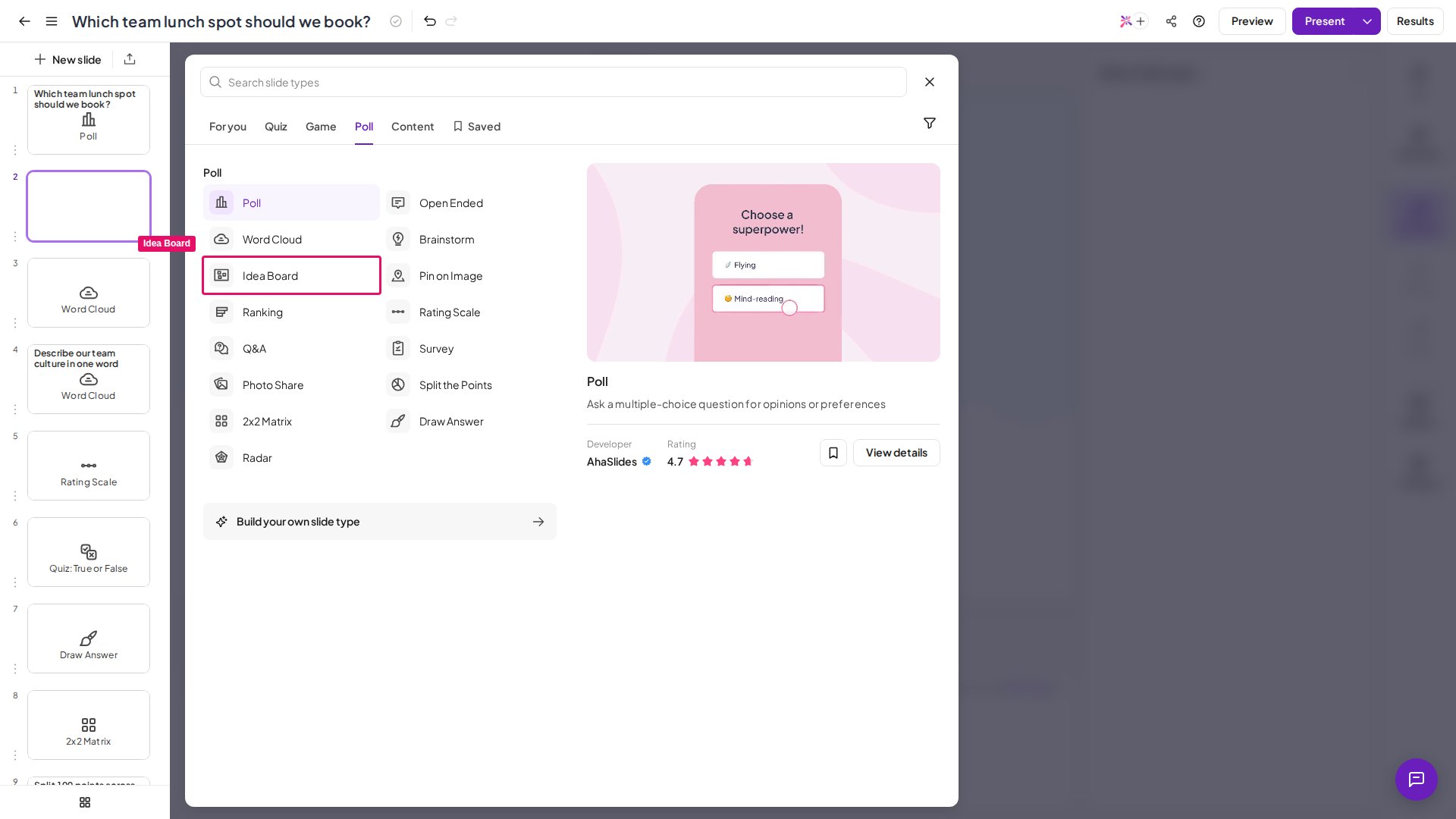
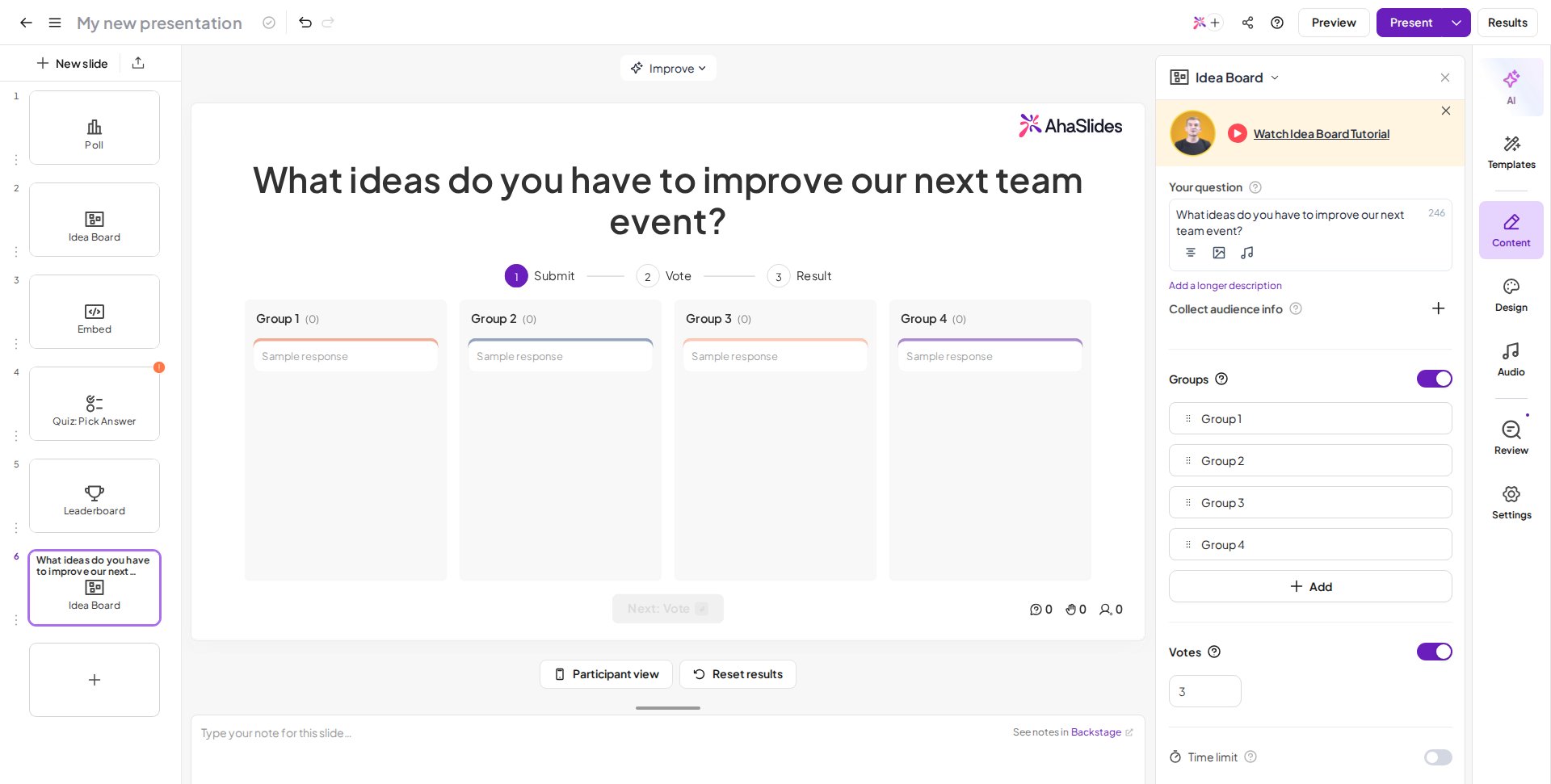
Click New Slide and choose Idea Board.
2
Type your question
Enter your question or prompt in the Your question field.
3
Choose your grouping method
Enable the Groups option to add predefined groups upfront (best when you know your structure), or leave it off to let ideas cluster with AI grouping after you’ve collected them (best for discovery). See How Idea Board grouping works for details on both.
4
Add an image (optional)
Click the image icon next to your question to attach an image.
- Write specific prompts — vague: “Share your thoughts”; better: “What specific challenge are you facing with remote collaboration?”
- Choose the right grouping method — use predefined groups when teaching a framework or applying known categories; use AI grouping when discovering what themes exist. AI is excellent at initial pattern recognition but may misunderstand context, so always review and refine.
- Allow enough time — around 2-3 minutes for in-person sessions, 3-4 minutes for virtual sessions where people need extra time to switch context and type.
- Don’t over-organise — aim for 6-8 groups maximum; too many defeats the purpose of finding patterns.
- Let divergence finish before convergence — don’t start grouping ideas while people are still submitting.
- Move submissions that don’t fit — outliers either reveal a new theme you missed or represent creative thinking worth exploring. Create a new group or mark it as “Other” for discussion.
Present an Idea Board slide
Participants type their ideas from their phones or devices, watch as ideas get organised into groups, vote on what matters most, and discuss patterns as they appear.What participants do
1
Join the presentation
Join via link or QR code.
2
Select a group (if enabled)
Select a group for their response under Submit into.
3
Type their idea
Type their idea or response in the Your Response field.
4
Add an image (if enabled)
Include an image if necessary, using the Upload image button.
5
Submit
Hit Submit, then watch as ideas appear on the board and get organized into groups.
6
Vote (if enabled)
Vote on ideas they find important when the presenter moves to the Vote stage.
Using the vote function
If Vote is enabled, move to the Vote stage by clicking Vote above the submissions, clicking Next: Vote at the bottom of the canvas, or pressing Enter. Participants then click the Thumbs up button under an answer to vote for it — if the answer sits inside a group, they open the group first to find it. Once everyone has voted, move to the Result stage the same way; the most-voted answers appear at the top.Two different figures on an Idea Board are both called votes, so it helps to keep them apart. The Vote setting is the allowance each participant gets to spend — 1 to 20 votes per person. The number shown under a submission on the board is the total that submission received from everyone who voted, not what any single participant has left.
Moving between the voting stages
The Idea Board runs through three stages — Submit, Vote, and Result — and you stay in control of them throughout. You can switch to any stage, in either direction, at any point in your presentation: go back to Submit to collect more ideas, forward to Result to show what won, or back to Vote to reopen voting after the results are already on screen. There are two ways to do it:- Click the stage you want in the stage bar above the board to go straight to it. This becomes available once at least one idea has been submitted.
- Or step through one stage at a time with the Next: Vote / Next: Result and Previous buttons at the bottom of the canvas, or with Enter and Shift + Enter.
On the participant side, because the earlier votes are kept, participants who have already used all of their votes do not get new ones when you reopen voting. They can still change their mind: clicking the Thumbs up button on an answer they already voted for takes that vote back, freeing it to be used on a different answer.
Idea Board settings
How Idea Board grouping works
Predefined groups — when Groups is enabled, participants choose from groups you’ve created in advance when they submit. Useful when you have a clear structure, such as “What went well / What didn’t” or “Strategic / Operational / Tactical”. A board starts with four groups (maximum ten). To change them, open the Groups section of the editor’s right-hand panel: rename a group by typing in its field, click Add to create another, or hover a group’s row and click the trash icon to remove one. Once responses start arriving you can no longer switch predefined grouping off, though you can still rename and add groups. AI grouping — when Groups is disabled, answers appear one after another on the canvas as they arrive. When you’re ready to organise, click Summarise to have the system analyse submissions and suggest groupings based on similar themes and language, then click Group responses into themes to enable Groups with the suggested groupings. Refining groups — drag and drop answers between groups, or use an answer’s 3-dot menu to move it. Click a group’s name to rename it, click the + button next to the last group (or press G) to create a new one, and use a group’s 3-dot menu to delete it once it’s empty. A group holding responses can’t be deleted, and you can’t delete the only group — at least one group must remain.Ideas for using Idea Board
Idea Boards work anytime you need to collect, organize, and discuss group thinking. Here are the most common ways to use them:Feedback Collection
Ask what people thought after an event, training, or meeting — get themed feedback instantly instead of reading dozens of scattered comments. Perfect for conference session feedback, training evaluations, post-event feedback, customer feedback, and employee pulse checks.
Teaching Through Categorisation
Have students categorise examples into predefined groups, forcing them to understand what defines each category rather than just memorise labels. Perfect for business courses, medical training, and leadership development.
Retrospectives
Identify what went well and what didn’t after a sprint, project, or quarter. AI groups submissions into themes, revealing systemic issues instead of one-off complaints. Perfect for sprint retrospectives, project post-mortems, and quarterly team reviews.
Brainstorming and Problem-Solving
Separate divergent thinking (generating ideas freely) from convergent thinking (organising and prioritising raw ideas into themes). Perfect for design sprints, innovation workshops, and strategic planning.
User Research and Needs Assessment
Discover what patterns exist without biasing responses with predefined categories — collect 200 responses and organize them into 8 themes instead of overwhelming individual feedback. Perfect for product discovery research and customer pain point identification.
Requirements Gathering and Roadmap Planning
Collect stakeholder needs and organize them into a prioritized roadmap. Similar requests cluster together, showing true demand versus one-off requests. Perfect for product roadmap planning and feature prioritization sessions.
Commitment Board
Ask participants to post a personal commitment or pledge as an idea card — like a digital sticky note — at the end of a workshop, training session, or team offsite. Grouping isn’t required; the goal is a visible, shared record of what people committed to.