

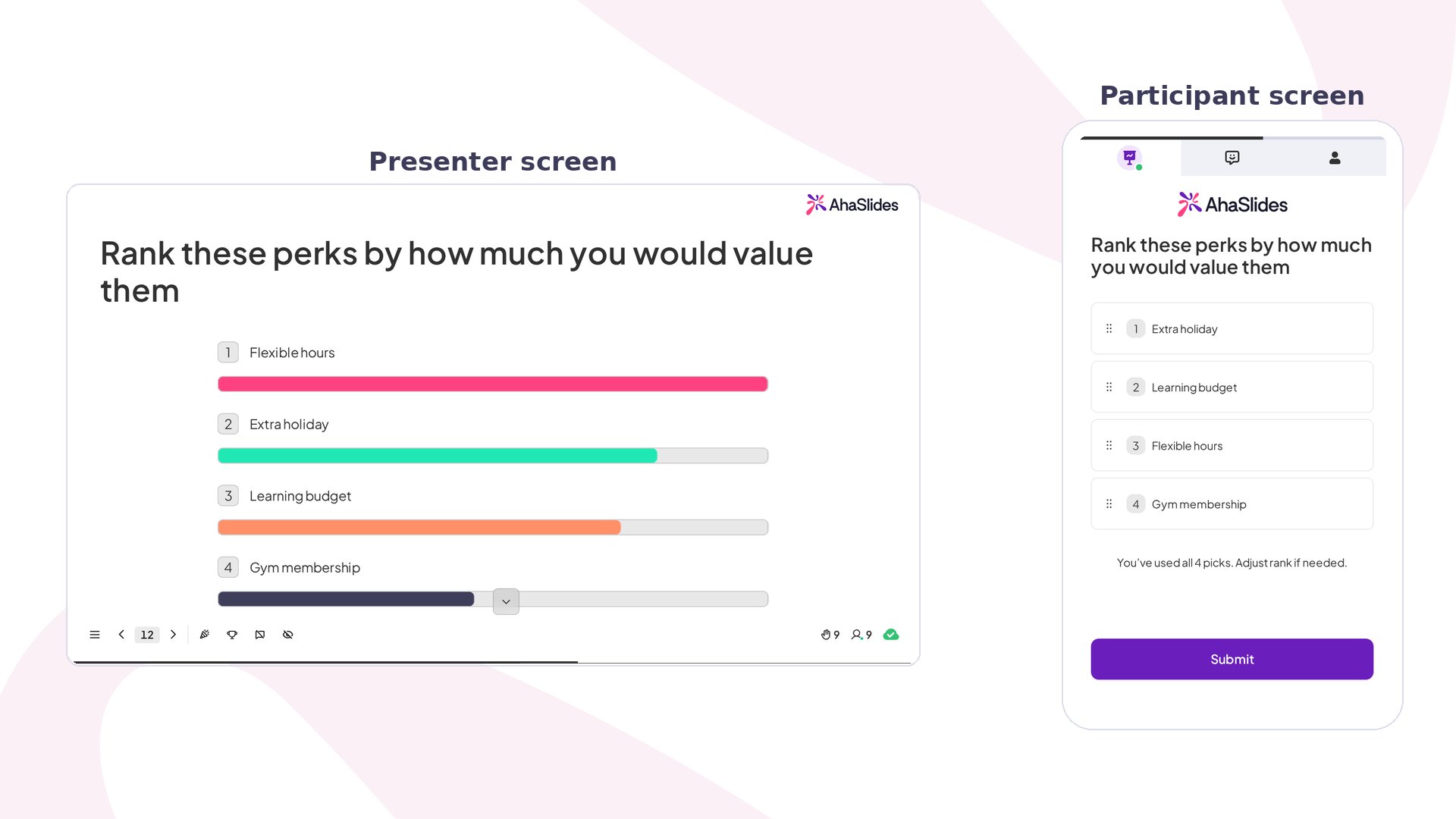
Ranking at a glance
Create a Ranking slide
1
Open your presentation
Open your presentation in the AhaSlides editor.
2
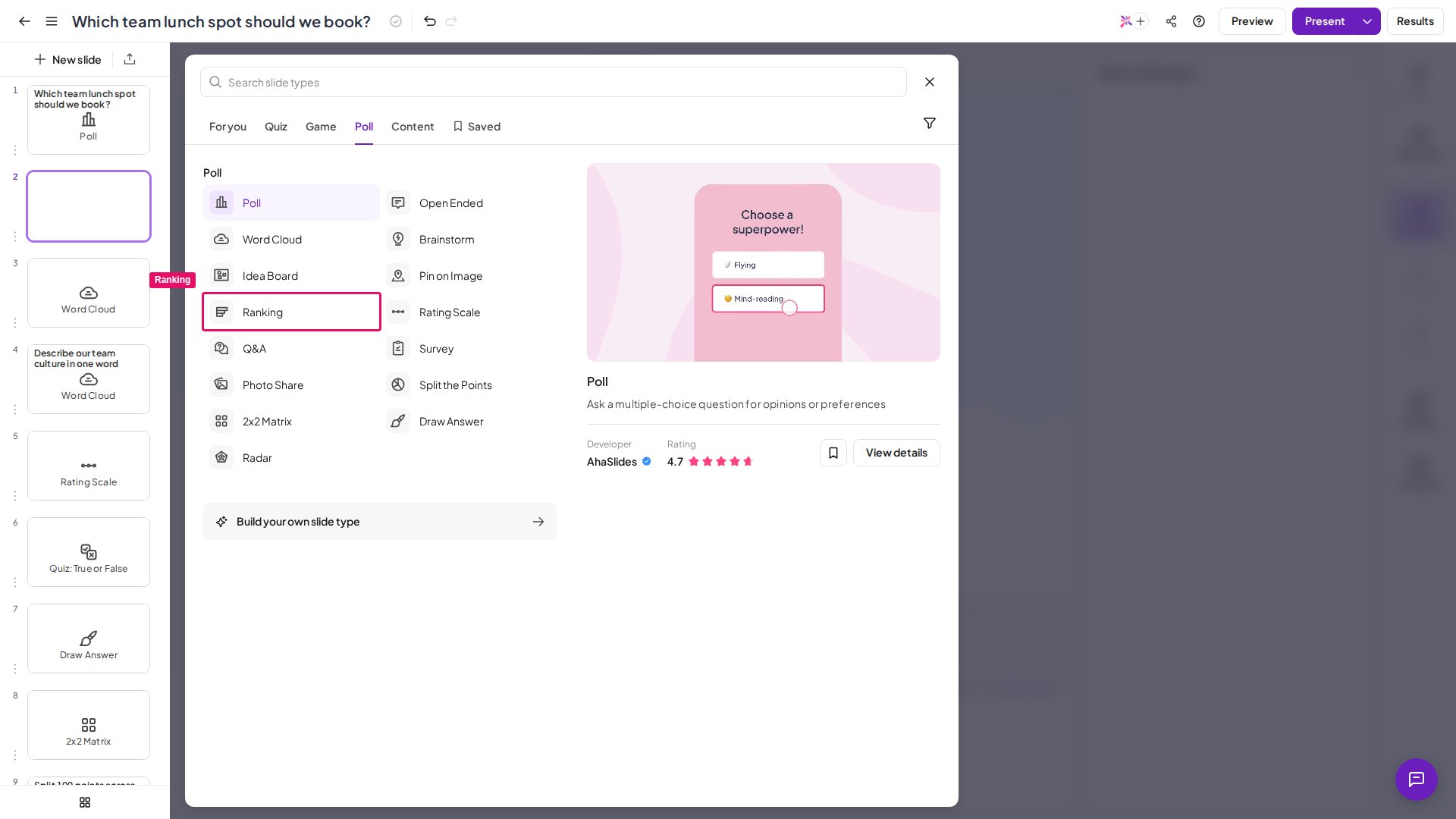
Add a Ranking slide
Click New Slide and choose Ranking.
3
Enter your question
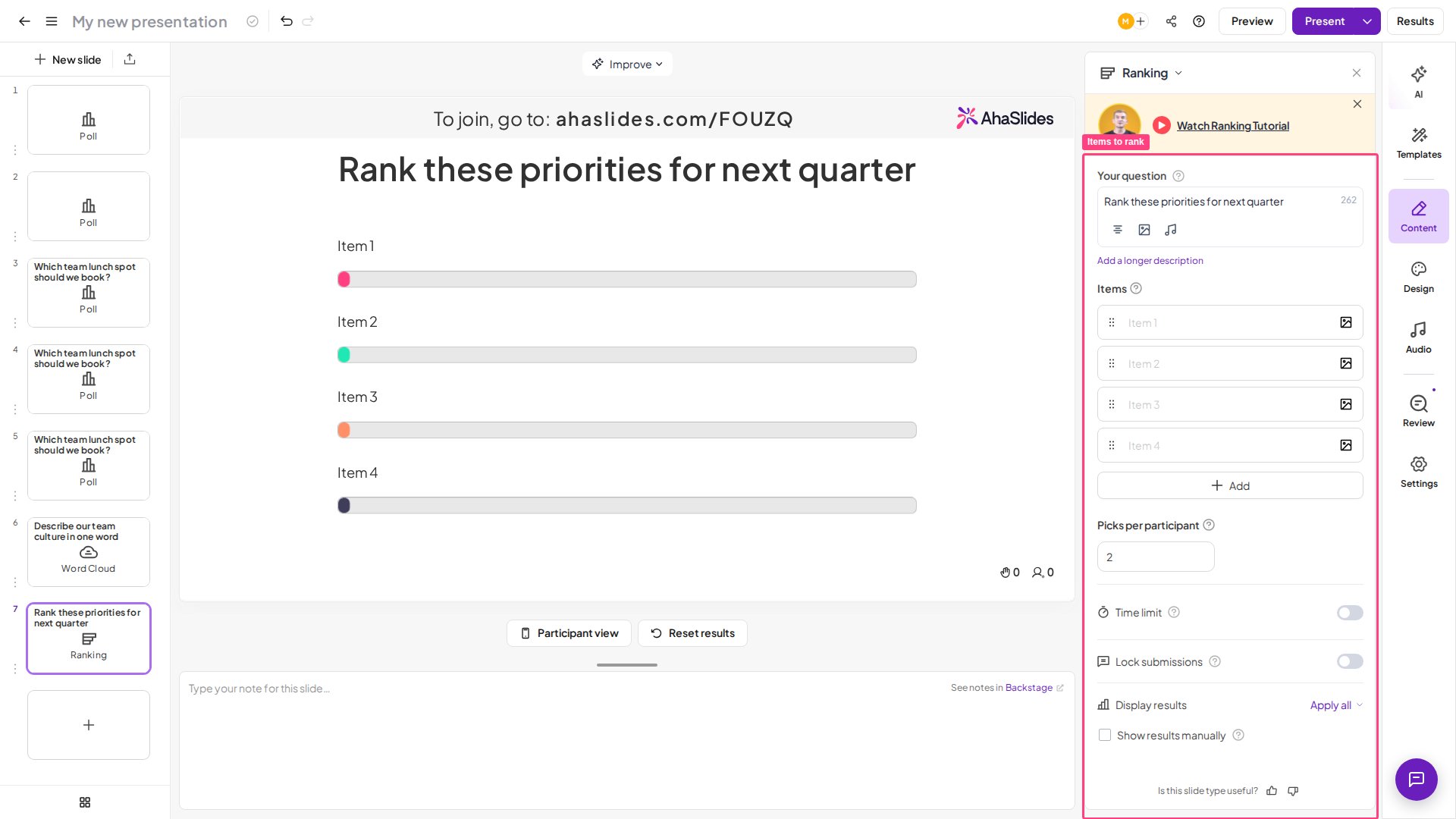
Type your question in the Your question field.
4
Add items to rank
Enter the list of items you want participants to rank — up to 10 items. You provide the whole list before you present; participants then pick a set number of those items and rank only the ones they picked — set how many with Picks per participant (default 2).
5
Add images (optional)
Click the image icon next to the question or any item to add an image.
- Be clear and specific — make sure participants understand exactly what they’re ranking and based on what criteria.
- Allow enough time — around 60 seconds for in-person sessions, 90 seconds for virtual sessions.
- Use ranking for prioritisation — choose Ranking when you need order and trade-offs, not just general opinions.
- Narrow down first if needed — if you have a long list, use a poll to shortlist options before asking participants to rank them.
- Focus on top results — the top and bottom items are usually the most reliable; middle rankings may vary more.
Present a Ranking slide
Participants take these steps on their own devices:1
Join the presentation
Join via link or QR code.
2
Select items to rank
Tap the items to select them. Tap an item again, or drag it back to the list, to unselect it.
3
Reorder items
Drag items into their preferred order.
4
Submit
Submit the response. Once submitted, responses can’t be changed.
How Ranking scoring works
Each participant scores only the items that participant picks. The Picks per participant setting sets how many items each participant picks. Ranking slides use a weighted scoring system (Borda count): higher-ranked items get more points, lower-ranked items get fewer points, and all points are combined to determine the final order. The top result may not have the most votes — it reflects the highest overall priority. For example, in a list of 10 items, a participant’s #1 choice gets 10 points, #2 gets 9 points, #3 gets 8 points, and so on down to their last choice getting 1 point. Points from every participant are added together, and the item with the highest total score wins.Ranking settings
Ideas for using Ranking
Workshops and Strategy Sessions
Prioritise initiatives, ideas, or projects, and help teams align on what to focus on first.
Training and Education
Encourage learners to evaluate trade-offs by ranking competing factors or solutions.
Product and Feature Prioritisation
Identify which features or improvements should be built first based on team or customer input.
Retrospectives and Team Meetings
Rank challenges or improvement areas to decide what to address in the next sprint.
Employee Engagement and HR Planning
Understand which programmes, benefits, or development areas employees value most.
Customer Research and Surveys
Capture deeper insights by asking respondents to prioritise needs, preferences, or features.