

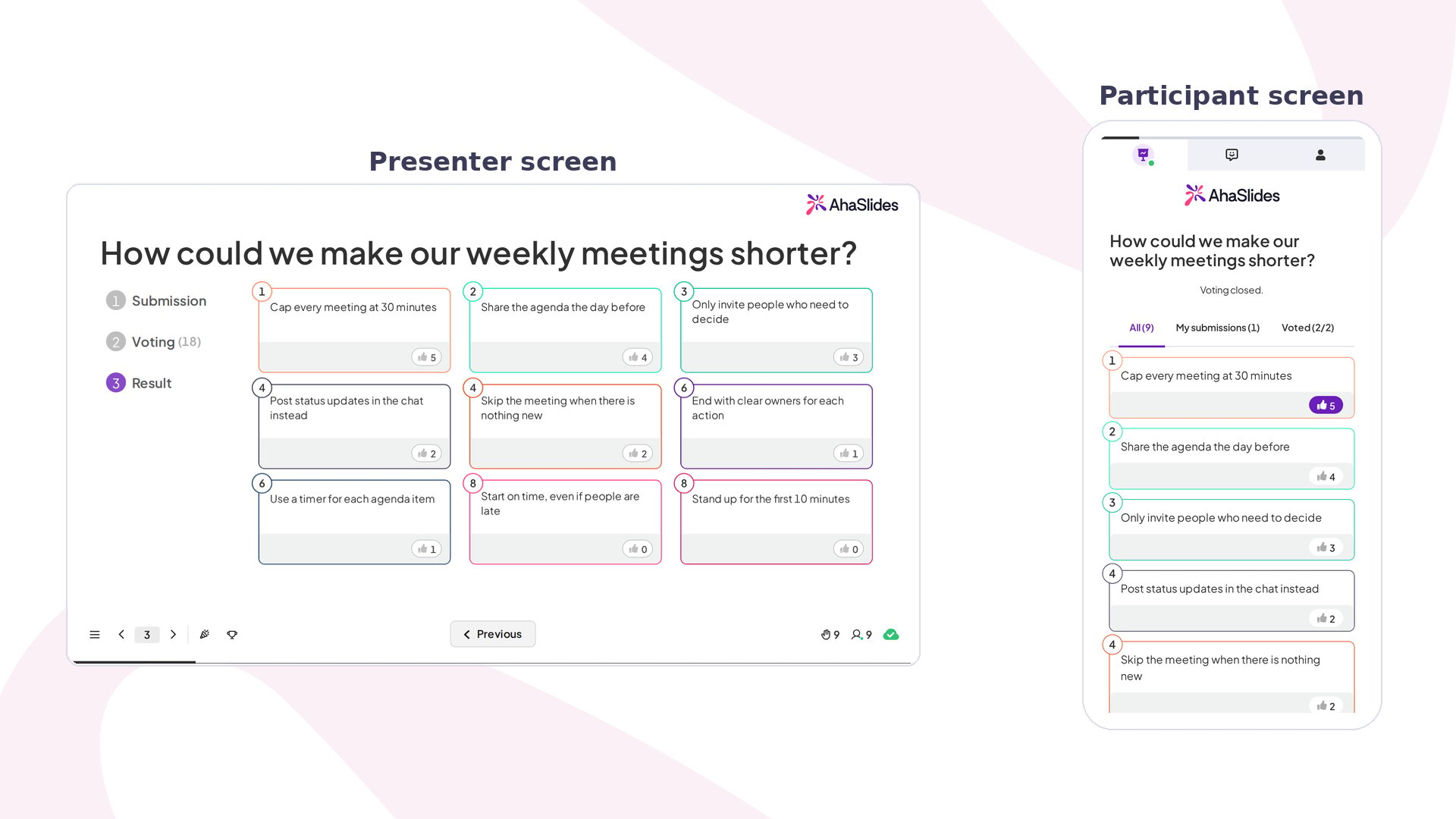
Brainstorm at a glance
Create a Brainstorm slide
1
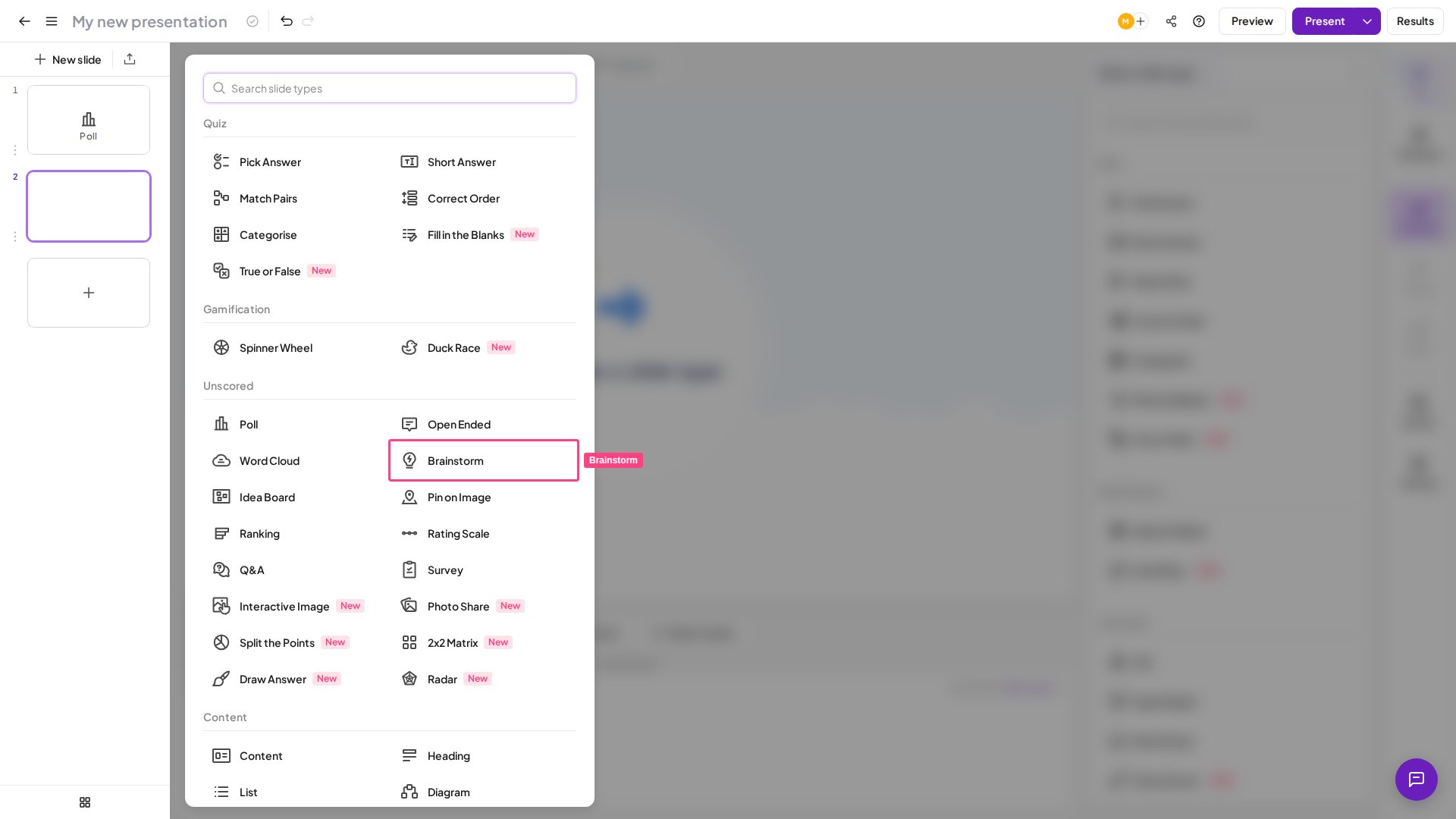
Add a new slide
Click New slide in the AhaSlides editor and choose the Brainstorm slide.
2
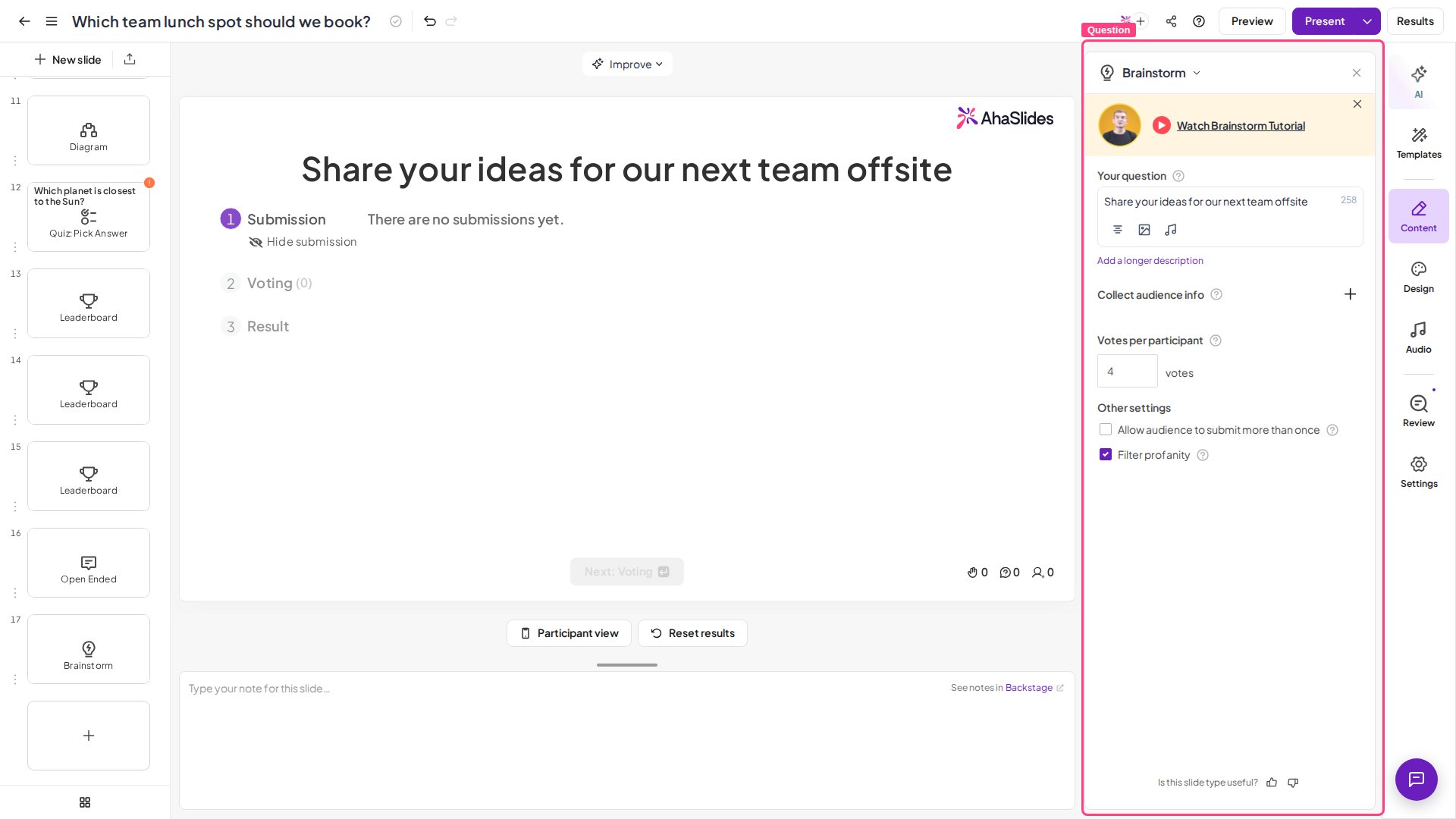
Write your question
Enter the question or prompt you want participants to brainstorm on.
3
Add extra fields (optional)
Add any additional fields for participants to fill out, such as name or email. In the Excel export, these details appear in the Participants sheet, not next to the ideas in the Opinion Answers sheet.
4
Set the number of votes
Specify how many votes each participant gets to cast on others’ ideas.
5
Choose submission mode
Choose whether participants can submit one idea or multiple ideas.
Present a Brainstorm slide
When you present, your audience moves through three stages:1
Stage 1: Submitting ideas
Participants write their ideas and fill in any additional fields you’ve set up. Ideas appear on the presenter’s screen in the order they’re submitted, with up to 200 ideas per slide. Show or hide submissions at any time by clicking the eye icon under Submission.
2
Stage 2: Voting
Click Next: Voting to open the voting stage. Participants see all submitted ideas and vote for their favourites. Hide the vote count during voting by clicking the eye icon under Voting for a more dramatic reveal at the end.
3
Stage 3: Result
Click Next: Result to rank all submissions by vote count. Click any idea to enlarge it on screen.
Brainstorm in self-paced mode
If participants access the slide in self-paced mode, they move through the three stages on their own device without waiting for the presenter to advance.Participants who go through the slide earlier can’t see ideas submitted after they voted, so late submitters receive fewer votes. To work around this, ask participants to submit their ideas first, then return once all submissions are in before voting begins.
Brainstorm settings
Have a question?
Contact our support team — if you’re logged in, use the chat bubble in the bottom-right of your dashboard; otherwise contact us here or email hi@ahaslides.com.
Want to connect with other users? Join the AhaSlides community to share tips, request features, and see how others engage their audiences.