If you celebrate Christmas, you can give 8 slide types an optional seasonal look with Holiday effects or, on Timer, Timer style. The looks are available from 1 to 26 December 2026, and your slides only get one if you choose it.

Before you start

  • Season: 1 to 26 December 2026, going by the date on the device you present from.
  • Outside those dates: your slides keep their usual look. The Holiday effects setting tells you when the effects come back, and Timer style doesn’t list the Christmas styles.
  • Slides: you can use a new slide or one you already have.

Slide types with a Christmas look

Turn on a Christmas effect

These steps work for every slide type in the table except Timer.
1

Open your presentation

Open the presentation in the editor.
2

Choose a slide

Click New slide, search for one of the slide types in the table and click it. To use a slide you already have, select it instead.
3

Turn on Holiday effects

Open the Content tab and switch on Holiday effects. If a Try Christmas effects note appears on the slide, you can click Try it there instead.
4

Check the look

The slide in the editor now shows its Christmas look. Present as usual.
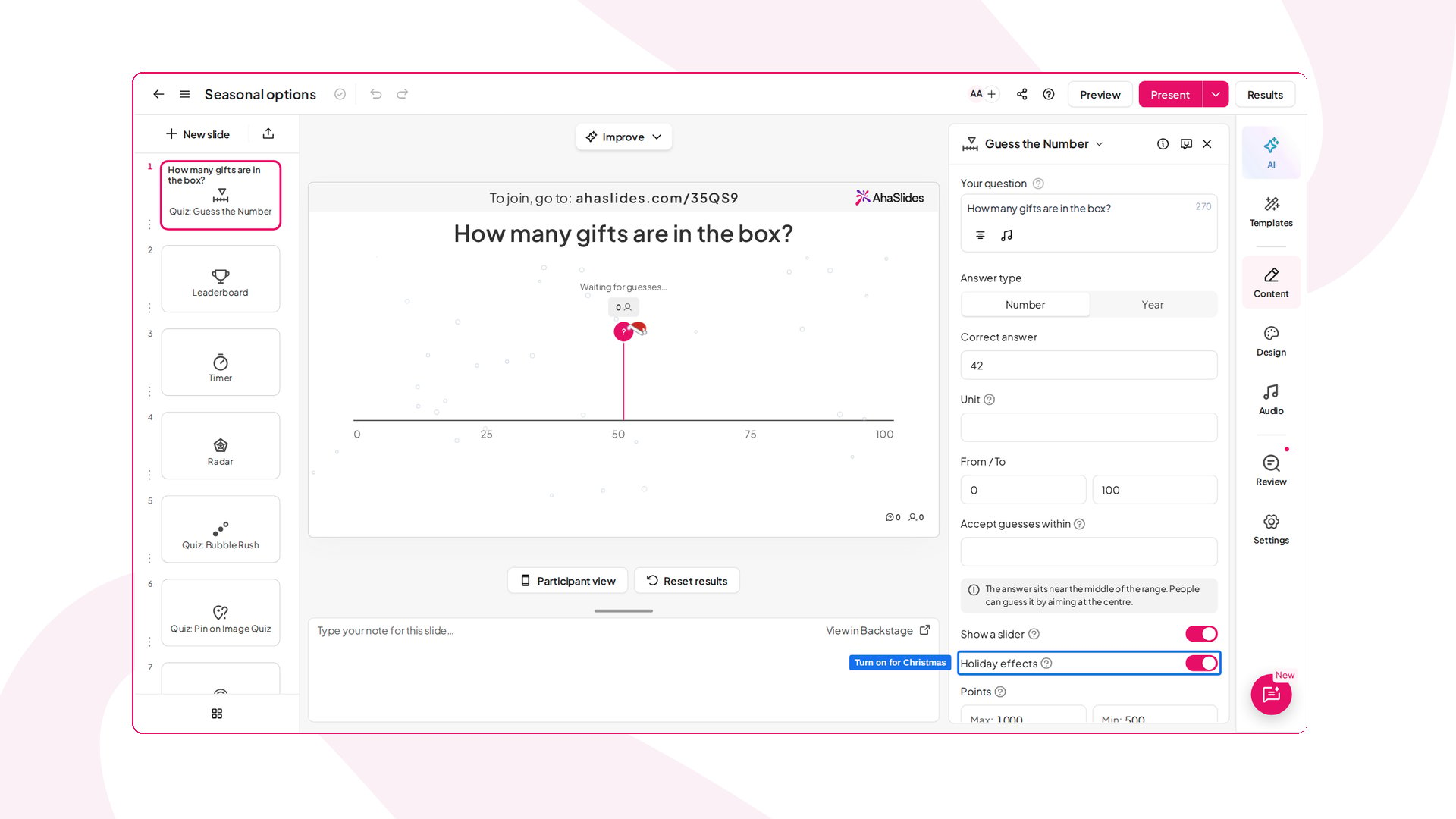
AhaSlides editor with a Guess the Number slide showing light snow and a Santa hat on the pin, and the Holiday effects switch turned on and highlighted

Choose a Christmas timer style

Timer has its own Christmas styles in place of the Holiday effects switch.
1

Choose a Timer slide

In the editor, click New slide and search for Timer, or select a Timer slide you already have.
2

Pick a style

Open the Content tab. Under Timer style, select Tree lights, Snowman or Stocking.
3

Start the countdown

Click Present and, on the Timer slide, press Start.
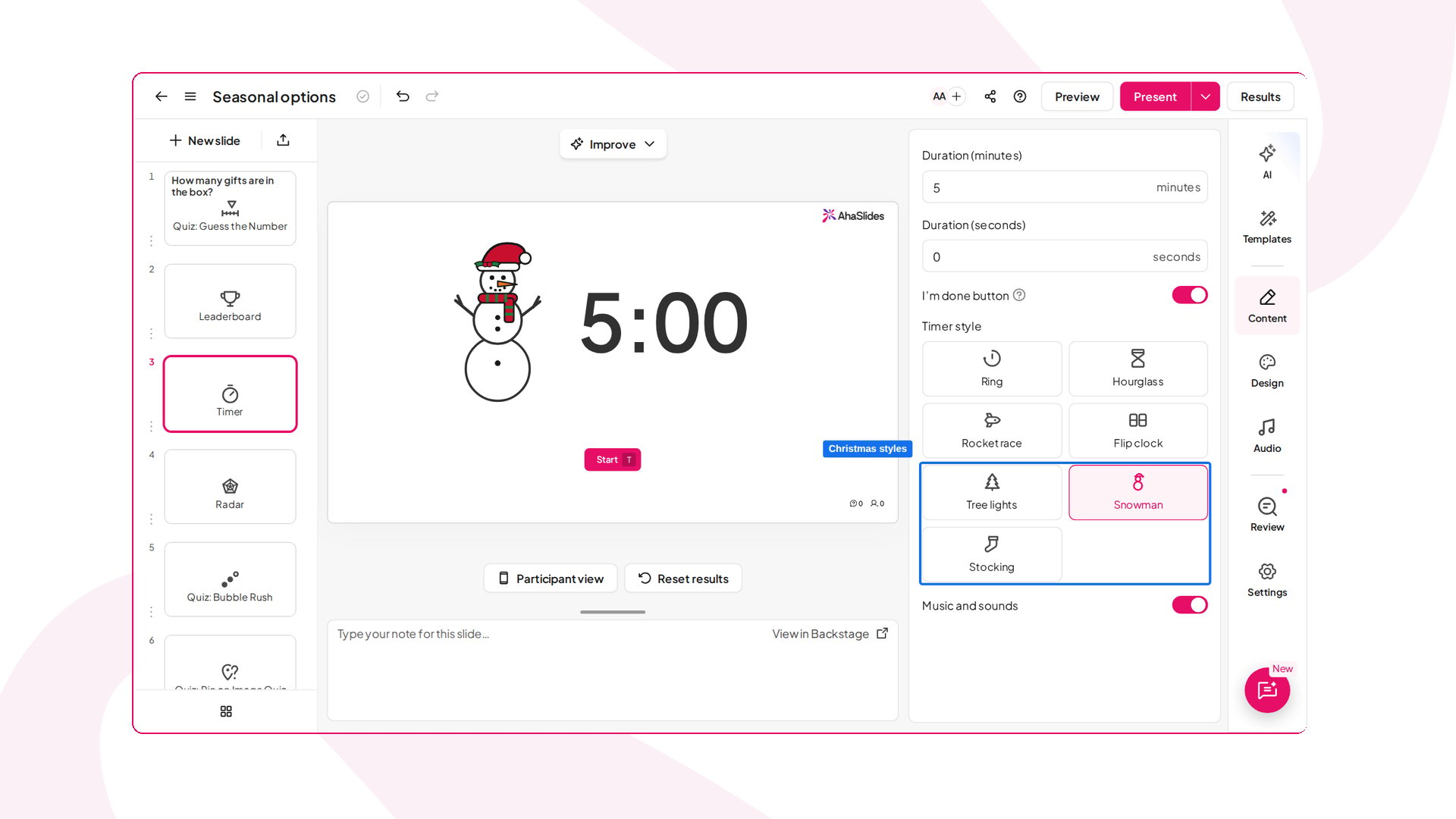
AhaSlides editor with a Timer slide showing a snowman beside the countdown, and the Tree lights, Snowman and Stocking timer styles highlighted

Frequently asked questions

Do participants see the Christmas look on their phones?

While you present live, phones show the look for Guess the Number, Radar, Bubble Rush, Pin on Image Quiz, Drag and Drop and YouTube Quiz. Calm and Timer keep theirs on the presenting screen. In a self-paced presentation, participants don’t see the Holiday effects.

Why can’t I see a Holiday effect?

Check that the date on your presenting device is between 1 and 26 December. The effects also stay off in a presentation that hides the AhaSlides logo, for example one with your own branding.

How do I remove a Christmas look?

Switch off Holiday effects. For Timer, choose Ring, Hourglass, Rocket race or Flip clock under Timer style.

What happens to my slides after the season?

They go back to their usual look. A Timer slide set to a Christmas style shows the Ring style. Have a question? Contact our support team: if you’re logged in, use the chat bubble in the bottom-right of your dashboard; otherwise contact us here or email hi@ahaslides.com. Want to connect with other users? Join the AhaSlides community to share tips, request features, and see how others engage their audiences.