

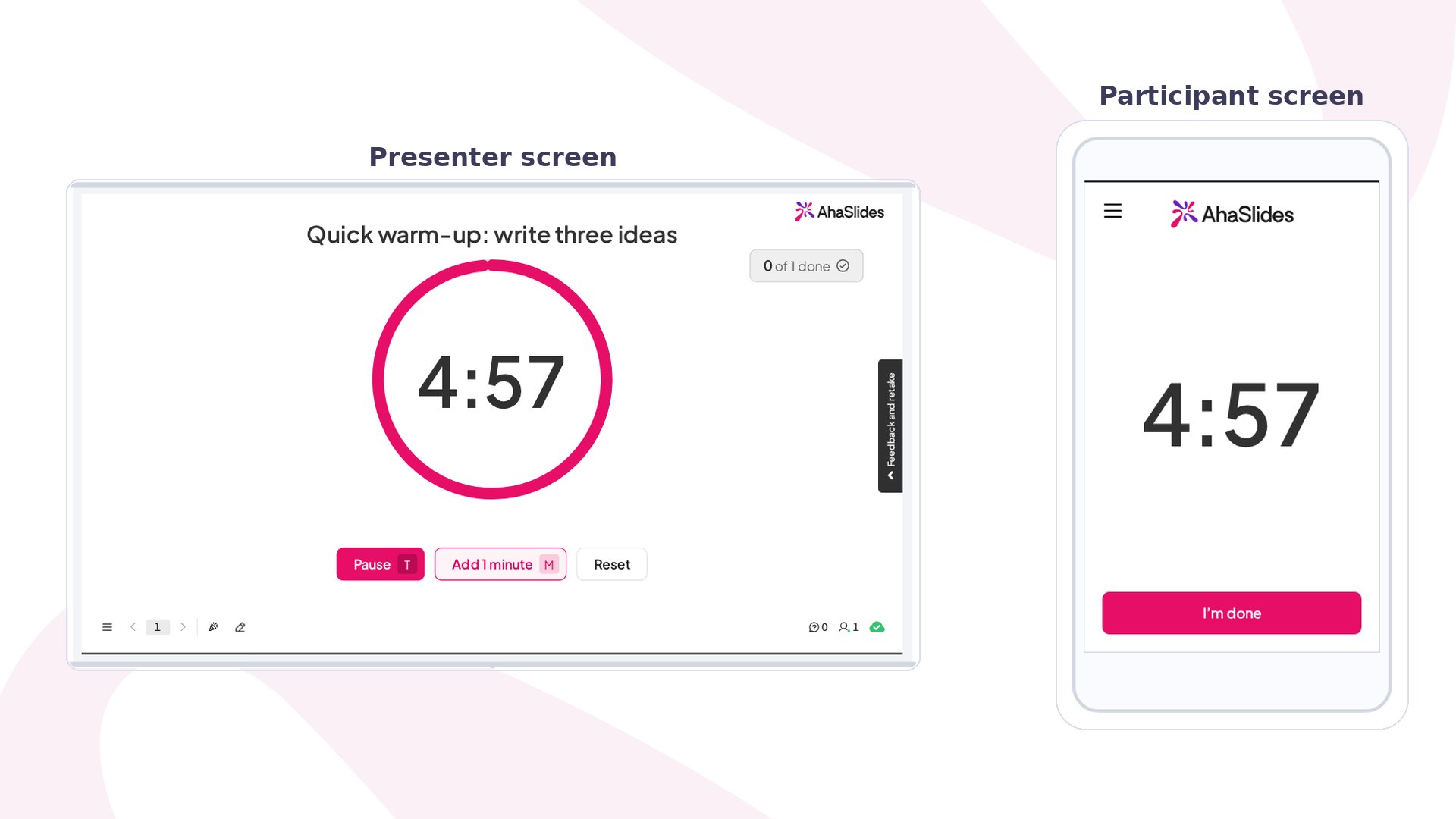
Timer at a glance
How to run Timer
1
Add the slide
In the editor, click New slide, then search for Timer or find it in the Content group. See Add a slide with the slide type picker if you haven’t used the picker before.
2
Name the activity
Type what people should do in Your question, for example “Quick warm-up: write three ideas”. It shows above the clock on your screen and on phones.
3
Set the time
Enter Duration (minutes) and Duration (seconds). A new slide starts at 5:00.
4
Choose a style
Pick a Timer style: Ring, Hourglass, Rocket race or Flip clock. Switch Music and sounds on or off to suit the room.
5
Start it live
Click Preview to try it, or Present and share the access code. When you reach the slide, press Start.
Present a Timer slide
Before you press Start, phones show “Waiting for the presenter” and your screen shows the full time. Once it’s running, both show the same countdown. While the clock runs, you have these controls on your screen:
The last 10 seconds are shown as a warning. When the time is up, the clock shows “Time’s up” and phones show it too. The Ring style shows the empty ring instead of text.
If I’m done button is on, each phone shows an I’m done button while the clock runs or is paused. After someone taps it they see “You’re done”. Your screen shows how many people have tapped, for example “3 of 12 done”, so you can end the activity early when most of the room has finished.
Timer settings
Changing a setting updates a clock that hasn’t started straight away. A clock that is already running keeps its time until you click Reset.
Use Timer in a self-paced presentation
In a self-paced presentation, each person gets their own countdown. It starts when they reach the slide, and if they reload on the same device it carries on from where it was. There are no presenter controls and no I’m done button.Ideas for using Timer
- Classes: give pairs five minutes to discuss a question, then bring the room back together when the clock ends.
- Workshops: time a brainstorm, a sketch sprint or a reading break, and use Add 1 minute when the energy is still high.
- Team meetings: keep updates, stand-ups and retros to time without anyone watching their own watch.
- Events: count down a coffee break so everyone is back in their seat on time.