

YouTube Quiz at a glance
Create a YouTube Quiz slide
1
Add the slide
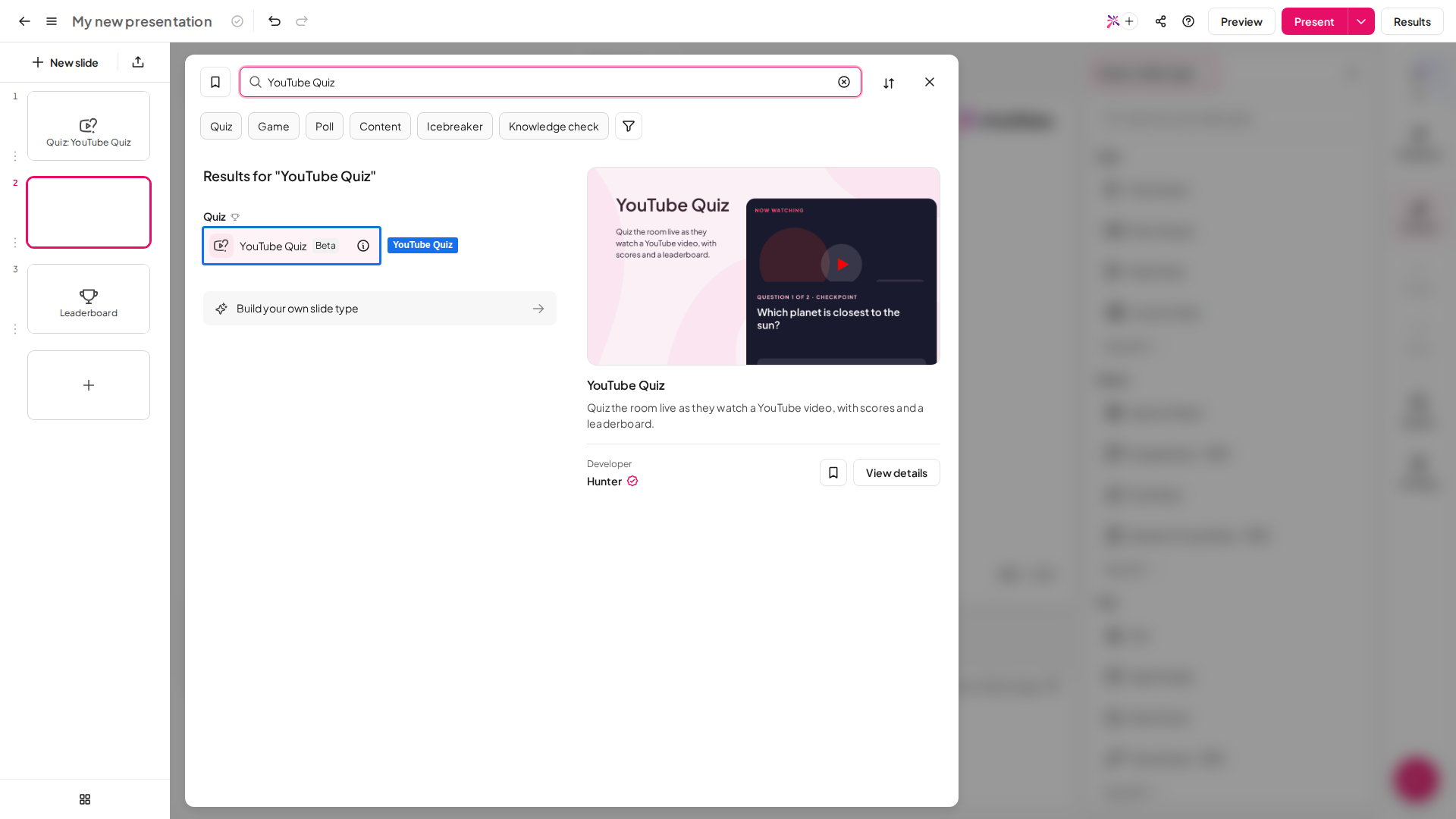
In the editor, click New slide, then search for YouTube Quiz or find it in the Quiz group. A leaderboard slide is added after it, so players see the final scores.
2
Paste a YouTube link
Paste the video’s address into Paste a YouTube link on the slide, or into YouTube video in the right panel. The panel then shows the video’s title and length. You can also give the quiz a Title, which is shown on the slide.
3
Trim the video
Switch the canvas to Trim & cut. Drag either end of the timeline to trim the start or the end. Select New cut to skip a part in the middle, then drag the cut or its edges. The bin removes a cut.
4
Pin your questions
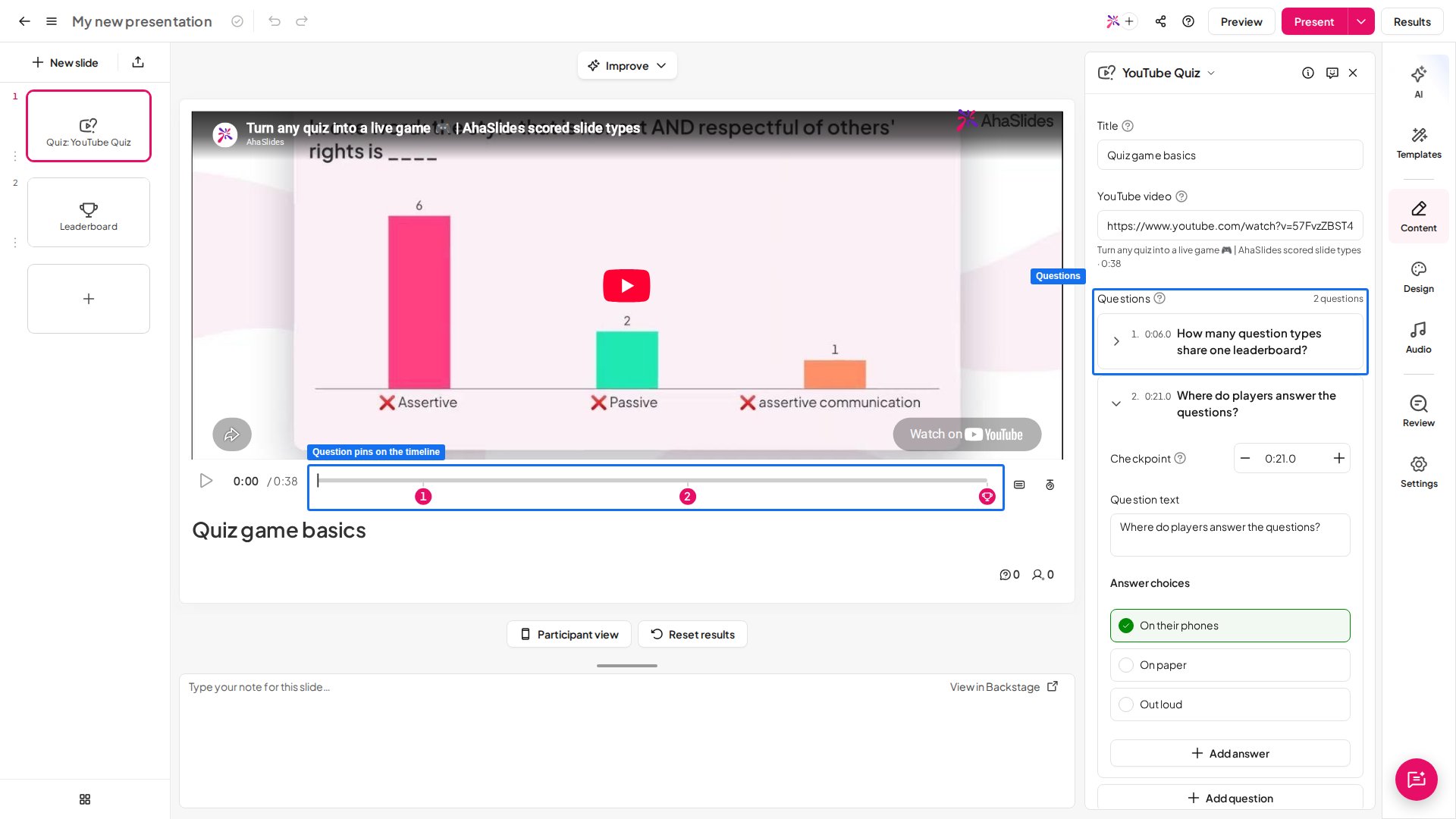
Switch back to Question. Pause the video where you want a question, then select Add question. A numbered pin appears on the timeline. You can also click the timeline at a moment, or use + Add question in the right panel.
5
Write each question
Click a pin to open its question. Type the Question text and the Answer choices, then mark the right answer with Mark as correct. Use + Add answer for more choices and Add image to put a picture on an answer. Checkpoint sets the moment the video pauses; the − and + buttons move it by a second.
Present a YouTube Quiz slide
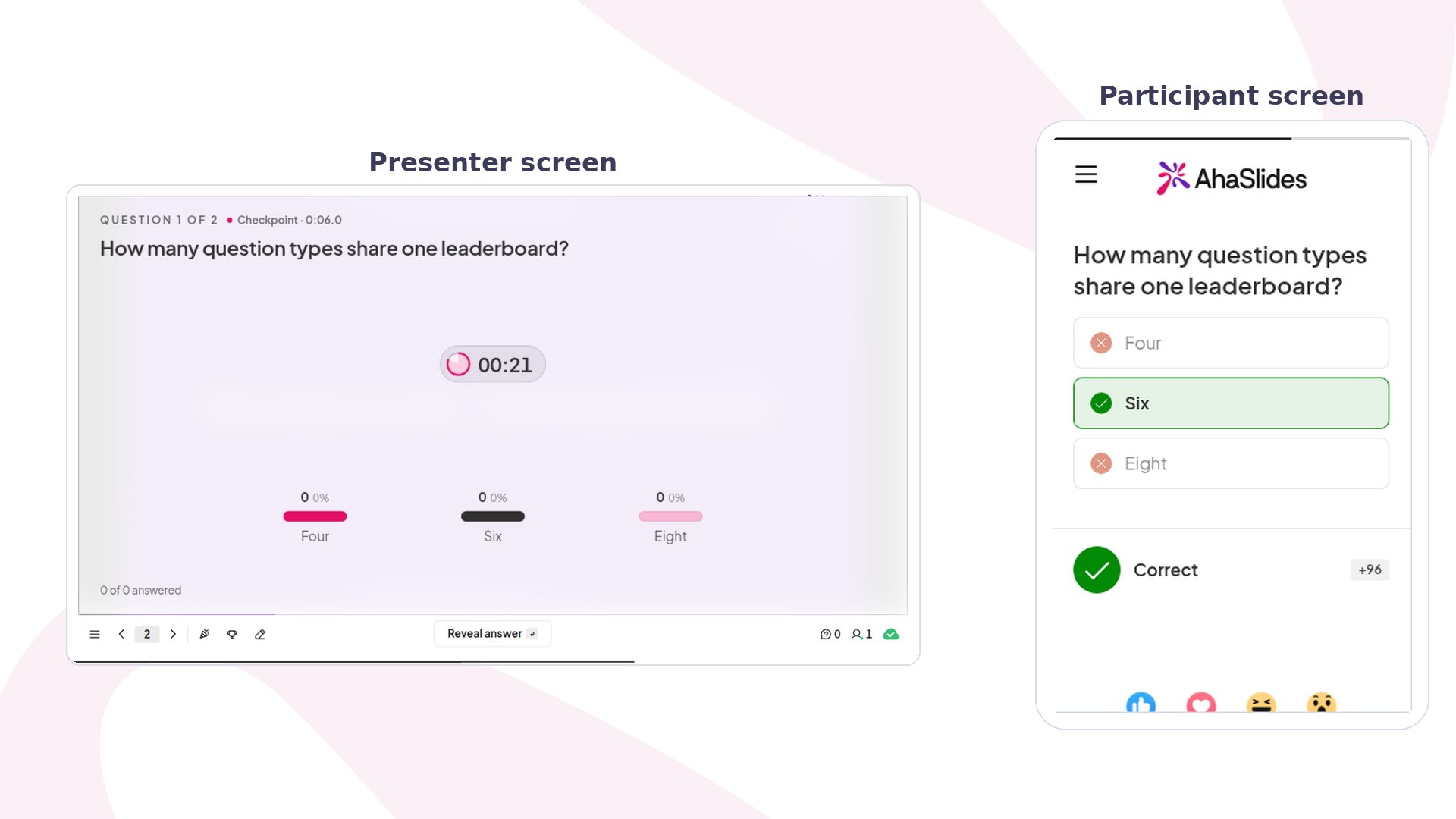
Click Preview to try it as a player first, then Present. Participants join with the access code on screen, and you click Start to play the video. While the video plays, players’ phones ask them to watch the main screen, and a chip on your screen counts down to the next question. At each checkpoint the video pauses and a short “Look at your device!” countdown runs. Then the question opens on both screens, with a timer and a live chart of the answers. Players pick an answer and tap Submit. When the timer ends or everyone has answered, the correct answer is revealed and each phone shows the points earned. You can also click Reveal answer to close the question early. The video then carries on to the next question, and the scores add up on the leaderboard after the video ends. YouTube may play ads in some videos. Play the video through once before you present, so an ad doesn’t interrupt your quiz.YouTube Quiz settings
The scoring settings apply to every question in the quiz. The leaderboard works as on every quiz slide: see quiz settings.
Ideas for using YouTube Quiz
- Training video: pin a question after each key step to check people followed it.
- Lesson recap: play a short explainer and ask about each idea as it comes up.
- Predict what happens next: pause just before a result and let players guess.
- Quiz night round: use a nature or science clip and ask what players spotted.
- Onboarding: turn a welcome video into a quick game for new starters.