

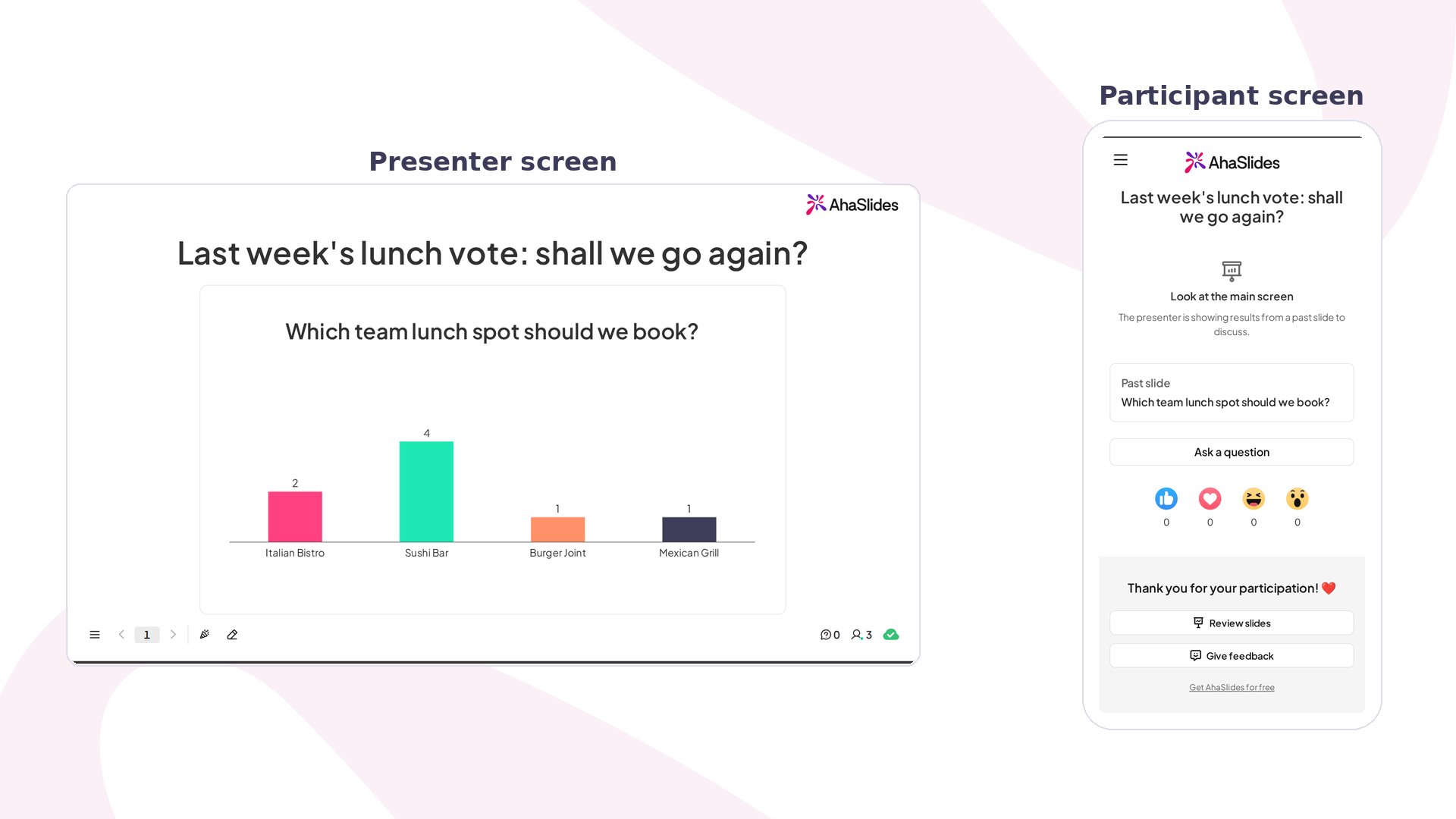
Look Back at a glance
Create a Look Back slide
1
Add the slide
In the editor, click New slide, then search for Look Back.
2
Pick the past slide
Under Presentation, search for and pick the presentation that has the results. Then, under Slide, pick the slide you want to look back at.
3
Ask your question
In Your question, type what you want to discuss, such as “Last week’s lunch vote: shall we go again?”.
4
Place the results
On the slide, drag the results to move them, drag a corner to resize them, or double-click to centre them.
Present a Look Back slide
Click Preview to try it, or Present and share the access code. On your screen, the past slide’s results appear under your question, with “From” and the name of the presentation they came from. On their phones, participants see “Look at the main screen” and the title of the past slide, so everyone knows what you are discussing. The results show on your screen only. They are not added to this session’s report, and participants taking the presentation at their own pace see a short note in their place.Look Back settings
Ideas for using Look Back
- Follow-up meeting: show last week’s poll and ask the team whether anything has changed.
- Before and after: at the end of a course, look back at the quiz from the first day, then run it again to compare.
- Retro: bring back the ideas from last sprint’s brainstorm and check which ones happened.
- Workshop recap: start day two with the word cloud from day one.