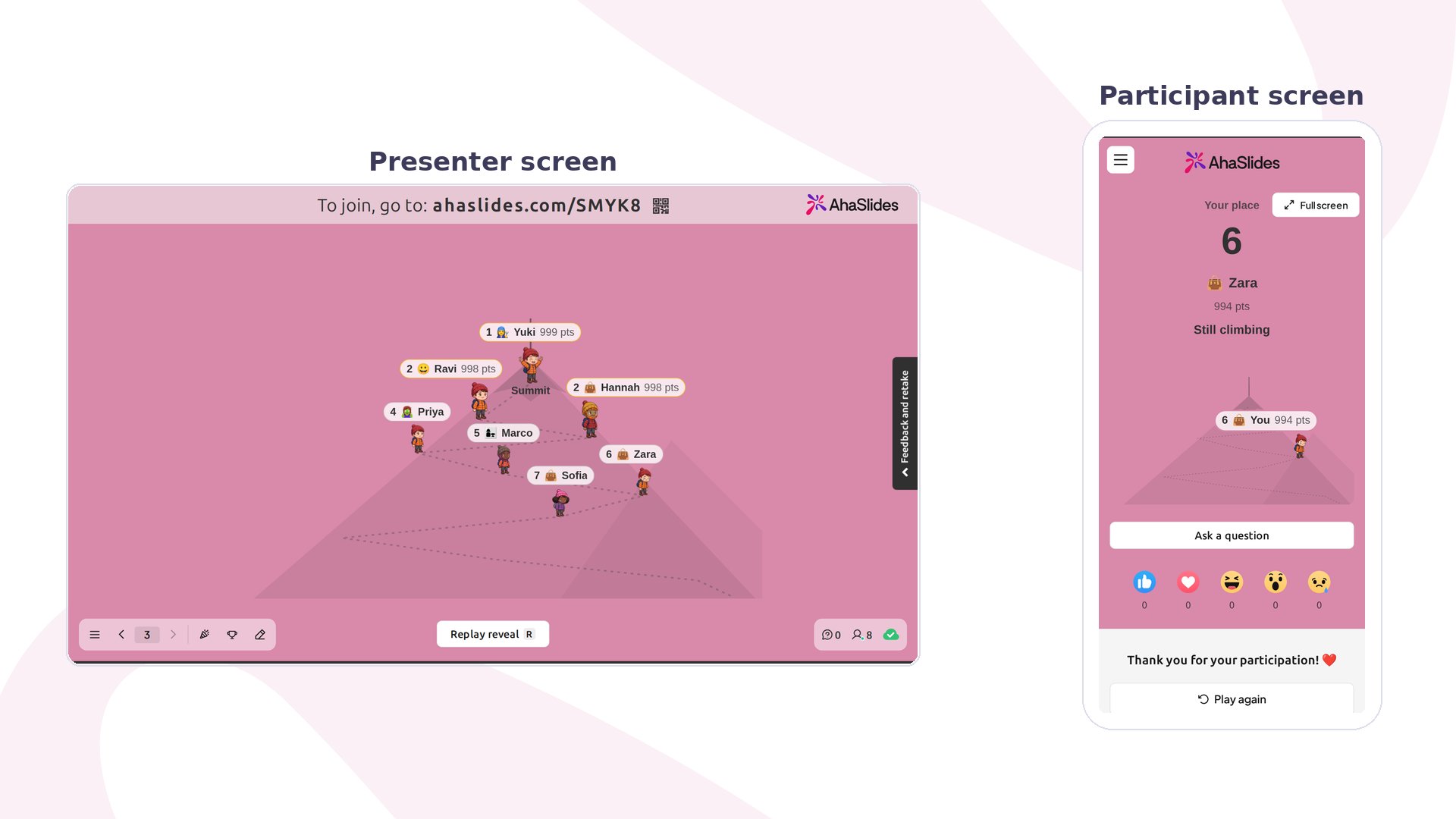
Themed Leaderboard shows the top 10 players of your quiz as a scene on the big screen: climbers on a mountain, performers on an idol stage or colleagues on a corporate ladder. You reveal the places one at a time, from 10th to 1st, so the room waits for the winner. Prefer a plain scoreboard? Switch to Classic bars. It is currently in Beta.
AhaSlides Themed Leaderboard: the presenter screen shows seven players climbing a mountain by rank beside a phone showing the player's place

Themed Leaderboard at a glance

How to run Themed Leaderboard

  1. Add one or more scored quiz slides, such as Pick Answer or True or False. The leaderboard ranks players by the points they earn on them.
  2. Click New slide and choose Themed Leaderboard. If you can’t see it, it isn’t available on your account yet.
  3. Under Leaderboard theme, pick Mountain climb, Idol contest, Corporate ladder or Classic bars. The editor shows sample names so you can preview each theme. Real players appear when you present.
  4. Click Present. Run your quiz questions, then move to the Themed Leaderboard slide.
  5. Click Reveal next to show one place at a time, starting from 10th, or Reveal all to play the whole reveal in one go. Once every place is shown, Replay reveal plays it again.
Players who tie on points share the same place, and the next place is skipped. Each player’s phone shows their own place and points.

Themed Leaderboard settings

Ideas for using Themed Leaderboard

  • Classrooms and revision: end a review quiz with a reveal that makes the top spots feel earned.
  • Team training: use Corporate ladder for a light-hearted wrap-up after a product knowledge quiz.
  • Events and workshops: use Idol contest to close a trivia round with a moment of suspense.
  • Formal sessions: choose Classic bars when you want clear scores without a scene.

Themed Leaderboard vs. Leaderboard

  • Leaderboard: the Leaderboard is added after your quiz questions and lists your players with their running total points.
  • Themed Leaderboard: shows the top 10 only and reveals them place by place in a themed scene.

Frequently asked questions

Do I need a quiz slide first?

Yes. The leaderboard has no points of its own. It ranks players by the points they earned on your scored quiz slides, so without any it shows a waiting message.

Why isn’t my player on the board?

The board shows the top 10 players who have points. Players with no points don’t appear, and anyone below 10th place isn’t shown.

Can I change the theme after I’ve added the slide?

Yes. Pick another option under Leaderboard theme at any time before you present.

Why can’t I see Themed Leaderboard in the slide type picker?

Themed Leaderboard is in Beta and isn’t available on every account yet. Once it is on for your account, it appears in the Game section. Have a question? Contact our support team: if you’re logged in, use the chat bubble in the bottom-right of your dashboard; otherwise contact us here or email hi@ahaslides.com. Want to connect with other users? Join the AhaSlides community to share tips, request features, and see how others engage their audiences.