

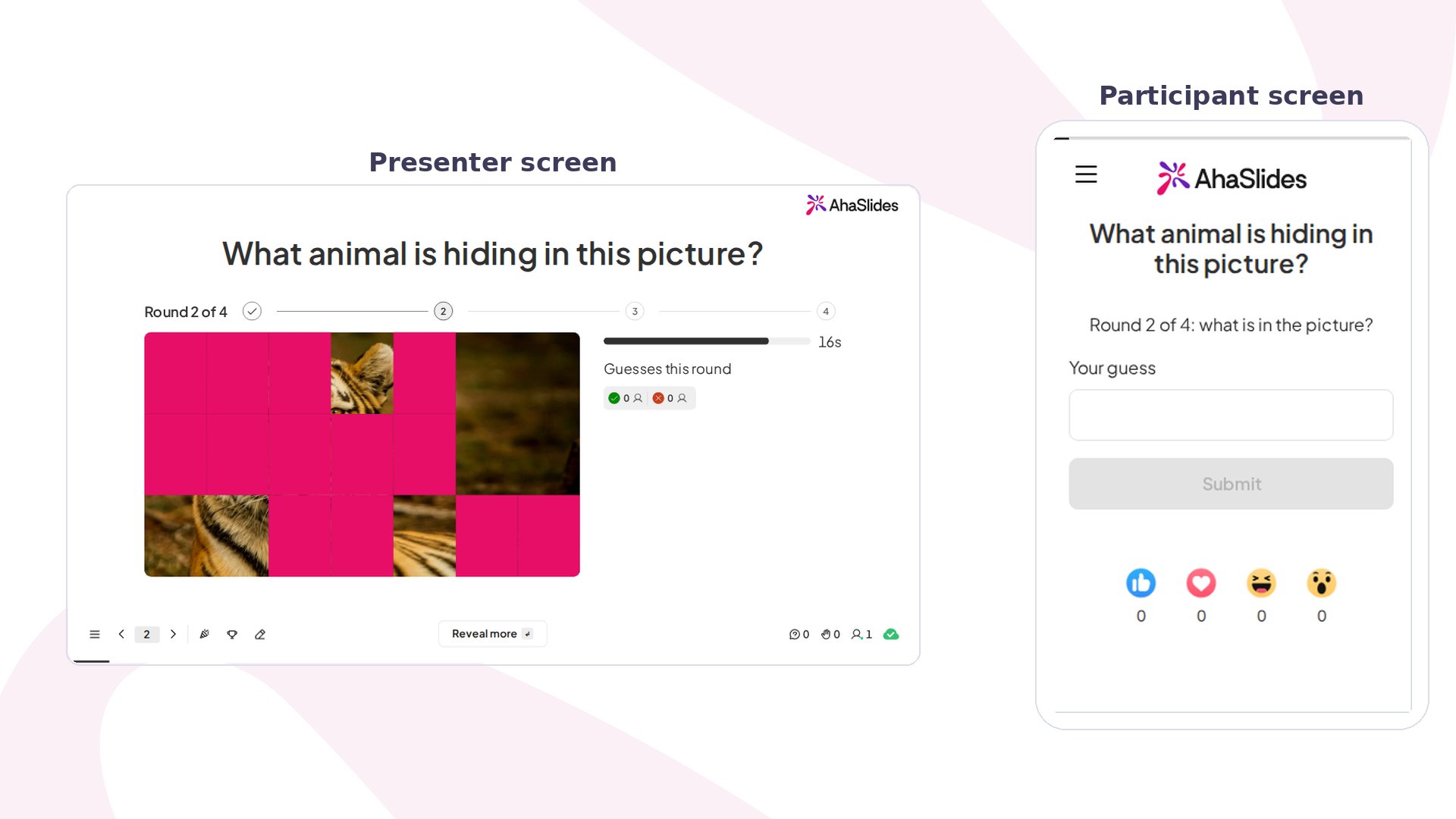
Guess the image at a glance
Create a Guess the image slide
1
Add the slide
In the editor, click New slide, then search for Guess the image.
2
Choose the picture
In Image, add the picture to hide (PNG, JPG, GIF or WebP). Pick one that people can name in a word or two, such as an animal, a fruit or an everyday object. A picture with one telling detail works well, and one with a plain background reveals too little in the early rounds.
3
List the accepted answers
In the Content tab, under Accepted answers, type what counts as right, with the clearest wording first. That first answer is the one shown on screen at the end. Add other real names people might use, such as “Red panda” and “Lesser panda”, up to 10. Capital letters, accents and one small typo are forgiven, so don’t add variants of those.
4
Pick the reveal style, steps and time
Choose how the picture is uncovered: Tiles, Pixelate, Zoom out (starts from one detail and pulls back) or Spotlight. Then set Reveal steps and Time per round. More steps make a harder game, because the first rounds show very little.
Present a Guess the image slide
Click Preview to try it, or Present and share the access code. On your screen, the picture starts mostly hidden and shows more with every round, while the clock counts down. Each round ends when time runs out, or when you press Reveal more to move on early. Then:- If anyone guessed right, the game ends there. The screen shows the full picture, the answer and a winners board with up to 5 names, fastest first.
- If nobody did, the next round shows more of the picture.
- If nobody gets it by the last step, the screen shows the full picture and the answer with “Nobody got it this time!”.
How Guess the image scores
A correct guess scores more the earlier the round. Speed within the round does not matter.
Points add to the leaderboard like other scored slides. To show the leaderboard right after this slide, keep Leaderboard after this slide on in the Content tab, which it is by default.
Guess the image settings
Ideas for using Guess the image
- Icebreaker: use a picture of a pet or an object from your own desk and let the team guess whose it is.
- Quiz night: put several slides in a row, one picture each, with Pixelate for a quick round.
- Classroom revision: hide a diagram or an object from the topic and let students name it, such as a plant cell or a telescope.
- Team event: pick a different reveal style for each slide so every round feels new.