

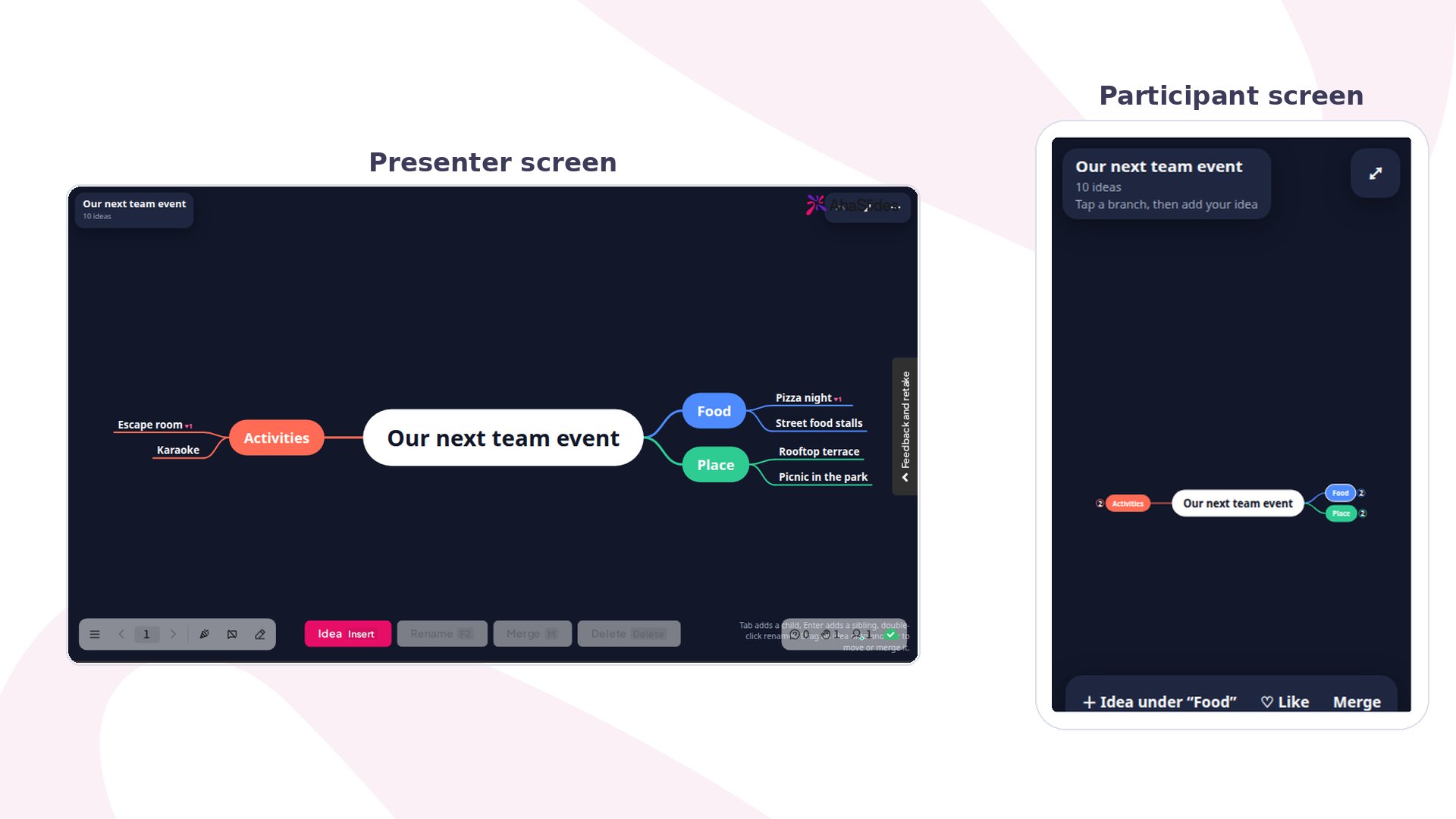
Mind Map at a glance
Create a Mind Map slide
1
Add the slide
In the editor, click New slide, then search for Mind Map or find it in the Poll group.
2
Set the centre idea
Type the topic in Centre idea, for example “Ideas for our next event” or “The water cycle”. It sits in the middle of the map. If you leave Your question empty, the centre idea is also the title on screen.
3
Add starting ideas
Under Starting ideas, type the first branches, such as “Food”, “Activities” and “Place”. Use Add another idea for more. Starting ideas give people somewhere to build, so a map with three or four branches fills faster than a bare centre.
4
Turn on the profanity filter if you need it
Under Other settings, turn on Filter profanity to hide offensive words in ideas sent from phones.
Present a Mind Map slide
Click Preview to try it, or Present and share the access code. On your screen, the map shows the centre idea with a coloured branch for each starting idea. New ideas grow onto the map as they arrive, with the sender’s name shown briefly, and the title card counts the ideas. You can tidy the map as you go with the bar at the bottom:- Idea adds an idea under the one you selected. Tab adds one under it, and Enter adds one beside it.
- Rename edits the selected idea, or double-click it.
- Merge joins two ideas that say the same thing. You can also drag one idea onto another to move or merge it.
- Delete removes the selected idea. Ideas built on it move up to the idea above.
Mind Map settings
Ideas for using Mind Map
- Team brainstorm: start from “Ideas for our next event” with branches for food, activities and place.
- Workshop kick-off: put the workshop goal in the centre and ask “What do we need to get there?”.
- Class topic map: map what students already know about a topic, such as volcanoes or healthy eating, before you teach it.
- Planning a project: give each workstream a branch and let the team add tasks and risks under it.