

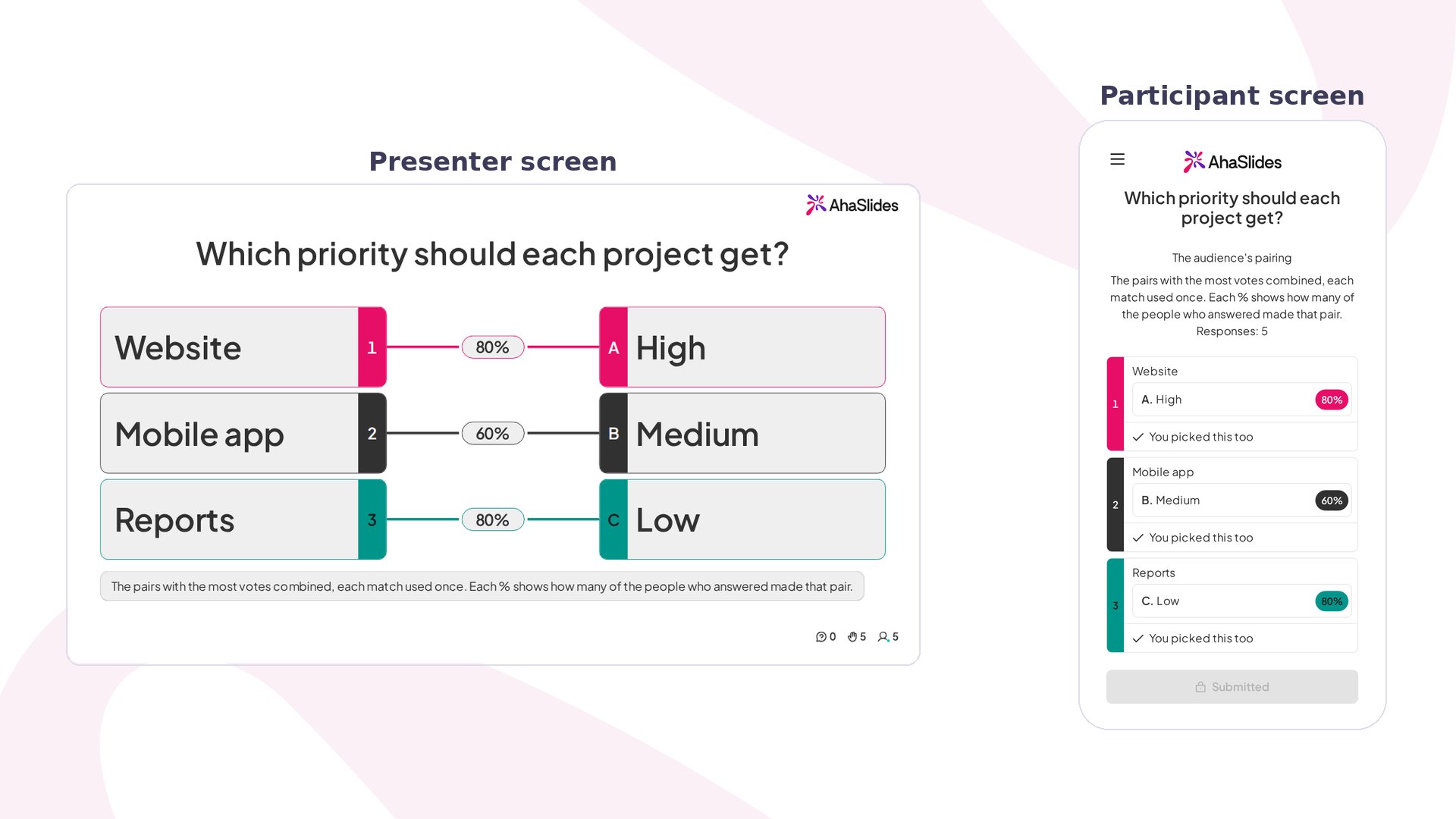
Matching Poll at a glance
Create a Matching Poll slide
1
Add the slide
In the editor, click New slide, then search for Matching Poll or find it in the Poll group.
2
Ask your question
Type it in Your question, for example “Which priority should each project get?”.
3
Name the two columns
Under Column A and Column B, give each a Column header of up to 30 characters, such as “Project” and “Priority”. The headers help participants see what they are pairing.
4
Add the items and matches
Fill in Items in Column A and Matches in Column B, for example “Website”, “Mobile app” and “Reports” against “High”, “Medium” and “Low”. Each one needs text or an image. Use Add item and match for another pair, up to 4. Pairs you leave empty are not shown to the audience, and the slide needs at least 2 complete pairs to start.
Present a Matching Poll slide
Click Preview to try it, or Present and share the access code. On each phone, participants see every item with a Match with… list. Each match can go to only one item, so picking a match that another item already has moves it across and marks it as taken. Once every item has a match, they tap Submit. Answers can’t be changed after that. On your screen, the two columns appear with “Waiting for answers…” until the first answers come in. Then each item is linked to a match, with a percentage showing how many of the people who answered made that pair. The pairing shown is the one with the most votes combined, and each match is used once. If two pairings get the same number of votes, the pair is marked Tie and the one first in letter order is shown. After submitting, participants see the same pairing on their phone, with “You picked this too” or the match they chose instead.Matching Poll settings
Once answers have come in, the items and matches are locked. Reset the slide’s results to change them.
Ideas for using Matching Poll
- Team planning: pair projects with priorities, or tasks with the team member who should own them.
- Workshops: match challenges with the fix the group thinks works best.
- Classes: ask students to pair characters with traits, or terms with examples, then talk through the pairs the class split on.
- Events and socials: match team members with a superpower, or colleagues with their desk snack.