

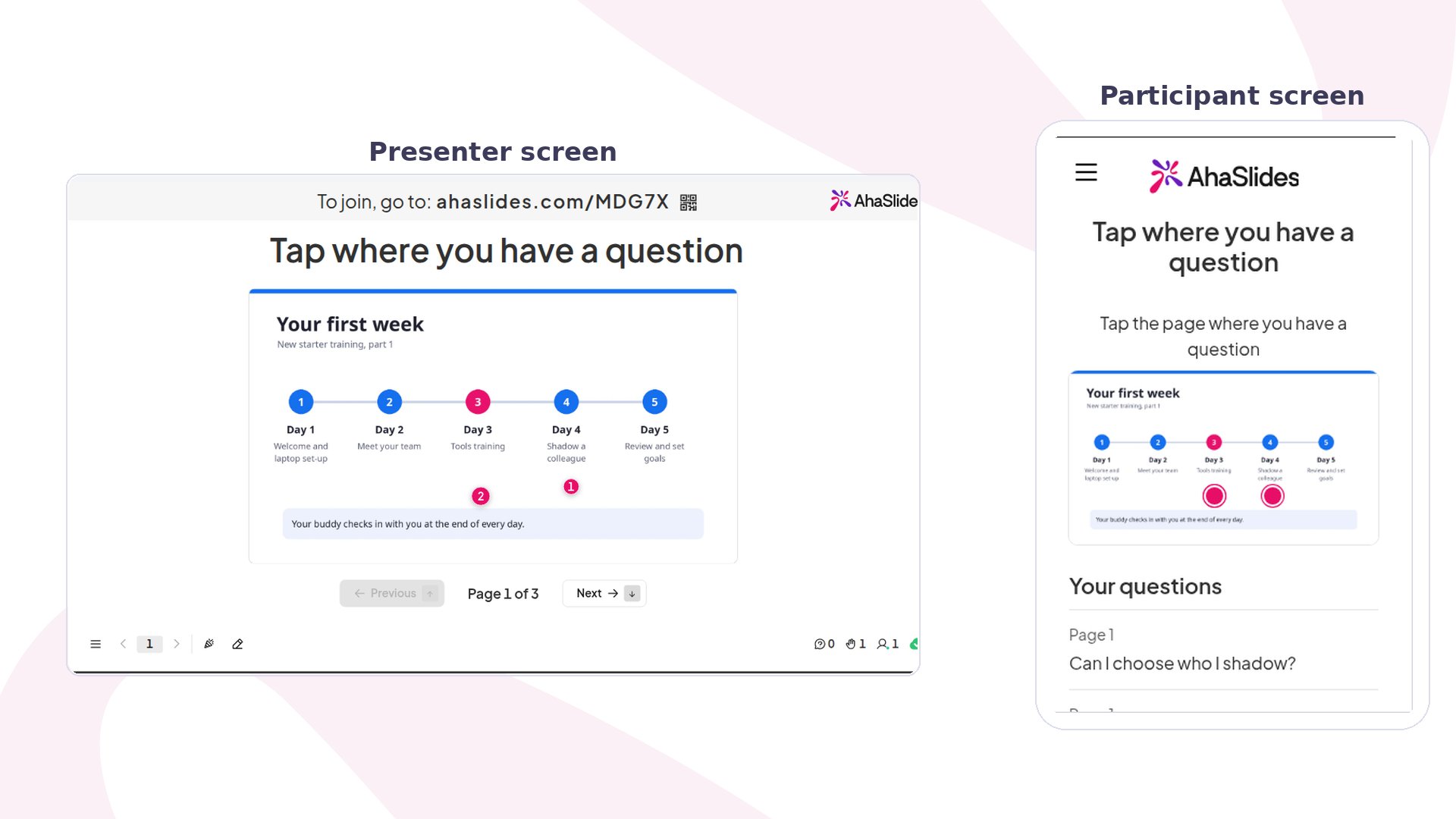
Ask on Page at a glance
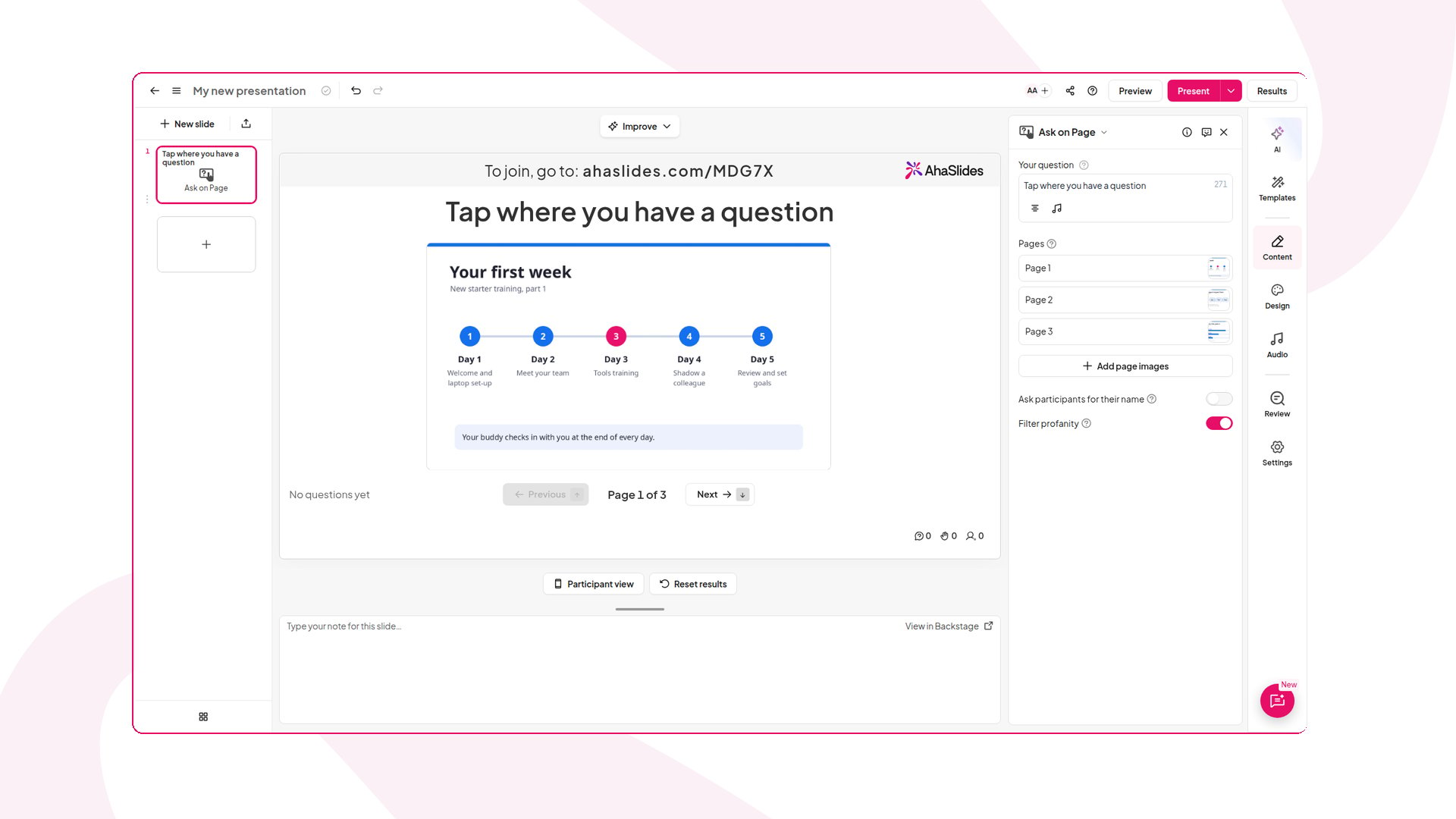
Create an Ask on Page slide
1
Add the slide
Click New slide and choose Ask on Page. Type an instruction in Your question, such as “Tap where you have a question”.
2
Add your pages
Click Add page images and upload up to 10 images. Each image becomes one page, in the order shown under Pages. Using PowerPoint, Keynote or a PDF? Export the pages as images (PNG or JPG) first, then add them here.
3
Choose how questions are sent
Turn on Ask participants for their name if you want to know who asked each question. Leave it off to keep questions anonymous.
Present an Ask on Page slide
On the presenter screen- Click Present. The first page appears with No questions yet until someone asks.
- Use Previous and Next to change page. Participants’ phones follow the page you show.
- Each question appears as a marker at the spot it was asked. Questions asked close together share one marker, and the number on it shows how many are still open.
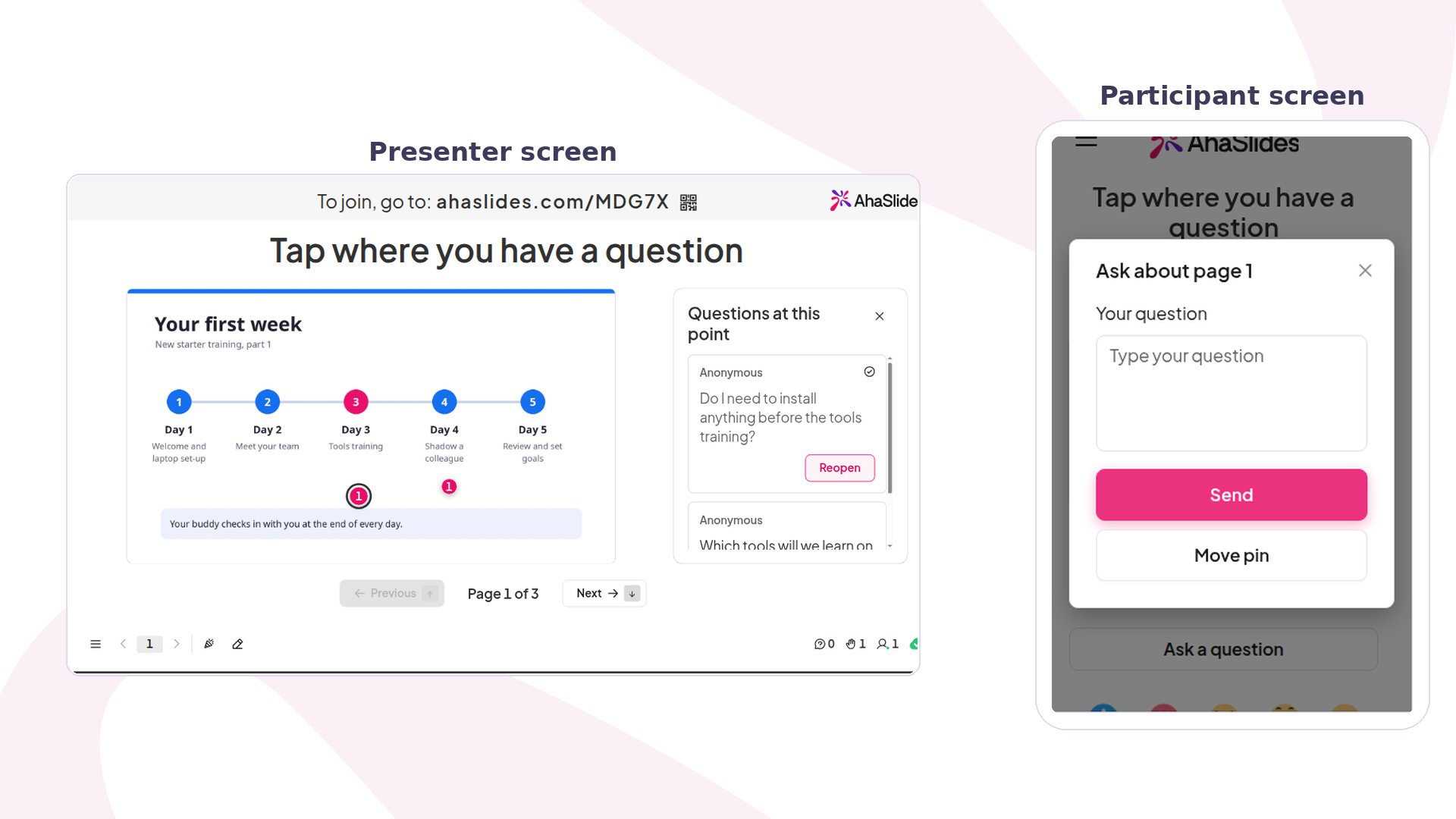
- Click a marker to open Questions at this point, with the newest question first. Each question shows the participant’s name, or Anonymous.
- Click Mark as answered once you have answered it. The marker count goes down, and a tick shows when every question at that point is answered. Click Reopen to undo it.
- The participant sees the same page with Tap the page where you have a question.
- They tap the spot, type their question in the form that opens, then tap Send. To change the spot, they tap Move pin, drag the pin and tap it again.
- Their questions appear under Your questions, with a tick once you mark them as answered.
Ask on Page settings
Ideas for using Ask on Page
- Training and onboarding: show a process diagram or a first-week plan and let new starters point at the step they don’t understand.
- Classrooms: put a worksheet or a labelled diagram on screen so students can ask about a specific part without saying it out loud.
- Product and design reviews: share a screen mock-up and collect questions on the exact button or section they refer to.
- Policy walk-throughs: show a page of a policy or a form, and answer questions line by line.
Ask on Page vs. Q&A
- Ask on Page: each question is pinned to a spot on a page you show, and you mark questions as answered. There is no upvoting.
- Q&A: Q&A collects questions in one list that participants can upvote, which suits a general question session.