

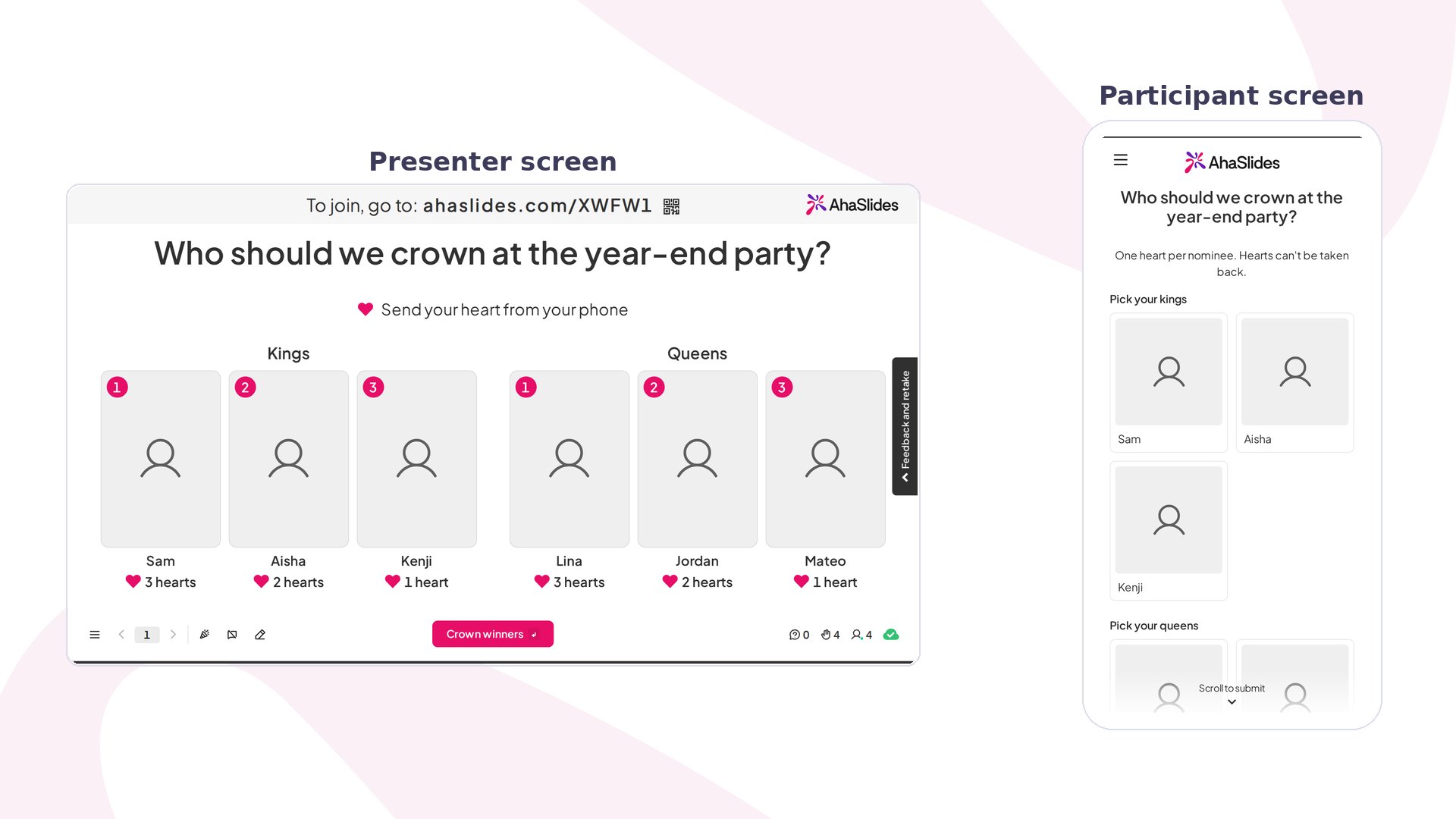
King & Queen at a glance
How to run King & Queen
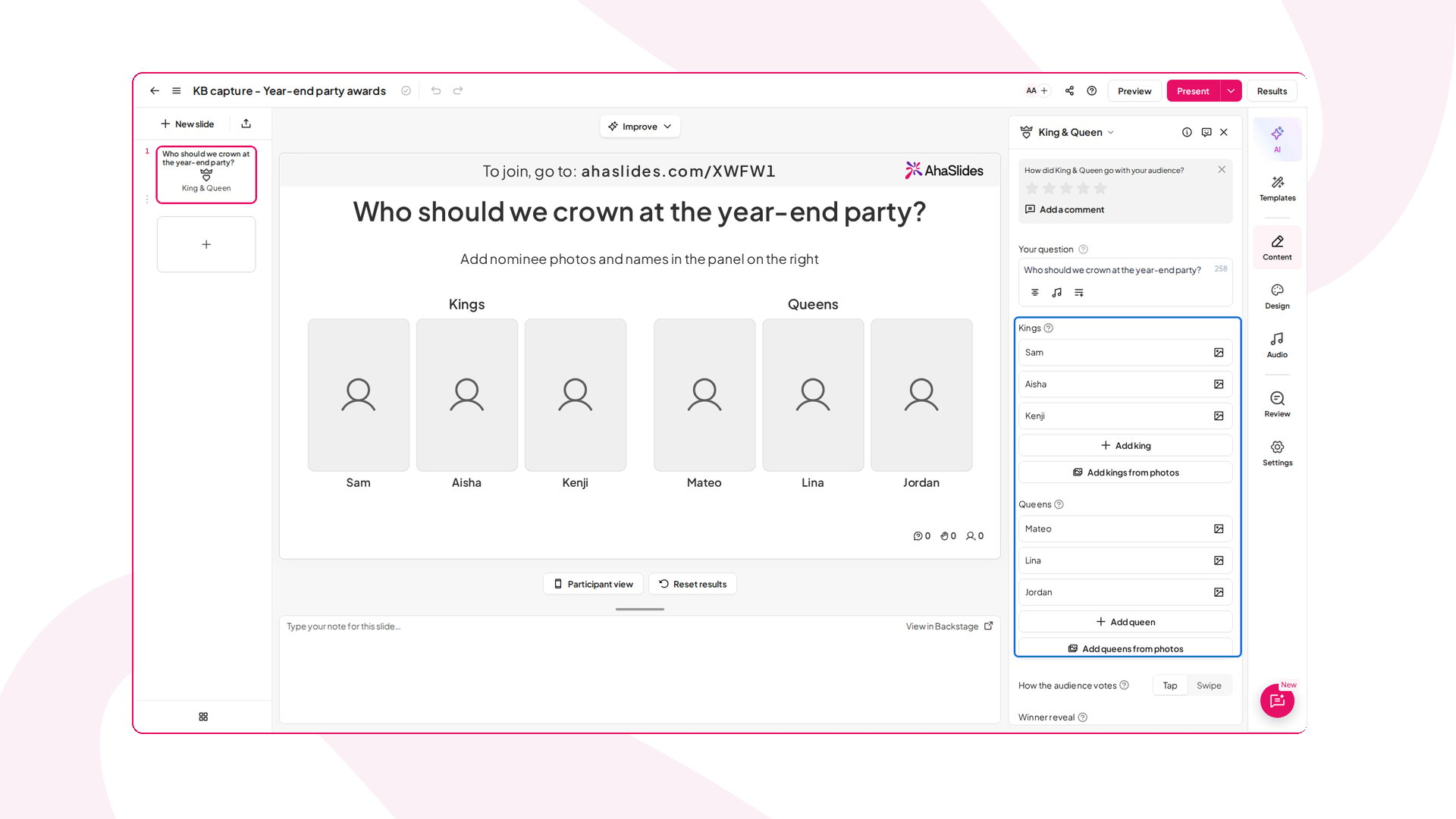
- In the editor, click New slide, then search for King & Queen.
- Type your question, such as “Who should we crown at the year-end party?”.
- Under Kings and Queens, type a name for each nominee. Click the photo icon on a row to add a photo, or use Add kings from photos and Add queens from photos to add several at once: each photo adds a nominee, named after its file. Kings and Queens are only group names, so anyone can be in either group. If you leave a group empty, it is hidden.
- Click Present and share the access code. Each participant taps the nominees they like and presses Send hearts. They can send one heart to each nominee, and a heart can’t be taken back.
- The big screen shows the top 3 nominees in each group, with their hearts, as votes come in.
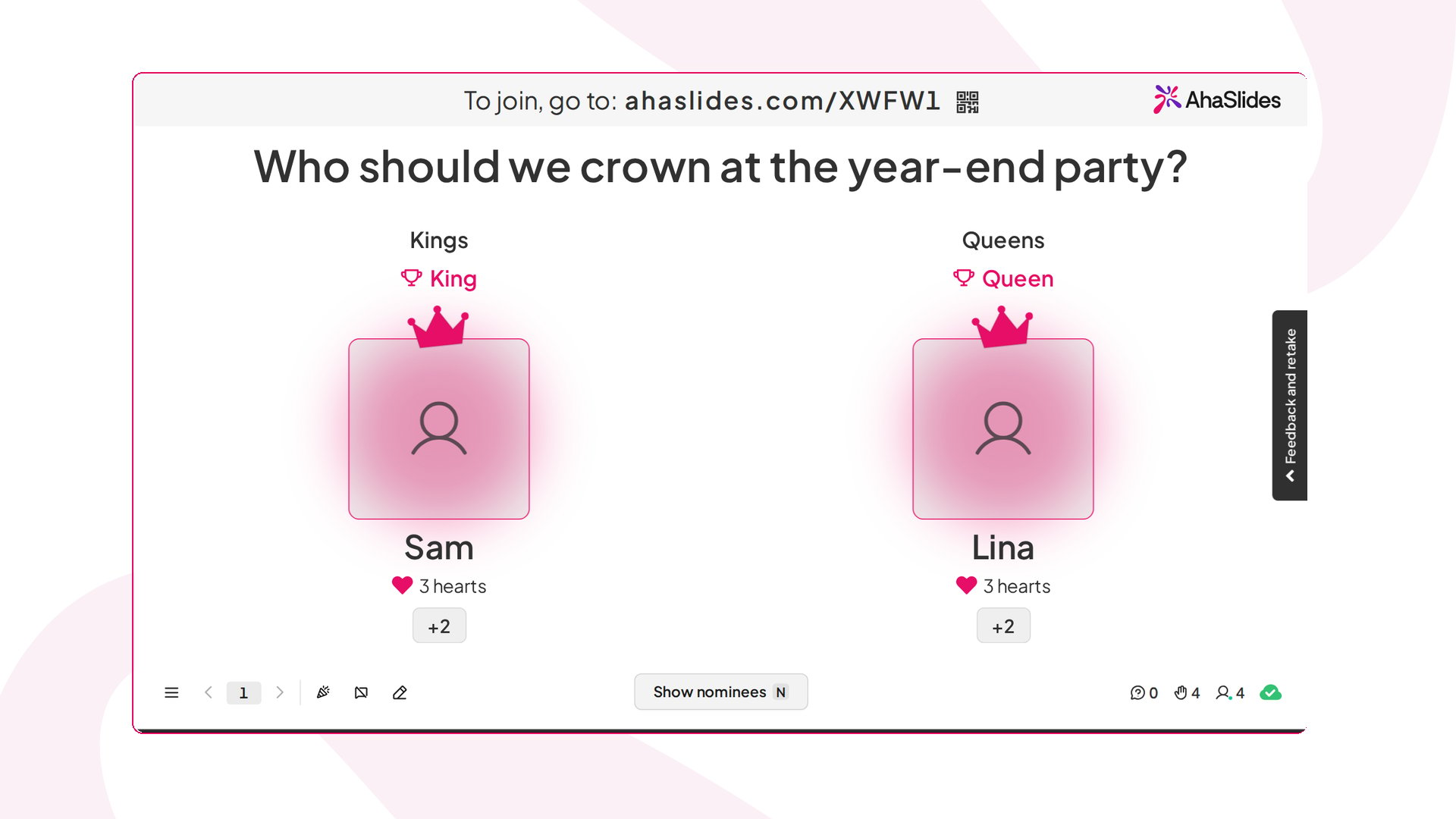
- Click Crown winners (or press Enter). The nominee with the most hearts in each group is crowned. Click Show nominees (or press N) to go back to the full list.
King & Queen settings
Nominees are locked once voting starts. To change them, click Reset results under the slide in the editor.
Ideas for using King & Queen
- Year-end party: crown the colleagues who made the year more fun, one group for each team.
- Classroom awards: let students crown the best project and the best presentation of the term.
- Event wrap-up: put the speakers in one group and the workshops in the other, and crown a favourite of each.
- Team building: add a photo of each nominee and let the room cheer as the hearts come in.